
User Manual

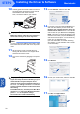
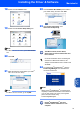
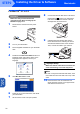
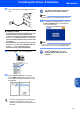


Table Of Contents
- Quick Setup Guide MFC-640CW
- Table of Contents
- Getting Started
- STEP1 Setting Up the Machine
- 1 Removing the protective parts
- 2 Installing the handset
- 3 Loading paper
- 4 Installing the phone line and power cord
- 5 Set Your Country (For Australia / New Zealand Customer Only)
- 6 Installing the ink cartridges
- 7 Print quality check
- 8 Setting the date and time
- 9 Setting your station ID
- 10 Choosing a Receive Mode
- 11 Setting up the TAD
- STEP2 Installing the Driver & Software
- For Network Users
- Consumables and Options
- brother ARL/ASA/NZ

Installing the Driver & Software
37
Macintosh
®
Wireless
Network
Macintosh
®
20 Click Browse.
21 Choose your model name, and then click OK.
22 Click Go, then Applications.
23 Double-click the Utilities folder.
24 Double-click the Printer Setup Utility icon.
Note
For Mac
®
OS X 10.2.x users, open Print Center.
25 Click Add.
26 Make the selection shown below. (For Mac
®
OS X 10.2.4 to 10.3 users)
Note
For Mac
®
OS X 10.4 users, go to step 27.
27 Choose Brother MFC-XXXX (where XXXX is
your model name), and then click Add.
See Chapter 6 of the Network User’s Guide
on the CD-ROM.
28 Click Printer Setup Utility, then
Quit Printer Setup Utility.
The MFL-Pro Suite, Printer Driver,
Scanner Driver and ControlCenter2 have
been installed.