
User Manual


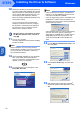


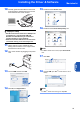


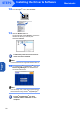
Table Of Contents
- Quick Setup Guide MFC-640CW
- Table of Contents
- Getting Started
- STEP1 Setting Up the Machine
- 1 Removing the protective parts
- 2 Installing the handset
- 3 Loading paper
- 4 Installing the phone line and power cord
- 5 Set Your Country (For Australia / New Zealand Customer Only)
- 6 Installing the ink cartridges
- 7 Print quality check
- 8 Setting the date and time
- 9 Setting your station ID
- 10 Choosing a Receive Mode
- 11 Setting up the TAD
- STEP2 Installing the Driver & Software
- For Network Users
- Consumables and Options
- brother ARL/ASA/NZ

Installing the Driver & Software
25
Macintosh
®
USB
Macintosh
®
10 Carefully guide the USB cable into the trench
as shown below, following the trench around
and toward the back of the machine.
Improper Setup
• DO NOT connect the machine to a USB port on
a keyboard or a non-powered USB hub.
Brother recommends that you connect the
machine directly to your computer.
• Make sure that the cable does not restrict the
cover from closing, or an error may occur.
11 Lift the scanner cover to release the lock.
Gently push the scanner cover support down
and close the scanner cover.
12 Turn on the machine by plugging in the power
cord.
13 Choose USB and then click OK.
14 Click GO, then Applications.
15 Double-click the Utilities folder.
16 Double-click the Printer Setup Utility icon.
Note
For Mac
®
OS X 10.2.x users, open Print Center
icon.
17 Click Add.
18 Choose USB. (For Mac
®
OS X 10.2.4 to 10.3
users)
Note
For Mac
®
OS X 10.4 users, go to step 19.