
User Manual


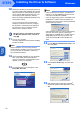


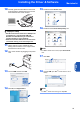


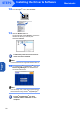
Table Of Contents
- Quick Setup Guide MFC-640CW
- Table of Contents
- Getting Started
- STEP1 Setting Up the Machine
- 1 Removing the protective parts
- 2 Installing the handset
- 3 Loading paper
- 4 Installing the phone line and power cord
- 5 Set Your Country (For Australia / New Zealand Customer Only)
- 6 Installing the ink cartridges
- 7 Print quality check
- 8 Setting the date and time
- 9 Setting your station ID
- 10 Choosing a Receive Mode
- 11 Setting up the TAD
- STEP2 Installing the Driver & Software
- For Network Users
- Consumables and Options
- brother ARL/ASA/NZ

Installing the Driver & Software
23
Windows
®
Wireless
Network
Windows
®
17 The installation of PaperPort
®
9.0SE will
automatically start and is followed by the
installation of MFL-Pro Suite.
18
When the Brother MFL-Pro Suite Software
License Agreement window appears, click
Yes
if
you agree to the Software License Agreement.
19 The installation of the Brother drivers will
automatically start. The installation screens
appear one after another, please wait for a
while.
Improper Setup
• DO NOT try to cancel any of the screens during
this installation.
• If your wireless settings fail, an error message
will appear during the installation of MFL-Pro
Suite and the installation will be terminated. If
you encounter this failure, please go to step
13 and setup the wireless connection again.
20 Choose the machine from the list, and then
click Next.
Note
This window will not appear if there is only one
machine connected on the network as it will be
chosen automatically.
21 When the Brother and ScanSoft on-line
Registration screen is displayed, make your
selection and follow the on-screen instructions.
22 Click Finish to restart your computer.
(For Windows
®
2000 Professional/XP, you
must be logged on with Administrator rights.)
Note
After restarting the computer, the Installation
Diagnostics will run automatically. If the
installation is unsuccessful, the installation results
window will be shown. If the Diagnostics shows a
failure please follow the on-screen instruction or
read on-line help and FAQ’s in Start/All Programs/
Brother/MFL–Pro Suite MFC–XXXX.
The MFL-Pro Suite including Brother
Network Printer driver, Network Scanner
driver and Network PhotoCapture
Center™ have been installed and the
installation is now complete.