USER’S GUIDE MFC-640CW
If you need to call Customer Service Please complete the following information for future reference: Model Number: MFC-640CW Serial Number:* Date of Purchase: Place of Purchase: * The serial number is on the back of the unit. Retain this User’s Guide with your sales receipt as a permanent record of your purchase, in the event of theft, fire or warranty service. Register your product on-line at http://www.brother.
THIS EQUIPMENT IS DESIGNED TO WORK WITH A TWO WIRE ANALOGUE PSTN LINE FITTED WITH THE APPROPRIATE CONNECTOR. APPROVAL INFORMATION Brother advises that this product may not function correctly in a country other than where it was originally purchased, and does not offer any warranty in the event that this product is used on public telecommunication lines in another country. Compilation and Publication Notice Under the supervision of Brother Industries Ltd.
ii
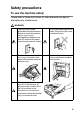
Safety precautions To use the machine safely Please refer to these instructions for later reference and before attempting any maintenance. WARNING There are high voltage electrodes inside the machine. Before you clean the machine, make sure you have unplugged the telephone line cord first and then the power cord from the electrical socket. Do not handle the plug with wet hands. Doing this might cause an electrical shock.
WARNING ■ Use caution when installing or modifying telephone lines. Never touch telephone wires or terminals that are not insulated unless the telephone line has been disconnected at the wall socket. Never install telephone wiring during a lightning storm. Never install a telephone wall socket in a wet location. ■ This product must be installed near an electrical socket that is easily accessible.
Choosing a location Place your machine on a flat, stable surface that is free of vibration and shocks, such as a desk. Put the machine near a telephone socket and a standard, grounded electrical socket. Choose a location where the temperature remains between 10° and 35°C. Caution ■ Avoid placing your machine in a high-traffic area. ■ Avoid placing your machine on the carpet. ■ Do not place near heaters, air conditioners, water, chemicals, or refrigerators.
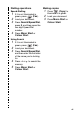
Quick Reference Guide Sending faxes Automatic Transmission 1 If it is not illuminated in green, press (Fax). 2 Load your document. 3 Enter the fax number using Speed-Dial, Search or the dial pad. 4 Press Mono Start or Colour Start. Storing numbers Storing Speed-Dial numbers 1 Press Menu/Set, 2, 3, 1. 2 Using the dial pad, enter a two-digit Speed-Dial location number, and then press Menu/Set. 3 Enter a number (up to 20 digits), and then press Menu/Set.
Dialling operations Speed-Dialling 1 If it is not illuminated in green, press (Fax). 2 Load your document. 3 Press Search/Speed Dial, press #, and then press the two-digit Speed-Dial number. 4 Press Mono Start or Colour Start. Making copies 1 2 3 Press (Copy) to illuminate it in green. Load your document. Press Mono Start or Colour Start. Using Search 2 3 5 ▲ 4 If it is not illuminated in green, press (Fax). Load your document.
How to access the complete User’s Guide This User’s Guide does not contain all the information about the machine such as how to use the advanced features of the Fax, Printer, Scanner, PC Fax and Network. When you are ready to learn detailed information about these operations, read the complete User’s Guide that is on the CD-ROM. To view Documentation (For Windows®) From the Start menu, select Brother, MFL Pro Suite MFC-640CW from the Programs Group, and then select User’s Guide. —OR— 1 Turn on your PC.
5 Click the documentation you want to read. ■ Quick Setup Guide: Setup and Software Installation Instructions ■ User’s Guide (3 manuals): User’s Guide for stand-alone operations, Software User’s Guide and Network User’s Guide ■ PaperPort® User’s Guide: Document Management Software How to find Scanning instructions There are several ways you can scan documents.
To view Documentation (For Macintosh®) 1 Turn on your Macintosh®. Insert the Brother CD-ROM labelled Macintosh® into your CD-ROM drive. The following window will appear. (Mac OS® X) 2 3 4 Double-click the Documentation icon. The select Language screen appears, double-click your language. Click the documentation you want to read.
Table of Contents 1 2 Introduction .......................................................................... 1-1 Using this Guide ............................................................... 1-1 Finding information ..................................................... 1-1 Symbols used in this Guide ........................................ 1-1 Control panel overview ..................................................... 1-2 Power Save mode ......................................................
Setting the Beeper Volume......................................... 2-6 Setting the Speaker Volume ....................................... 2-7 Turning on Automatic Daylight Savings Time............. 2-8 Setting the LCD Contrast............................................ 2-8 3 xii Setup Send ...........................................................................3-1 How to enter Fax mode .................................................... 3-1 How to dial ...............................................
4 5 6 Setup Receive ...................................................................... 4-1 Basic receiving operations................................................ 4-1 Choosing the Receive Mode ...................................... 4-1 To select or change your Receive Mode ................ 4-2 Setting the Ring Delay................................................ 4-3 Setting Toll Saver (TAD mode)................................... 4-4 Setting the F/T Ring Time (Fax/Tel mode only)..........
Setting your Remote Access Code............................. 6-5 Remote Retrieval .............................................................. 6-6 Using your Remote Access Code............................... 6-6 Remote commands..................................................... 6-7 Retrieving fax messages ............................................ 6-9 Changing your Fax Forwarding number ..................... 6-9 7 8 9 xiv TAD (Telephone Answering Device) ..................................
Setting paper type .................................................. 9-7 Setting paper size................................................... 9-8 Adjusting brightness ............................................... 9-8 Sorting copies using the ADF................................. 9-9 Making N in 1 copies or a poster (Page Layout) ........ 9-10 Changing the default copy settings ................................ 9-13 Increasing copy speed or quality .............................. 9-13 Adjusting brightness .
13 A xvi Troubleshooting and routine maintenance ..................... 13-1 Troubleshooting .............................................................. 13-1 Error messages ........................................................ 13-1 Document jams......................................................... 13-5 Document is jammed in the top of the ADF unit......... 13-5 Document is jammed inside the ADF unit ............ 13-5 Printer jam or paper jam ...........................................
Sequence ...............................................................A-6 Connections ...........................................................A-7 Recording outgoing message (OGM) on an external TAD ............................................A-8 Using extension telephones (For U.K. only) ...........A-9 Multi-line connections (PBX) ....................................A-11 If you are installing the machine to work with a PBX ..................................................................
1 Introduction Using this Guide Thank you for buying a Brother Multi-Function Center (MFC). Your machine is simple to use, with LCD screen instructions to guide you through programming it. You can make the most of your machine by reading through this Guide. Finding information All the chapter headings and subheadings are listed in the Table of Contents. You will be able to find information about a specific feature or operation by checking the Index at the back of this Guide.
Control panel overview 1 TAD keys On/Off Lets you activate the TAD (Telephone Answering Device) and will blink if you have new messages. Play/Record Lets you listen to voice messages stored in memory. Also, lets you record telephone calls. Erase Lets you delete voice messages, all fax messages or all messages. 2 Telephone keys Microphone Picks up your voice when you speak to another party using Speaker Phone. Speaker Phone Lets you speak to another party by using the machines microphone and monitor.
You can quickly and easily select temporary settings for copying. 7 Fax Resolution Adjusts the resolution when you send a fax. 8 9 0 Mono Start Lets you start sending faxes or make copies in black and white. Also lets you start a scanning operation (in colour or mono, depending on the scanning setting in the ControlCenter2 software). Colour Start Lets you start sending faxes or make copies in full colour.
Power Save mode When the machine is idle, you can put the machine into Power Save by pressing the Power Save key. In Power Save mode, the machine will receive telephone calls as normal. For further information on receiving faxes in the power save condition, please see the table on page 1-5. The delayed faxes that have been set up will be sent. You can even retrieve faxes using Remote Retrieval if you are away from your machine. If you want to do other operations, you must turn the machine back on.
Receiving faxes in Power Save mode You can customize the machine’s Power Save key. The default mode is Fax Receive:On, so your machine can receive faxes or calls even when the machine is in Power Save mode. If you do not want your machine to receive faxes or calls, turn this setting to Fax Receive:Off. (See Power Save mode on page 1-4.) 1 2 3 4 Press Menu/Set, 1, 6. Press ▲ or ▼ to select Fax Receive:Off (or Fax Receive:On). Press Menu/Set. Press Stop/Exit.
Load documents You can send a fax, make copies, and scan from the ADF (automatic document feeder) or from the scanner glass. Using the automatic document feeder (ADF) The ADF can hold up to 10 pages and feeds each sheet individually. Use standard (80 g/m2) paper and always fan the pages before putting them in the ADF. DO NOT use paper that is curled, wrinkled, folded, ripped, stapled, paper clipped, pasted or taped. DO NOT use cardboard, newspaper or fabric.
1 2 3 Fan the pages well. Make sure you put the documents face down, top edge first in the ADF until you feel them touch the feed roller. Adjust the paper guides to fit the width of your documents. Unfold the ADF Document Output Support Flap. ADF Document Output Support Flap DO NOT pull on the document while it is feeding. DO NOT leave thick documents on the scanner glass. If you do this, the ADF may jam.
Using the scanner glass You can use the scanner glass to fax pages of a book or one page at a time. Documents can be up to 216 mm wide and 297 mm long. To use the scanner glass, the ADF must be empty. 1 Lift the document cover. Place documents face down on the Scanner Glass 2 3 Using the document guidelines on the left, center the document face down on the scanner glass. Close the document cover. If the document is a book or is thick, do not slam the cover or press on it.
About paper The print quality can be affected by the type of paper you use in the machine. To get the best print quality for the settings you’ve chosen, always set the Paper Type to match the type of paper you load. You can use plain paper, inkjet paper (coated paper), glossy paper, transparencies and envelopes. We recommend testing various paper types before purchasing large quantities. For best results, use the recommended paper.
Handling and using special paper ■ Store paper in its original packaging, and keep it sealed. Keep the paper flat and away from moisture, direct sunlight and heat. ■ The coated side of glossy paper is shiny. Avoid touching the shiny (coated) side. Load glossy paper with the shiny side facing down. ■ Avoid touching either side of transparencies because they absorb water and perspiration easily and this may cause decreased output quality.
1 - 11 INTRODUCTION 148 x 210 mm (5.8" x 8.3") 105 x 148 mm (4.1" x 5.8") JIS B5 A5 A6 Transparencies Envelopes 210 x 297 mm (8.3" x 11.7") 105 x 235 mm (4.1" x 9.3") JE4 Envelope A4 98 x 191 mm (3 7/8" x 7 1/2") Monarch 216 x 279 mm (8 1/2" x 11") 105 x 241 mm (4 1/8" x 9 1/2") COM-10 Letter 110 x 220 mm (4.3" x 8.7") Post Card 2 (Double) 162 x 229 mm (6.4" x 9") 148 x 200 mm (5.8" x 7.9") Post Card 1 DL Envelope 100 x 148 mm (3.9" x 5.
Paper weight, thickness and capacity Paper Type Cut Paper Weight 2 Thickness No. of sheets 0.08 to 0.15 mm (0.003" to 0.006") 100* Plain Paper 64 to 120 g/m (17 to 32 lb) Inkjet Paper 64 to 200 g/m2 (17 to 53 lb) 0.08 to 0.25 mm (0.003" to 0.01") 20 Glossy Paper Up to 220 g/m2 (Up to 58 lb) Up to 0.25 mm (Up to 0.01") 20 Photo Card Up to 240 g/m2 (Up to 64 lb) Up to 0.28 mm (Up to 0.01") 20 Index Card Up to 120 g/m2 (Up to 32 lb) Up to 0.15 mm (Up to 0.
Printable area The printable area depends on the settings in the application you are using. The figures below show the unprintable areas on cut sheet paper and envelopes. Cut Sheet Paper 3 Envelopes 3 4 1 4 1 2 2 ■ unprintable area 1Top 2Bottom 3Left 4Right Cut Sheet 3 mm (0 mm)*1 3 mm (0 mm)*1 3 mm (0 mm)*1 3 mm (0 mm)*1 Envelopes 12 mm 24 mm 3 mm 3 mm *1 When you set the Borderless feature to On. Printable area depends on the Printer driver settings.
How to load paper, envelopes and post cards To load paper or other media 1 Pull the paper tray completely out of the machine and remove the output paper tray. Output Paper Tray 2 Press and slide the paper side guide to fit the paper width. Paper Side Guide 3 Pull out the paper support and unfold the paper support flap. Paper Support Paper Support Flap Use the paper support flap for Letter, Legal and A4.
4 Fan the stack of paper well to avoid paper jams and mis-feeds. 5 Gently insert the paper into the paper tray print side down and the leading edge (top of the paper) in first. Check that the paper is flat in the tray and below the maximum paper mark. Maximum Paper Mark ■ Make sure the paper side guides touch the sides of the paper. ■ Be careful that you do not push the paper in too far; it may lift at the back of the tray and cause feed problems.
To load envelopes ■ Use envelopes that weigh from 75 - 95 g/m2. ■ Some envelopes require margin settings in the application. Make sure you do a test print first. To prevent possible damage to the feeding mechanism, do not use the types of envelopes shown below.
2 Insert the envelopes into the paper tray with the address side down and the leading edge (top of the envelopes) in first. Slide the paper side guide to fit the width of the envelopes. If you have problems when printing on envelopes, try the following suggestions: 1 Open the envelope flap. 2 Make sure the open flap is either to the side of the envelope or to the back edge of the envelope when printing. 3 Adjust the size and margin in your application.
About fax machines Custom features Do you have BT’s Call Minder on the phone line? If you have Call Minder on the phone line where you will install your new machine, there is a strong possibility that Call Minder and the machine may conflict with each other while receiving incoming calls. Why should there be problems? Since both the machine and Call Minder will pick up the call, after the number of rings you have set, each of them has the ability to keep the other from receiving calls.
Fax tones and handshake When someone is sending a fax, the machine sends fax calling tones (CNG tones). These are quiet, intermittent beeps every 4-seconds. You’ll hear them after you dial and press Mono Start or Colour Start and they will continue for about 60 seconds after dialling. During that time, the sending machine must begin the “handshake”, or connection, with the receiving machine. Each time you use automatic procedures to send a fax, you are sending CNG tones over the phone line.
ECM (Error Correction Mode) The Error Correction Mode (ECM) is a way for the machine to check a fax transmission while it is in progress. If the machine detects errors during fax transmission, it resends the pages of the fax that had an error. ECM transmissions are only possible between fax machines that both have this feature. If they do, you may send and receive fax messages that are continuously being checked by the machine.Your machine must have enough memory for this feature to work.
2 Getting started Initial Setup Setting the Date and Time When the machine is not in use it will display the date and time. If you set up the Station ID the date and time displayed by your machine will be printed on every fax you send. If there is a power failure, you may have to reset the date and time. No other settings will be affected. 1 2 3 4 5 6 Press Menu/Set, 0, 2. Enter the last two digits of the year. Press Menu/Set. Enter two digits for the month. Press Menu/Set.
Setting the Station ID You should store your name or company name and fax number so they print on all fax pages you send. It is important that you enter the fax number in the internationally standardized format, i.e. in accordance with the following strict sequence: ■ The “+” (plus) character (by pressing key) ■ Your Country Code (e.g.
Setting the Phone Line Type If you are connecting the machine to a line that features a PBX or ISDN to send and receive faxes, it is also necessary to change the Phone Line Type accordingly by completing the following steps. 1 2 3 Press Menu/Set, 0, 6. Press ▲ or ▼ to select PBX, ISDN (or Normal). Press Menu/Set. Press Stop/Exit. PBX and TRANSFER The machine is initially set to be connected with PSTN (Public Switched Telephone Network) lines.
General Setup Setting the Mode Timer The machine has four temporary mode keys on the control panel: PhotoCapture, Copy, Fax and Scan. You can change the number of seconds or minutes the machine takes after the last Copy, Scan or PhotoCapture operation before it returns to Fax mode. If you select Off, the machine stays in the mode you used last. 1 2 3 Press Menu/Set, 1, 1. Press ▲ or ▼ to select 0 Sec, 30 Secs, 1 Min, 2 Mins, 5 Mins or Off. Press Menu/Set. Press Stop/Exit.
Setting the Paper Type To get the best print quality, set the machine for the type of paper you are using. 1 2 3 Press Menu/Set, 1, 2. Press ▲ or ▼ to select Plain, Inkjet, Glossy or Transparency. Press Menu/Set. Press Stop/Exit. The machine ejects paper with printed surfaces face up onto the paper tray in the front of the machine. When you use transparencies or glossy paper, remove each sheet immediately to prevent smudging or paper jams.
Setting the Ring Volume You can turn the ring Off or you can select the ring volume level. 1 2 Press Menu/Set, 1, 4, 1. Press ▲ or ▼ to select Low, Med, High or Off. Press Menu/Set. 3 Press Stop/Exit. —OR— You can adjust the ring volume when your machine is idle (not being used). In Fax mode , press or to adjust the volume level. Every time you press these keys, the machine will ring so you can hear the active setting as the LCD shows it. The volume changes with each key press.
Setting the Speaker Volume You can adjust the speaker volume. 1 2 Press Menu/Set, 1, 4, 3. Press ▲ or ▼ to select Low, Med, High or Off. Press Menu/Set. 3 Press Stop/Exit. —OR— In Fax mode , you can adjust the speaker volume by pressing Speaker Phone, and then selecting a speaker volume level. Press or to adjust the volume level. The LCD shows the setting you are choosing. Each key press changes the volume to the next setting. The new setting will remain until you change it again.
Turning on Automatic Daylight Savings Time You can set the machine to change automatically for Daylight Savings Time. It will reset itself forward one hour in the Spring and backward one hour in the Autumn. Make sure you have set the correct day and time in the Date/Time setting. 1 2 3 Press Menu/Set, 1, 5. Press ▲ or ▼ to select On (or Off). Press Menu/Set. Press Stop/Exit. Setting the LCD Contrast You can adjust the LCD contrast for a sharper and more vivid display.
3 Setup Send How to enter Fax mode Before sending faxes, make sure green. If not, press (Fax) is illuminated in (Fax) to enter Fax mode. The default setting is Fax. How to dial You can dial in any of the following ways. Manual dialling Press all of the digits of the phone or fax number.
Speed-Dialling Press Search/Speed Dial, #, and then the two digit Speed-Dial number. (See Storing Speed-Dial numbers on page 5-1.) two-digit number If the LCD shows Not Registered when you enter the Speed-Dial number, a number has not been stored for it. Search You can search for names you have stored in the Speed-Dial memory. Press Search/Speed Dial and the navigation keys to search. (See Storing Speed-Dial numbers on page 5-1.
How to Fax Colour fax transmission Your machine can send a colour fax to machines that support this feature. However, colour faxes cannot be stored in the memory. When you send a colour fax, the machine will send it in real time (even if Real Time TX is set to Off). Delayed fax and Polling Transmit features are not available in colour. Faxing from the ADF Put the document face down in the ADF. 1 2 3 4 If it is not illuminated in green, press (Fax). Load your document. Dial the fax number.
Faxing from the scanner glass You can use the scanner glass to fax pages of a book or one page at a time. The documents can be up to A4 size. 1 2 3 4 5 If it is not illuminated in green, press (Fax). Load your document on the scanner glass. Dial the fax number. Press Mono Start or Colour Start. ■ If you press Mono Start, the machine starts scanning the first page. ■ If you press Colour Start, the machine starts sending. To send a single page, press 2 (or Next Page? 1.Yes 2.
Automatic transmission This is the easiest way to send a fax. 1 2 3 4 If it is not illuminated in green, press (Fax). Load your document. Dial the fax number you want to call. (See How to dial on page 3-1.) Press Mono Start or Colour Start. Manual transmission Manual transmission lets you hear the dialling, ringing and fax-receiving tones while sending a fax. 1 2 3 4 5 6 If it is not illuminated in green, press (Fax). Load your document. Pick up the handset of the machine and listen for a dial tone.
Basic sending operations Sending faxes using multiple settings When you send a fax you can choose any combination of these settings: contrast, resolution, overseas mode, delayed fax timer, polling transmission or real time transmission. 1 2 If it is not illuminated in green, press (Fax). After each setting is accepted, the LCD will ask if you want to enter more settings: Press 1 to select more settings. The Next 1.Yes 2.No LCD will return to the Setup Send menu.
Fax Resolution You can use the Fax Resolution key to change the setting temporarily (for this fax only). In Fax mode , press Fax Resolution and ▲ or ▼ to select the setting you want, and then press Menu/Set. —OR— You can change the default setting: 1 2 3 4 If it is not illuminated in green, press (Fax). Load your document. Press Menu/Set, 2, 2, 2. Press ▲ or ▼ to select the resolution you want. Press Menu/Set.
Dual Access (Monochrome only) You can dial a number, and begin scanning the fax into memory— even when the machine is sending from memory or receiving faxes. The LCD shows the new job number and available memory. Your machine normally uses Dual Access. However, to send a colour fax, the machine will send the document in real time (even if Real Time TX is Off). The number of pages you can scan into the memory will vary depending on the data that is printed on them.
Real Time Transmission When you are sending a fax, the machine will scan the document into the memory before sending. Then, as soon as the phone line is free, the machine will start dialling and sending. If the memory becomes full, the machine will send the document in real time (even if Real Time TX is set to Off). Sometimes, you may want to send an important document immediately, without waiting for memory transmission. You can set Real Time TX to On for all documents or for the next fax only.
Checking job status Check which jobs are still waiting in the memory to be sent. (If there are no jobs, the LCD shows No Jobs Waiting.) 1 2 3 Press Menu/Set, 2, 6. If you have more than one job waiting, press ▲ or ▼ to scroll through the list. Press Stop/Exit. Cancelling a fax in progress If you want to cancel a fax, while the machine is scanning, dialling or sending it, press Stop/Exit. Cancelling a waiting job You can cancel a fax job that is stored and waiting in the memory.
Advanced sending operations Broadcasting (Monochrome only) Broadcasting is when the same fax message is automatically sent to more than one fax number. You can include Groups, Speed-Dial numbers and up to 50 manually dialled numbers in the same broadcast. Press Menu/Set between each of the numbers. Use Search/Speed Dial to help you choose the numbers easily. (To set up Group dial numbers, see Setting up Groups for Broadcasting on page 5-3.
■ If you did not use up any of the numbers for Groups, access codes or credit card numbers, you can ‘broadcast’ faxes to as many as 130 different numbers. ■ The available memory will vary depending on the types of jobs in the memory and the number of locations used for broadcasting. If you broadcast to the maximum numbers available, you will not be able to use Dual Access and Delayed fax.
Delayed Fax (Monochrome only) During the day you can store up to 50 faxes in the memory to be sent within 24 hours. These faxes will be sent at the time of day you enter in Step 4. 1 2 3 4 If it is not illuminated in green, press (Fax). Load your document. Press Menu/Set, 2, 2, 3. Setup Send 3.Delayed Fax Press Menu/Set to accept the displayed time. —OR— Enter the time you want the fax to be sent (in 24-hour format). Press Menu/Set. (For example, enter 19:45 for 7:45 PM.
Setup for Polled Transmit (Standard) (Monochrome only) Polled Transmit is when you set up the machine to wait with a document so another fax machine can retrieve it. 1 2 3 4 If it is not illuminated in green, press Load your document. Press Menu/Set, 2, 2, 6. Press ▲ or ▼ to select Standard. Press Menu/Set. (Fax). Setup for Polled Transmit with Secure Code (Monochrome only) When you choose Polled TX:Secure, anyone who polls the machine must enter the polling secure code.
Memory Security Memory Security lets you prevent unauthorized access to the machine.
Setting up the password ■ If you have already set the password, you will not need to set it again. ■ If you forget the password, please contact your Brother dealer or Brother for assistance. 1 2 3 4 Press Menu/Set, 2, 0, 1. Enter a 4-digit number for the password. Press Menu/Set. If the LCD shows Verify:, re-enter the password. Press Menu/Set. Press Stop/Exit. Changing the Memory Security password 1 2 3 4 5 6 Press Menu/Set, 2, 0, 1. Press ▲ or ▼ to select Set Password. Press Menu/Set.
Turning Memory Security off 1 2 Press Menu/Set. Enter the registered 4-digit password. Press Menu/Set. Memory Security is automatically turned off. If you enter the wrong Password, the LCD shows Wrong Password and stays offline. The machine will stay in Secure Mode until the registered password is entered. Faxing letter size documents from the scanner glass When documents are letter size, you need to set Scan Glass Size to letter, if you do not, the side portion of the faxes will be missing.
4 Setup Receive Basic receiving operations Choosing the Receive Mode There are four different Receive Modes for your machine. You can choose the mode that best suits your needs. (See TAD mode on page 7-1 to set up the TAD:Msg Mgr mode.) LCD How it works When to use it Fax Only (automatic receive) The machine automatically answers every call as a fax. For dedicated fax lines. Fax/Tel (fax and telephone) The machine controls the line and automatically answers every call.
To select or change your Receive Mode 1 2 3 4 If it is not illuminated in green, press Press Menu/Set, 0, 1. Press ▲ or ▼ to select Fax Only, Fax/Tel, or Manual. Press Menu/Set. Press Stop/Exit. (Fax). Initial Setup 1.Receive Mode Current Receive Mode Fax F/T Mnl TAD : Fax Only : Fax/Tel : Manual : Msg Mgr If the TAD Mode is On, it overrides your Receive Mode setting. The screen shows TAD:Msg Mgr Press and hold until it lights.
Setting the Ring Delay The Ring Delay sets the number of times the machine rings before it answers in Fax Only, Fax/Tel and TAD:Msg Mgr modes. If you have extension phones on the same line as the machine or subscribe to the telephone company’s BT Call Sign service, keep the Ring Delay setting of 4. (See Fax Detect on page 4-6 and Operation from extension telephones on page A-2.) 1 2 3 4 5 If it is not illuminated in green, press (Fax). Press Menu/Set, 2, 1, 1. Press ▲ or ▼ to select Ring Delay.
Setting Toll Saver (TAD mode) When you set the toll saver feature, the machine answers after four rings if you do not have voice or fax messages and after two rings if you do have voice or fax messages. This way, when you call the machine for remote retrieval and let it ring three times, you know you have no messages and can hang up to avoid a toll charge. ■ When Toll Saver is On, it overrides your Ring Delay setting. (See Setting the Ring Delay on page 4-3.
Setting the F/T Ring Time (Fax/Tel mode only) If you set the Receive Mode to Fax/Tel, you’ll need to decide how long the machine will signal you with its special pseudo/double-ring when you have a voice call. (If it’s a fax call, the machine prints the fax.) This pseudo/double-ring happens after the initial ringing from the phone company. Only the machine rings and no other phones on the same line will ring with the special pseudo/double-ring.
Fax Detect When you use this feature, you don’t have to press Mono Start or Colour Start, or the Fax Receive Code 51 when you answer a fax call. Selecting On allows the machine to receive fax calls automatically, even if you lift the handset of an extension or external phone. When you see Receiving on the LCD or when you hear ‘chirps’ through the handset of an extension phone connected to another phone socket, just replace the handset and your machine will do the rest.
Printing a reduced incoming fax (Auto Reduction) If you choose On, the machine automatically reduces an incoming fax to fit on one page of A4, Letter or Legal size paper. The machine calculates the reduction ratio by using the page size of the document and your Paper Size setting (Menu/Set, 1, 3). 1 2 3 4 If it is not illuminated in green, press Press Menu/Set, 2, 1, 5. Use ▲ or ▼ to select On (or Off). Press Menu/Set. Press Stop/Exit. (Fax). Setup Receive 5.
Printing a fax from the memory If you have selected Fax Storage (Menu/Set, 2, 5, 1), you can still print a fax from the memory when you are at your machine. (See Setting Fax Storage on page 6-2.) 1 2 Press Menu/Set, 2, 5, 3. Press Mono Start. Reception into memory (Monochrome only) As soon as the paper tray becomes empty during fax reception, the screen will display No Paper Fed; please put some paper in the paper tray. (See How to load paper, envelopes and post cards on page 1-14.
Polling Polling is the process of retrieving faxes from another fax machine. You can use your machine to ‘poll’ other machines, or you can have someone poll your machine. Everyone who is involved in Polling needs to set up their fax machines for Polling. When someone polls your machine to receive a fax, they pay for the call. If you poll someone’s fax machine to receive a fax, you pay for the call. Some fax machines do not respond to the Polling feature.
Setup for Polling Receive with Secure Code You need to make sure you are using the same secure code as the other party. 1 2 3 4 5 6 If it is not illuminated in green, press (Fax). Press Menu/Set, 2, 1, 7. Press ▲ or ▼ to select Secure. Press Menu/Set. Enter a four-digit secure code. This is the same as the security code of the fax machine you are polling. Press Menu/Set. Enter the fax number you are polling. Press Mono Start or Colour Start.
Sequential Polling The machine can request documents from several fax machine in a single operation. You just specify several destinations in Step 5. Afterwards, a Sequential Polling Report will be printed. 1 2 3 4 5 6 If it is not illuminated in green, press (Fax). Press Menu/Set, 2, 1, 7. Press ▲ or ▼ to choose Standard, Secure or Timer. Press Menu/Set when the screen displays the setting you want. If you selected Standard, go to Step 5.
5 Quick-Dial numbers and dialling options Storing numbers for easy dialling You can set up your machine to do following types of easy dialling: Speed-Dial and Groups for Broadcasting faxes. When you dial a quick-dial number, the LCD shows the name, if you stored it, or the number. If you lose electrical power, the quick-dial numbers that are in the memory will not be lost.
Changing Speed-Dial numbers If you try to store a Speed-Dial number where a number has already been stored, the LCD will show the name that has been stored there (or number) and will ask you to do one of the following: 1 ▲ ▲ Press 1 to change the stored 05:Mike 1.Change 2.Exit number. —OR— Press 2 to exit without making a change. How to change the stored number or name: ■ If you want to change a character, use or to position the cursor under the character you want to change, and then type over it.
Setting up Groups for Broadcasting Groups allow you to send the same fax message to many fax numbers by pressing only a few keys (Search/Speed Dial, #, the two-digit number, and Mono Start). First, you’ll need to store each fax number as a Speed-Dial number. Then, you can combine them into a Group. Each Group uses up a Speed-Dial number. You can have up to six Groups, or you can assign up to 79 numbers to one large Group.
6 7 Use the dial pad and the chart on page B-14 to enter a name for the Group. Press Menu/Set. (For example, type NEW CLIENTS). Press Stop/Exit. You can print a list of all the Speed-Dial numbers. Group numbers will be marked in the GROUP column. (See Printing reports on page 8-3.
Dialling options For information on how to dial, see How to dial on page 3-1. Access codes and credit card numbers Sometimes you may want to choose from several long distance carriers when you make a call. Rates may vary depending on the time and destination. To take advantage of low rates, you can store the access codes or long-distance carriers and credit card numbers as Speed-Dial numbers.
Pause Press Redial/Pause to insert a 3.5-second pause between numbers. If you are dialling overseas, you can press Redial/Pause as many times as needed to increase the length of the pause. Tone or Pulse If you have a Pulse dialling service, but need to send Tone signals (for example, for telephone banking), follow the instructions below. If you have Touch Tone service, you will not need this feature to send tone signals. 1 2 Lift the handset. Press # on the machine’s control panel.
Telephone (voice) operation You can use the machine to make voice telephone calls by dialling manually or by using Search or Speed-Dial memory. You can use the handset or Speaker Phone to make and receive calls. When you dial a Quick-Dial number, the LCD shows the name you’ve stored, or if you haven’t stored a name, the fax number you’ve stored. How to dial See How to dial on page 3-1. Making a telephone call 1 2 3 4 Pick up the handset. —OR— Press Speaker Phone.
Answering calls with the Speaker Phone When the machine rings, instead of lifting the handset, press Speaker Phone. Speak clearly, toward the microphone . To end the call, press Speaker Phone. If you have a bad telephone line connection, the other party might hear your voice echoed during the call. Hang up and try the call again—OR—Pick up the handset. Mute 1 2 Press Mute/R to put a call on Hold. You can replace the handset without disconnecting the call.
6 Remote Fax Options (Monochrome only) Setting up Fax Forwarding When you select Fax Forward, your machine stores the received fax in the memory. The machine will then dial the fax number you’ve programmed and forward the fax message. 1 2 3 4 Press Menu/Set, 2, 5, 1. Press ▲ or ▼ to select Fax Forward. Press Menu/Set. The LCD will ask you to enter the fax number to which faxes will be forwarded. Enter the forwarding number (up to 20 digits). Press Menu/Set.
Setting Fax Storage If you select Fax Storage, your machine stores the received fax in the memory. You will be able to retrieve fax messages from another location using the Remote Retrieval commands. 1 2 3 Press Menu/Set, 2, 5, 1. Press ▲ or ▼ to select Fax Storage. Press Menu/Set. Press Stop/Exit. ■ If you have set Fax Storage, a backup copy of the received fax will automatically be printed at the machine.
4 5 Press ▲ or ▼ to select Backup Print:On or Backup Print:Off Press Menu/Set. Press Stop/Exit. PC Fax Receive Backup Print:On ■ PC Fax Receive is not supported in the Mac OS®. ■ In the event of a power failure, the machine will store your faxes in the memory for up to 24 hours. However, if you select Backup Print:On, the machine will print the fax, so you will have a copy if there is a power failure before it is sent to the PC.
Turning off Remote Fax Options 1 2 Press Menu/Set, 2, 5, 1. Press ▲ or ▼ to select Off. Press Menu/Set. If you set the remote fax options to Off and received faxes are left in your machine’s memory, further LCD messages appear after Step 3. (See Changing Remote Fax Options) 3 Press Stop/Exit.
Setting your Remote Access Code The remote access code lets you access the Remote Retrieval features when you are away from your machine. Before you use the remote access and retrieval features, you have to set up your own code. The default code is inactive code (--- ). 1 2 Press Menu/Set, 2, 5, 2. Enter a three-digit code using numbers 0-9, or # . Press Menu/Set. (The preset ‘ ’ cannot be changed.) Do not use the same code used for your Fax Receive Code ( 51) or Telephone Answer Code (#51).
Remote Retrieval You can call your machine from any touch tone telephone or fax machine, then use the Remote Access Code and remote commands to retrieve fax messages. Using your Remote Access Code 1 2 3 4 5 6 Dial your fax number from a telephone or another fax machine using touch tone. When your machine answers, immediately enter your Remote Access Code (3 digits followed by ).
Remote commands Follow the commands below to access features when you are away from the machine. When you call the machine and enter your Remote Access Code (3 digits followed by ), the system will give two short beeps and you must enter a remote command. Remote commands Operation details 91 Playing Voice Messages After one long beep, the machine plays the ICM. 1 Repeat or Skip Backward Press 1 while listening to an ICM to repeat it. If you press 1 before a message, you will hear the previous message.
Remote commands 95 Operation details Change the Fax Forwarding or Fax Storage settings 1 OFF You can select Off after you have retrieved or erased all your messages. 2 Fax Forwarding If you hear one long beep, the change has been accepted. If you hear three short beeps, you cannot change it because the conditions have not been met (for example, registering a Fax Forwarding number). You can register your Fax Forwarding number by entering 4. (See Changing your Fax Forwarding number on page 6-9.
Retrieving fax messages You can call your machine from any touch tone phone and have your fax messages sent to a machine. 1 Dial your machine. 2 When your machine answers, immediately enter your Remote Access Code (3 digits followed by ). If you hear one long beep, you have messages. 3 As soon as you hear two short beeps, use the dial pad to press 9 6 2.
7 TAD (Telephone Answering Device) TAD mode TAD mode lets you store incoming voice messages. The machine can store up to 99 messages; however, the maximum number of messages the machine can store depends on how long each message is. The machine has a total of 29 minutes recording memory available, meaning that the shorter each message is, the more messages it can store. You can pre-set how much recording memory each message uses (see Setting Maximum Time for incoming messages on page 7-6).
Recording TAD Outgoing Message Recording the TAD Outgoing Message (TAD Message) is the first step you need to follow before you can turn on the TAD. Make sure your OGM is less than 20 seconds long. 1 2 Press Menu/Set, 2, 7, 1. The LCD prompts you to choose an OGM. Press ▲ or ▼ to select TAD Message (or F/T Message). Press Menu/Set. This is the only setting you can select if you want to turn on the TAD. 3 4 5 6 Press ▲ or ▼ to select Record MSG. Press Menu/Set. Pick up the handset to record a message.
Erasing Outgoing Message (OGM) 1 2 3 4 5 Press Menu/Set, 2, 7, 1. Press ▲ or ▼ to select TAD Message (or F/T Message). Press Menu/Set. Press ▲ or ▼ to select Erase MSG. Press Menu/Set. Press 1 to erase the OGM. —OR— Press 2 to exit without erasing. Press Stop/Exit. Activating TAD mode Press and hold until it lights and the LCD shows. When light is out, the TAD is OFF. (See Setting up the TAD on page 7-1.
Playing voice messages Follow the steps below to listen to voice messages: 1 2 3 Press Play/Record. Adjust the Volume by pressing or . All messages are played in the order they were recorded. The LCD shows the number of the current message, and the total number of messages. During playback, the LCD shows the time and date the message was recorded. Press (RWD) at the end of the message to repeat a message. Press # (FWD) to skip to the next message.
Erasing incoming messages You can erase voice messages individually, or all at once. To erase voice messages individually 1 2 3 4 Press Play/Record. The machine sounds a two-second beep and begins message playback. Each message is preceded by one long beep, and followed by two short beeps. To erase a specific message, press Erase this Msg.? 1.Yes 2.No Erase immediately after the two short beeps, or while the message is playing. Press 1 to erase the message. —OR— Press 2 to cancel. Press Stop/Exit.
Setting Maximum Time for incoming messages Your machine comes set to receive voice messages up to 30 seconds long. You can change this setting to 60, 120 or 180 seconds. 1 2 3 Press Menu/Set, 2, 7, 2. Press ▲ or ▼ to select the maximum time setting for incoming messages (30, 60, 120 or 180 seconds). Press Menu/Set. Press Stop/Exit. Setting Toll Saver See Setting Toll Saver (TAD mode) on page 4-4. ICM Recording Monitor This feature lets you turn the speaker volume for voice messages On or Off.
Recording a conversation If you are using the handset, you can record a telephone conversation by pressing Play/Record during the conversation. Your recording can be as long as the Incoming Message Maximum Time. The other party will hear an intermittent beep while recording. To stop recording, press Stop/Exit. Record Fax/Tel Outgoing Announcement (F/T OGM) This is the announcement played by your Brother machine (not an external TAD) when someone calls and your machine is set to Fax/Tel receive mode.
8 Printing reports Fax settings and activity You need to set up the Transmission Verification Report and Journal Period in the menu table. Press Menu/Set, 2, 4, 1. —OR— Press Menu/Set, 2, 4, 2. Customizing the Transmission Verification Report You can use the Transmission Verification Report as proof that you sent a fax. This report lists the time and date of transmission and whether the transmission was successful (OK). If you select On or On+Image, the report will print for every fax you send.
Setting the Journal Period You can set the machine to print a journal at specific intervals (every 50 faxes, 6, 12 or 24 hours, 2 or 7 days). If you set the interval to Off, you can print the report by following the steps on the next page. The default setting is Every 50 Faxes. 1 2 3 4 Press Menu/Set, 2, 4, 2. Report Setting 2.Journal Period Press ▲ or ▼ to choose an interval. Press Menu/Set. (If you choose 7 days, the LCD will ask you to choose a day on which to begin the 7-day countdown.
Printing reports Following reports are available: 1.XMIT Verify Prints a Transmission Verification Report for your last transmission. 2.Help List Prints the Help List so you can see at-a-glance how to quickly program your machine. 3.Quick-Dial Lists names and numbers stored in the Speed-Dial memory, in numerical order. 4.Fax Journal Lists information about the last incoming and outgoing faxes. (TX means Transmit.) (RX means Receive.) 5.User Settings Lists your settings. 6.
9 Making copies Using the machine as a copier You can use your machine as a copier, making up to 99 copies at a time. Enter Copy mode (Copy) is illuminated Before making copies, make sure that in green. If it is not, press (Copy) to enter Copy mode. The default setting is Fax. You can change the number of seconds or minutes that the machine stays in Copy mode. (See Setting the Mode Timer on page 2-4.
Making a single copy 1 2 3 Press (Copy) to illuminate it in green. Load your document. (See Load documents on page 1-6.) Press Mono Start or Colour Start. To stop copying, press Stop/Exit. Making multiple copies 1 2 3 4 Press (Copy) to illuminate it in green. Load your document. Use the dial pad to enter the number of copies you want (up to 99). Press Mono Start or Colour Start. To sort the copies, press the Copy Options key. (See Using the Copy Options key on page 9-3.
Using the Copy Options key When you want to quickly change the copy settings temporarily for the next copy, use the Copy Options key. You can use different combinations. Copy Options key The machine returns to its default settings after 60 seconds, or if the Mode Timer returns the machine to Fax mode. (See Setting the Mode Timer on page 2-4.) You can save the copy settings you use most often by setting them as default. (See Changing the default copy settings on page 9-13.
Changing the temporary copy settings Use the Copy Options key to quickly set the following copy settings temporarily for the next copy.
Increasing copy speed or quality You can select the copy quality. The default setting is Normal. Normal Recommended mode for ordinary printouts. Good copy quality with adequate copy speed. Fast Fast copy speed and lowest ink consumption. Use FAST to save time (document to be proof-read, large documents or many copies). Best Use this mode to copy precise images such as photographs. BEST uses the highest resolution and slowest speed. 1 2 3 4 5 6 Press (Copy) to illuminate it in green.
Enlarging or reducing the image copied You can select the following enlargement or reduction ratios. Custom(25-400%) allows you to enter a ratio from 25% to 400%. Press Copy Options Custom(25-400%) 200% 198% 10x15cm→A4 186%10x15cm→LTR and or to select Enlarge/Reduce 142% A5→A4 104% EXE→LTR 100% 97% LTR→A4 93% A4→LTR 83% LGL→A4 78% LGL→LTR 69% A4→A5 50% 1 2 3 4 5 6 Press (Copy) to illuminate it in green. Load your document. Use the dial pad to enter the number of copies you want (up to 99).
Setting paper type If you are copying on special paper, be sure to select the type of paper you are using so you will get the best print quality. 1 2 3 4 5 6 Press (Copy) to illuminate it in green. Load your document. Use the dial pad to enter the number of copies you want (up to 99). Press Copy Options and ▲ or ▼ to select Paper Type. Press Menu/Set. Press ▲ or ▼ to select the type of paper you are using (Plain, Inkjet, Glossy or Transparency). Press Menu/Set. Press Mono Start or Colour Start.
Setting paper size If copying on paper other than A4 size, you will need to change the paper size setting. You can copy on Letter, Legal, A4, A5 or Photo Card (10(W) cm x 15(H) cm) paper. 1 2 3 4 5 6 Press (Copy) to illuminate it in green. Load your document. Use the dial pad to enter the number of copies you want (up to 99). Press Copy Options and ▲ or ▼ to select Paper Size. Press Menu/Set. Press ▲ or ▼ to select the size of paper you are using (Letter, Legal, A4, A5 or 10(W) x 15(H)cm). Press Menu/Set.
Sorting copies using the ADF You can sort multiple copies. Pages will be sorted in the order 321, 321, 321, and so on. 1 2 3 4 5 6 Press (Copy) to illuminate it in green. Load your document. Use the dial pad to enter the number of copies you want (up to 99). Press Copy Options and ▲ or ▼ to select Stack/Sort. Press Menu/Set. Press ▲ or ▼ to select Sort. Press Menu/Set. Press Mono Start or Colour Start.
Making N in 1 copies or a poster (Page Layout) You can reduce the number of pages for copies by using the N in 1 copy feature. This allows you to copy two or four pages onto one page, allowing you to save paper. It is also possible to create a poster. When you use the Poster feature your machine divides your document into sections, then enlarges the sections so you can assemble them into a poster. If you want to print a poster, use the scanner glass. ■ Please make sure Paper Size is set to A4 or Letter.
If you are using the scanner glass: 8 9 10 After the machine scans the page, Next Page? 1.Yes 2.No the LCD shows: Press 1 to scan the next page. Put the next document on the Set Next Page Then Press Set scanner glass. Press Menu/Set. Repeat Steps 8 and 9 for each page of the layout. After all the pages of the document have been scanned, press 2 to end. If Glossy has been selected in the Paper Type setting for N in 1 copies, the machine will print the images as if Plain paper had been selected.
Place each page face down in the direction and sequence shown below. 2 in 1 (P) 2 in 1 (L) 4 in 1 (P) 4 in 1 (L) Poster (3X3) You can make a poster size copy of a photograph.
Changing the default copy settings You can save the copy settings you use most often by setting them as default. These settings will remain until you change them again. Increasing copy speed or quality 1 2 3 Press Menu/Set, 3, 1. Press ▲ or ▼ to select Normal, Best or Fast. Press Menu/Set. Press Stop/Exit. Adjusting brightness 1 2 3 Press Menu/Set, 3, 2. Press ▲ to make a lighter copy. —OR— Press ▼ to make a darker copy. Press Menu/Set. Press Stop/Exit.
Adjusting colour saturation Colour saturation can only be changed through the default settings. 1 2 3 4 Press Menu/Set, 3, 4. Press ▲ or ▼ to select Red, Green or Blue. Press Menu/Set. Press ▲ to increase the colour saturation. —OR— Press ▼ to decrease the colour saturation. Press Menu/Set. Return to Step 2 to select the next colour. —OR— Press Stop/Exit.
Legal limitations Colour reproductions of certain documents are illegal and may result in either criminal or civil liability. This memorandum is intended to be a guide rather than a complete listing of every possible prohibition. In case of doubt, we suggest that you check with relevant authorities as to any particular questionable documents.
PhotoCapture 10 Walk-Up Center ™ Introduction Even if your machine is not connected to your computer, you can print photos directly from your digital camera media. Your Brother machine includes five media drives (slots) for use with popular digital camera media: CompactFlash®, SmartMedia®, Memory Stick®, Memory Stick Pro™, SecureDigital™ (SD Card), MultiMediaCard™ and xD-Picture Card™.
PhotoCapture Center™ requirements Your machine is designed to be compatible with modem digital camera image files and media cards; however, please read the points below to avoid errors: ■ The DPOF file on the media card must be in a valid format. (See DPOF printing on page 10-8.) ■ The image file extension must be .JPG (Other image file extensions .JPEG, .TIF, .GIF and so on will not be recognized).
Getting started Firmly insert the card into the appropriate slot. SecureDigital™ MultiMediaCard™ Memory Stick® Memory Stick Pro™ CompactFlash® xD-Picture Card™ SmartMedia® PhotoCapture key indications: ■ PhotoCapture light is ON, the media card is inserted properly. ■ PhotoCapture light is OFF, the media card is not properly inserted. ■ PhotoCapture light is BLINKING, the media card is being read or written to.
The steps below give a brief outline of the Direct Printing feature. Please see the remaining pages of this chapter for more detailed instructions. 1 Insert the media card firmly into the media drive (slot). When you insert your media card C.Flash Active Press PhotoCapture key... into the proper slot, the LCD shows for example: The media active message will be shown for 60 seconds and then disappear. Even in that case, you can enter the PhotoCapture mode by pressing PhotoCapture.
Printing the Index (Thumbnails) The PhotoCapture Center™ assigns numbers for images (such as No.1, No.2, No.3, and so on). It does not recognize any other numbers or file names that your digital camera or PC have used to identify the pictures. You can print a thumbnail page (Index page with 6 or 5 images per line). This will show all the pictures on the media card. 1 2 3 4 Make sure you have inserted the media card. Press (PhotoCapture). (See page 10-3.) Press ▲ or ▼ to select Print Index.
Printing images Before you can print an individual image, you have to know the image number. 1 2 3 Print the Index first. (See Printing the Index (Thumbnails) on page 10-5.) Make sure you have inserted the media card. Press (PhotoCapture). Press ▲ or ▼ to choose Print Images. Press Menu/Set. If your media card contains valid DPOF information, the LCD shows DPOF Print:Yes, please go to DPOF printing on page 10-8. 4 Use the dial pad to enter the image Enter Image No. No.
Paper Type & Paper Size 6 Press ▲ or ▼ to select the type of paper you are using, Letter Glossy, 10x15cm Glossy, 13x18cm Glossy, A4 Glossy, Letter Plain, A4 Plain, Letter Inkjet, A4 Inkjet or 10x15cm Inkjet. Press Menu/Set. If you selected Letter or A4, go to Step 7. If you selected another size, go to Step 8. —OR— If you have finished choosing settings, press Colour Start.
DPOF printing DPOF stands for Digital Print Order Format. Major Digital Camera manufacturers (Canon Inc., Eastman Kodak Company, Fuji Photo Film Co. Ltd., Matsushita Electric Industrial Co. Ltd. and Sony Corporation.) created this standard to make it easier to print images from a digital camera. If your digital camera supports DPOF printing, you will be able to select on the Digital Camera display the images and number of copies you want to print.
Changing the default settings You can save the PhotoCapture Center™ settings you use most often by setting them as default. These settings will remain until you change them again. Increasing print speed or quality 1 2 3 Press Menu/Set, 4, 1. Press ▲ or ▼ to select Normal or Photo. Press Menu/Set. Press Stop/Exit. Setting the paper & size 1 2 3 Press Menu/Set, 4, 2.
Adjusting contrast You can choose the contrast setting. More contrast will make an image look sharper and more vivid. 1 2 3 Press Menu/Set, 4, 4. Press ▲ to increase the contrast. —OR— Press ▼ to decrease the contrast. Press Menu/Set. Press Stop/Exit. Colour enhancement You can turn on the colour enhancement feature to print more vivid images. Printing time will be slower. 1 2 Press Menu/Set, 4, 5. Press ▲ or ▼ to select On. Press Menu/Set. —OR— Select Off and press Menu/Set, then go to Step 5.
■ White Balance This setting adjusts the hue of the white areas of an image. Lighting, camera settings and other influences will effect the appearance of white. The white areas of a picture may be slightly pink, yellow or some other colour. By using this adjustment you can correct this effect and bring the white areas back to pure white. ■ Sharpness This setting enhances the detail of an image. It is similar to adjusting the fine focus on a camera.
Cropping If your photo is too long or wide to fit the available space on your selected layout, part of the image will be automatically cropped. The default setting is On. If you want to print the whole image, turn this setting to Off. 1 2 3 Press Menu/Set, 4, 6. Press ▲ or ▼ to select Off (or On). Press Menu/Set. Press Stop/Exit. Cropping:On Cropping:Off Borderless This feature expands the printable area to the edges of the paper. Printing time will be slightly slower. 1 2 3 Press Menu/Set, 4, 7.
Scan to Card You can scan black and white and colour documents into a media card. Black and white documents will be stored in PDF (*.PDF) or TIFF file formats (*.TIF). Colour documents may be stored in PDF (*.PDF) or JPEG (*.JPG) file formats. The default setting is Color 150 dpi and the default file format is PDF. The machine automatically creates file names based on the current date. For example, the fifth image scanned on July 1, 2005 would be named 01070505.PDF.
5 6 7 Press ▲ or ▼ to select the quality you want. To change the file type, press Menu/Set and go to Step 6. —OR— To start scanning, press Mono Start or Colour Start. Press ▲ or ▼ to select the file type you want. To change the file name, press Menu/Set and go to Step 7. —OR— To start scanning, press Mono Start or Colour Start. The file name is set automatically however, you can set a name of your choice using the dial pad. You can only change the first 6 digits.
Understanding the Error Messages Once you are familiar with the types of errors that can occur while you’re using the PhotoCapture Center™, you can easily identify and troubleshoot any difficulties. When an error message appears on the LCD, the machine will beep to get your attention. Media Error—This message will appear if you insert a media card that is either bad or not formatted, or when there is a problem with the media drive. To clear this error, take out the media card.
11 Software and Network features The User’s Guide on the CD-ROM includes the Software User’s Guide and Network User’s Guide for features available when connected to a computer (for example, Printing and Scanning). ■ Printing (For Windows®, see Chapter 1 in the Software User’s Guide on the CD-ROM.) (For Macintosh®, see Chapter 8 in the Software User’s Guide on the CD-ROM.) ■ Scanning (For Windows®, see Chapter 2 in the Software User’s Guide on the CD-ROM.
■ PhotoCapture Center™ (For Windows®, see Chapter 7 in the Software User’s Guide on the CD-ROM.) (For Macintosh®, see Chapter 12 in the Software User’s Guide on the CD-ROM.) ■ Network Printing (For Windows®, see the Network User’s Guide on the CD-ROM.) (For Macintosh®, see the Network User’s Guide on the CD-ROM.) See How to access the complete User’s Guide on page viii.
12 Important information For your safety To ensure safe operation the supplied three-pin plug must be inserted only into a standard three-pin electrical socket that is effectively grounded through the normal household wiring. The fact that the equipment operates satisfactorily does not imply that the power is grounded and that the installation is completely safe. For your safety, if in any doubt about the effective grounding of the power, consult a qualified electrician.
EU Directive 2002/96/EC and EN50419 (European Union Only) This equipment is marked with the above recycling symbol. It means that at the end of the life of the equipment you must dispose of it separately at an appropriate collection point and not place it in the normal domestic unsorted waste stream. This will benefit the environment for all. (European Union only) Important safety instructions 1 2 3 4 5 6 7 Read all of these instructions. Save them for later reference.
8 9 10 11 12 13 14 This product should be operated from the type of power source indicated on the label. If you are not sure of the type of power available, call your dealer or local power company. Use only the power cord supplied with this machine. This product is equipped with a 3-wire grounded plug, a plug having a third (grounded) pin. This plug will only fit into a grounded power outlet. This is a safety feature.
Trademarks The Brother logo is a registered trademark of Brother Industries, Ltd. Brother is a registered trademark of Brother Industries, Ltd. Multi-Function Link is a registered trademark of Brother International Corporation. © 2005 Brother Industries, Ltd. All rights reserved. Windows and Microsoft are registered trademarks of Microsoft in the U.S. and other countries. Macintosh and TrueType are registered trademarks of Apple Computer, Inc.
and routine 13 Troubleshooting maintenance Troubleshooting Error messages As with any sophisticated office product, errors may occur. If this happens, your machine identifies the problem and displays an error message. The most common error messages are shown below. You can correct most problems by yourself. If you need additional help, the Brother Solutions Center offers latest FAQs and troubleshooting tips. Visit us at http://solutions.brother.com.
ERROR MESSAGES ERROR MESSAGE CAUSE ACTION Document Jam Document was not inserted or fed properly, or the document fed from ADF was too long. See Using the automatic document feeder (ADF) on page 1-6. The document is jammed in the machine. See Document jams on page 13-5. High Temperature The print head is too warm. Allow the machine to cool down. Ink Empty One or more of the ink cartridges is empty. The machine will stop all print operations.
ERROR MESSAGES ERROR MESSAGE CAUSE ACTION No Paper Fed The machine is out of paper. Add paper, and then press Mono Start or Colour Start. The paper is jammed in the machine. See Paper is jammed inside the paper tray on page 13-6 or Paper is jammed inside the machine on page 13-7. No Response/Busy The number you dialled does not answer or is busy. Verify the number and try again. Not Registered You tried to access a Speed-Dial number that is not programmed. Set up the Speed-Dial number.
ERROR MESSAGES ERROR MESSAGE CAUSE ACTION Unable to Change The machine has a mechanical problem. —OR— A foreign obstacle, such as a clip or ripped paper, is in the machine. Open the scanner cover and remove any foreign obstacles from inside the machine. If the error message continues, disconnect the machine from the power for several minutes then reconnect it. The machine’s memory will hold faxes for 24 hours, so you will not lose any important messages.
Document jams If the document is jammed, follow the steps below. Document is jammed in the top of the ADF unit 1 2 3 Take out any paper from the ADF that is not jammed. Open the ADF cover. Pull the jammed document out to the right or left. 4 Close the ADF cover. Press Stop/Exit. To avoid future document jams close the ADF cover properly by pushing it gently in the center. Document is jammed inside the ADF unit 1 2 3 Take out any paper from the ADF that is not jammed. Lift the document cover.
Printer jam or paper jam Remove the jammed paper depending on where it is jammed in the machine. Open and close the scanner cover to clear the error. Paper is jammed inside the paper tray 1 Pull the paper tray out of the machine. Paper Tray 2 Pull out the jammed paper to remove it.
Paper is jammed inside the machine 1 Remove the Jam Clear Cover. Pull the jammed paper out of the machine. Jam Clear Cover 2 3 4 Re-insert the Jam Clear Cover. If you can not pull out the jammed paper, lift the scanner cover from the right-hand side of the machine until it locks securely into the open position. Remove the jammed paper. Scanner Cover If the paper is jammed underneath the print head, disconnect the machine from the power source so you can move the print head to take out the paper.
5 Lift the scanner cover to release the lock. Gently push the scanner cover support and close the scanner cover.
If you are having difficulty with your machine If you think there is a problem with your machine, check the chart below and follow the troubleshooting tips. The Brother Solutions Center offers the latest FAQs and troubleshooting tips. Visit us at http://solutions.brother.com. DIFFICULTY SUGGESTIONS Printing No printout Check the interface cable or wireless connection on both the machine and your computer. Make sure the machine is plugged in and not in the Power Save condition.
DIFFICULTY SUGGESTIONS Printing (Continued) Smudged stain at the top center of the printed page. Make sure the paper is not too thick or not curled. (See About paper on page 1-9.) Printing appears dirty or ink seems to run. Make sure you are using the proper types of paper. (See About paper on page 1-9.) Don’t handle the paper until the ink is dry. Stains appear on the reverse side or at the bottom of the page. Make sure the Printer Platen is not dirty with ink.
DIFFICULTY SUGGESTIONS Printing Received Faxes (Continued) Left and Right margins are cut off or a single page is printed on two pages. Turn on Auto Reduction. (See Printing a reduced incoming fax (Auto Reduction) on page 4-7.) Phone Line or Connections Dialling does not work. (No dial tone) Check that the machine is plugged in and not in Power Save mode. Check for a dial tone. If possible, call your machine to hear it answer.
DIFFICULTY SUGGESTIONS Handling Incoming Calls (Continued) Transferring a Fax Call to the machine. If you answered at the machine, press Mono Start and hang up immediately. If you answered on an external or extension phone, press your Fax Receive Code (default setting is ( 51). When your machine answers, hang up. Custom features on a single line.
DIFFICULTY SUGGESTIONS Network Difficulties I cannot print over the Network Make sure your machine is powered on and is on-line and in Ready mode. Print the Network Configuration list to see your current Network settings. (See Printing reports on page 8-1.) Reconnect the LAN cable to the hub to verify that the cabling and network connections are good. If possible, try connecting the machine to a different port on your hub using a different cable.
Setting Dial Tone detection When you send a fax automatically, by default your machine will wait for a fixed amount of time before it starts to dial the number. By changing the Dial Tone setting to Detection you can make your machine dial as soon as it detects a dial tone. This setting can save a small amount of time when sending a fax to many different numbers. If you change the setting and start having problems with dialling you should change back to the default No Detection setting.
How to improve print quality Cleaning the print head To ensure good print quality, the machine will regularly clean the print head. You can start the cleaning process manually if needed. Clean the print head and ink cartridges if you get a horizontal line in the text or graphics on your printed pages. You can clean Black only or three colours at a time (Cyan/Yellow/Magenta), or all four colours at once. Cleaning the print head consumes ink. Cleaning too often uses ink unnecessarily.
Checking the print quality If faded or streaked colours and text appears on your output, some of the nozzles may be clogged. You can check this by printing the Print Quality Check Sheet and looking at the nozzle check pattern. 1 2 3 4 5 Press Ink Management. Press ▲ or ▼ to select Test Print. Press Menu/Set. Press ▲ or ▼ to select Print Quality. Press Menu/Set. Press Colour Start. The machine begins printing the Print Quality Check Sheet.
8 9 10 Press 2 (No) for Black or three colours with a problem. The LCD shows: Start Cleaning? 1.Yes 2.No Press 1 (Yes). The machine will start cleaning the print head. After cleaning is finished, press Colour Start. The machine will start printing the Print Quality Check Sheet again and then return to Step 5. Press Stop/Exit. If you still see missing ink in this Print Quality Check Sheet, repeat the cleaning and test print procedures at least five times.
Checking the printing alignment You should rarely need to adjust the printing alignment; however, if after transporting the machine your printed text becomes blurred or images become faded then adjustment may need to be made. 1 2 3 4 Press Ink Management. Press ▲ or ▼ to select Test Print. Press Menu/Set. Press ▲ or ▼ to select Alignment. Press Menu/Set. Press Mono Start or Colour Start. The machine begins printing the Alignment Check Sheet. The LCD shows: 5 6 7 8 Is Alignment OK? 1.Yes 2.
Checking the ink volume You can check the ink that is left in the cartridge. 1 2 3 4 Press Ink Management. Press ▲ or ▼ to select Ink Volume. Press Menu/Set. Press ▲ or ▼ to select the colour you want to check. The LCD shows the ink volume. Press Stop/Exit. Ink Volume Bk:- + You can check the ink volume from your computer.
Packing and shipping the machine Whenever you transport the machine, use the packing materials that came with your machine. If you do not pack the machine properly, you could void your warranty. Caution It is important to allow the machine to ‘park’ the print head after a print job. Listen carefully to the machine before disconnecting if from the power source to ensure that all mechanical noise has stopped.
3 Lift the scanner cover to release the lock. Gently push the scanner cover support down and close the scanner cover. 4 Unplug the machine from the telephone wall socket and remove the telephone line cord from the machine. Unplug the machine from the electrical socket. Unplug the interface cable from the machine, if it is connected. If your machine has a handset, remove it and the handset curled cord. Wrap the machine in the bag and place it in the original carton with the original packing material.
9 10 Pack the printed materials in the original carton as shown below. Do not pack the used ink cartridges in the carton. Close the carton.
Routine maintenance Cleaning the scanner Lift the document cover. Clean the scanner glass with isopropyl alcohol on a soft lint-free cloth. Document Cover Clean the white bar and the glass strip under the film with isopropyl alcohol on a lint-free cloth.
Cleaning the machine printer platen ■ Be careful not to touch the paper feed star wheels or encoder film. ■ Be sure to unplug the machine from the electrical socket before cleaning the printer platen. ■ If ink is scattered on or around the printer platen be sure to wipe it off with a soft, dry, lint-free cloth.
Cleaning the Paper Pick-up Roller 1 Unplug the machine from the electrical socket and remove the Jam Clear Cover. 2 Clean the Paper Pick-up Roller with isopropyl alcohol on a cotton swab. 3 4 Re-insert the Jam Clear Cover. Reconnect the power cord.
Replacing the ink cartridges Your machine is equipped with an ink dot counter. The ink dot counter automatically monitors the level of ink in each of the 4 cartridges. When the machine detects an ink cartridge is running out of ink, the machine will notify you with a message on the LCD. The LCD will inform you which ink cartridge is low or needs replacing. Be sure to follow the LCD prompts to replace the ink cartridges in the correct order.
4 Remove the protective yellow cap. Protective Yellow Cap DO NOT TOUCH Do not touch the area shown in the illustration above. If the protective yellow cap comes off when you open the bag the cartridge will not be damaged. 5 Each colour has its own correct position. Keep the ink cartridge in an upright position when you insert it into the slot. Press down firmly on the ink cartridge until the hook snaps over it. New Ink Cartridge Ink Cartridge Hook 6 Lift the scanner cover to release the lock.
7 If you replaced an ink cartridge while Near Empty was displayed on the LCD, the LCD may ask you to verify that it was a brand new one. Example: Did You Change Black? 1.Yes 2.No. For each new cartridge you installed, press 1 on the dial pad to automatically reset the ink dot counter for that colour. If the ink cartridge you installed is not a brand new one, please be sure to select 2. If you wait until Ink Empty message is displayed on the LCD, the machine will automatically reset the ink dot counter.
Caution ■ Do not remove ink cartridges if you do not need to replace them. If you do so, it may reduce the ink quantity and the machine will not know the quantity of ink left in the cartridge. ■ Do not touch the cartridge insertion slots. If you do so, the ink may stain your skin. ■ If ink stains your skin or clothing, wash with soap or detergent immediately.
Uninstalling or installing the handset and handset cradle If you do not use the handset and the handset cradle, you can remove them. Uninstalling the handset and handset cradle 1 Unplug the curled handset cord from the machine. 2 Pull the tab outwards and hold it in position as you push the cradle to the back of the machine. Tab 3 Attach the side cover.
Installing the handset and handset cradle 1 Remove the side cover. If you cannot open the cover with your hand, use a coin to open. 2 Align the recessed arrows on the cradle with those on the machine, and then slide the cradle toward the front of the machine until it clicks into place. 3 Connect the curled handset cord to the machine.
A Appendix A Telephone services BT Call Sign (For U.K. Only) This machine feature lets you use the BT Call Sign subscriber service which allows you to have at least two separate telephone numbers on one phone line. Each phone number has its own distinctive ringing pattern, so you know which phone number is ringing. This is one way you can have a separate phone number for your machine.
Advanced receiving operations Operation from extension telephones If you answer a fax call on an extension telephone, or an external telephone that is correctly connected to the machine, you can make your machine take the call by using the Fax Receive Code. When you press the Fax Receive Code 51, the machine starts to receive the fax. If the machine answers a voice call and pseudo/double-rings for you to take over, use the Telephone Answer Code #51 to take the call at an extension phone.
Fax/Tel mode in the power save condition When the machine is in Fax/Tel mode and pseudo/double-rings to alert you to pick up a voice call, you can only answer by picking up the machine’s handset. If you answer before the machine answers with pseudo/double-ringing, you can pick up the call at an external or extension phone. For Fax/Tel mode only When the machine is in Fax/Tel mode, it will use the F/T Ring Time (pseudo/double-ringing) to alert you to pick up a voice call.
Using a cordless external handset If the base unit of cordless telephone is connected (see page A-5) and you typically carry the cordless handset elsewhere, it is easier to answer calls during the Ring Delay. Changing the remote codes Remote activation lets you send commands to your machine from an extension or external phone. To use Remote Activation, you must turn on the remote codes. The preset Fax Receive Code is 51. The preset Telephone Answer Code is #51.
Connecting an external device to your machine Connecting an external telephone You can connect a separate telephone as shown in the diagram below. Extension Telephone External Telephone When you are using an external or an extension telephone, the LCD shows Ext. Tel in Use.
Connecting an external telephone answering device (TAD) Sequence You may choose to connect an additional answering device. However, when you have an external TAD on the same telephone line as the machine, the TAD answers all calls and the machine “listens” for fax calling (CNG) tones. If it hears them, the machine takes over the call and receives the fax. If it does not hear CNG tones, the machine lets the TAD continue playing your outgoing message so your caller can leave you a voice message.
Do not connect a TAD elsewhere on the same phone line. TAD TAD When you are using a TAD, the LCD shows Ext. Tel in Use. Connections The external TAD must be connected as shown above. 1 2 3 4 Set your external TAD to one or two rings. (The machine’s Ring Delay setting does not apply.) Record the outgoing message on your external TAD. Set the TAD to answer calls. Set the Receive Mode to Manual. (See Choosing the Receive Mode on page 4-1.
Recording outgoing message (OGM) on an external TAD Timing is important in recording this message. The message sets up the ways to handle both manual and automatic fax reception. 1 2 Record 5 seconds of silence at the beginning of your message. (This allows your machine time to listen for the fax CNG tones of automatic transmissions before they stop.) Limit your speaking to 20 seconds.
Using extension telephones (For U.K. only) It may be that your premises are already wired with parallel extension telephones, or you intend to add extension telephones to your line, in addition to your machine.
EXTENSION SOCKET EXTENSION SOCKET MASTER SOCKET INCOMING LINE FAX INADVISABLE CONNECTION OF EXTENSION SOCKETS Fig. 1. DISCONNECT EXTENSION SOCKET EXTENSION SOCKET MASTER SOCKET INCOMING LINE FAX FAX MACHINE MUST BE PLUGGED INTO MASTER SOCKET RECOMMENDED CONNECTION OF EXTENSION SOCKETS Fig. 2. These phones are now connected as external devices as per page A-5, because they are connected to the fax machine via the T-connector.
Multi-line connections (PBX) Most offices use a central telephone system. While it is often relatively simple to connect the machine to a key system or a PBX (Private Branch Exchange), we suggest that you contact the company that installed your telephone system and ask them to connect the machine for you. It is advisable to have a separate line for the machine. If the machine is to be connected to a multi-line system, ask your installer to connect the unit to the last line on the system.
B Appendix B On-screen programming Your machine is designed to be easy to use with LCD on-screen programming using the navigation keys. User-friendly programming helps you take full advantage of all the menu selections your machine has to offer. Since your programming is done on the LCD, we have created step-by-step on-screen instructions to help you program your machine. All you need to do is follow the instructions as they guide you through the menu selections and programming options.
Navigation keys Access the menu Go to the next menu level Accept an option Scroll through the current menu level Go back to the previous menu level Exit the menu .... You can access the menu mode by pressing Menu/Set. When you enter the menu, the LCD scrolls. Press 1 for General Setup menu Select ▲▼ & Set 1.General Setup —OR— Press 2 for Fax menu Select ▲▼ & Set 2.Fax —OR— Press 3 for Copy menu Select ▲▼ & Set Press 0 for Initial Setup 3.Copy Select ▲▼ & Set 0.
Select & Set to accept Select & Set to exit Main Menu Submenu Menu Selections Options Descriptions Page 1.General Setup 1.Mode Timer — 5 Mins 2 Mins 1 Min 30 Secs 0 Sec Off Sets the time to return to Fax mode. 2-4 2.Paper Type — Plain Inkjet Glossy Transparency Sets the type of paper in the paper tray. 2-5 3.Paper Size — Letter Legal A4 A5 10x15cm Sets the size of the paper in the paper tray. 2-5 4.Volume 1.Ring High Med Low Off Adjusts the ring volume. 2-6 2.
Main Menu Submenu Menu Selections Options Descriptions Page 2.Fax 1.Setup Receive (In Fax mode only) 1.Ring Delay Ring Delay Sets the number of rings before the machine answers in Fax Only, Fax/Tel or TAD mode. 4-3 Toll Saver On Off Cost saving feature: the machine rings 2 times if there are messages and 4 times if there are no messages, so you can hang up and not pay for the call. 4-4 2.F/T Ring Time 70 40 30 20 Sets the pseudo/double-ring time in Fax/Tel mode. 4-5 3.
Main Menu Submenu Menu Selections Options Descriptions Page 2.Fax (Continued) 2.Setup Send (In Fax mode only) 1.Contrast Auto Light Dark Changes the lightness or darkness of faxes you send. 3-6 2.Fax Resolution Standard Fine S.Fine Photo Sets the default resolution for outgoing faxes. 3-7 3.Delayed Fax — Set the time of day in 24 hour format that the delayed faxes will be sent. 3-13 4.
Main Menu Submenu Menu Selections Options Descriptions Page 2.Fax (Continued) 3.Set Quick-Dial 1.Speed-Dial — Stores Speed-Dial numbers, so you can dial by pressing only a few keys (and Start). 5-1 2.Setup Groups — Sets up a Group number for Broadcasting. 5-3 1.XMIT Report On On+Image Off Off+Image Initial setup for Transmission Verification Report and Journal Report. 8-1 2.Journal Period Every 7 Days Every 2 Days Every 24 Hours Every 12 Hours Every 6 Hours Every 50 Faxes Off 1.
Main Menu Submenu Menu Selections Options Descriptions Page 2.Fax (Continued) 6.Remaining Jobs — — Checks which jobs are in the memory and lets you cancel selected jobs. 3-10 7.Setup TAD 1.OGM TAD Message F/T Message Play/Record or erase the outgoing message. 7-2 2.ICM Max.Time 180 Sec 120 Sec 60 Sec 30 Sec Select the maximum length of incoming messages. 7-6 3.ICM Rec.Monitr On Off Allows you to turn the speaker volume for voice messages as they come in On or Off. 7-6 1.
Main Menu Submenu Menu Selections Options 3.Copy (Continued) 4.Color Adjust 1.Red R:R:R:R:R:- 2.Green 4.PhotoCapture Descriptions Page + + + + + Adjusts the amount of Red in copies. 9-14 G:G:G:G:G:- + + + + + Adjusts the amount of Green in copies. 3.Blue B:B:B:B:B:- + + + + + Adjusts the amount of Blue in copies. 1.Print Quality — Normal Photo Selects the print quality. 10-9 2.
Main Menu Submenu Menu Selections Options Descriptions Page 4.PhotoCapture (Continued) 5.Color Enhance On Off 1.White Balance + + + + + Adjusts the hue of the white areas. 10-10 2.Sharpness + + + + + Enhances the detail of the image. 3.Color Density + + + + + Adjusts the total amount of colour in the image. 6.Cropping — On Off Crops the image around the margin to fit the paper size or print size. Turn this feature Off if you want to print whole images or prevent unwanted cropping.
Main Menu Submenu Menu Selections Options Descriptions Page 5.LAN 1.TCP/IP (Wired) 1.BOOT Method Auto Static RARP BOOTP DHCP You can choose the BOOT method that best suits you needs. See Network User’s Guide on the CD-ROM 2.IP Address [000-255]. [000-255]. [000-255]. [000-255] Enter the IP address. 3.Subnet Mask [000-255]. [000-255]. [000-255]. [000-255] Enter the Subnet mask. 4.Gateway [000-255]. [000-255]. [000-255]. [000-255] Enter the Gateway address. 5.
Main Menu Submenu Menu Selections Options Descriptions Page 5.LAN (Continued) 2.TCP/IP (WLAN) 1.BOOT Method Auto Static RARP BOOTP DHCP You can choose the BOOT method that best suits you needs. See Network User’s Guide on the CD-ROM 2.IP Address [000-255]. [000-255]. [000-255]. [000-255] Enter the IP address 3.Subnet Mask [000-255]. [000-255]. [000-255]. [000-255] Enter the Subnet mask. 4.Gateway [000-255]. [000-255]. [000-255]. [000-255] Enter the Gateway address. 5.
Main Menu Submenu Menu Selections Options Descriptions Page 5.LAN (Continued) 3.Setup WLAN 1.Setup Wizard — You can configure your print server. 2.SecurEasySetup — You can configure the wireless network easily. See Network User’s Guide on the CD-ROM 1.Status — You can see the current wireless network status. 2.Signal — You can see the current wireless network signal strength. 3.SSID — You can see the current SSID. 4.Comm.Mode — You can see the current Communication Mode. 5.
Main Menu Submenu Menu Selections Options Descriptions Page 0.Initial Setup 1.Receive Mode — Fax Only Fax/Tel Manual You can choose the receive mode that best suits your needs. 4-1 2.Date/Time — — Puts the date and time on the LCD and in headings of faxes you send. 2-1 3.Station ID — Fax: Name: Program your name and fax number to appear on each page you fax. 2-2 4.Tone/Pulse — Tone Pulse Selects the dialling mode. 2-1 5.
Entering Text When you are setting certain menu selections, such as the Station ID, you may need to type text into the machine. Most number keys have three or four letters printed above them. The keys for 0, # and do not have printed letters because they are used for special characters. By pressing the appropriate number key repeatedly, you can access the character you want.
G Glossary ADF (automatic document feeder) The document can be placed in the ADF and scanned one page at a time automatically. Auto Reduction Reduces the size of incoming faxes. Automatic fax transmission Sending a fax without picking up the handset of the machine or pressing Speaker Phone. Automatic Redial A feature that enables your machine to redial the last fax number after five minutes if the fax did not go through because the line was busy.
Communication error (or Comm. Error) An error during fax sending or receiving, usually caused by line noise or static. Compatibility group The ability of one fax unit to communicate with another. Compatibility is assured between ITU-T Groups. Contrast Setting to compensate for dark or light documents, by making faxes or copies of dark documents lighter and light documents darker.
Fine resolution Resolution is 203 x 196 dpi. It is used for small print and graphs. Gray scale The shades of gray available for copying and faxing photographs. Group number A combination of Speed-Dial numbers that are stored in a Speed-Dial location for Broadcasting. Help list A printout of the complete Menu table that you can use to program your machine when you do not have the User’s Guide with you. Fax Journal Lists information about the last 200 incoming and outgoing faxes. TX means Transmit.
Photo resolution A resolution setting that uses varying shades of gray for the best representation of photographs. Polling The process of a fax machine calling another fax machine to retrieve waiting fax messages. Pulse A form of rotary dialling on a telephone line. Quick Dial List A listing of names and numbers stored in Speed-Dial memory, in numerical order. Real Time Transmission When memory is full, you can send faxes in real time.
Station ID The stored information that appears on the top of faxed pages. It includes the sender’s name and fax number. Super Fine resolution 392 x 203 dpi. Best for very small print and line art. TAD (telephone answering device) You can connect an external TAD to your machine. Temporary settings You can select certain options for each fax transmission and copy without changing the default settings. Tone A form of dialling on the telephone line used for Touch Tone telephones.
S Specifications Product description General Memory Capacity 16 MB Automatic Document Feeder (ADF) Up to 10 pages Paper Tray 100 Sheets (80 g/m2) Printer Type Ink Jet Print Method Piezo with 74 × 5 nozzles LCD (Liquid Crystal Display) 16 characters × 2 lines, Back light Power Source 220 - 240V 50/60Hz Power Consumption Power Save Mode: Standby: Operating: Dimensions Average 4 W Average 9 W Average 25 W 375 mm 165 mm 174 mm 361 mm 373 mm 438 mm 402 mm 347 mm 322 mm 345 mm 455 mm S -
Weight 6.1 kg Noise Operating: 42.5 to 51 dB* * It depends on printing conditions Temperature Operating: Best Print Quality: 10 - 35°C 20 - 33°C Humidity Operating: Best Print Quality: 20 to 80% (without condensation) 20 to 80% (without condensation) Print media Paper Input Paper Tray ■ Paper type: Plain paper, inkjet paper (coated paper), glossy paper*2, transparencies*1*2 and envelopes ■ Paper size: Letter, Legal*3, Executive, A4, A5, A6, JIS_B5, envelopes (commercial No.
Copy Colour/Black Colour/Black Document Size ADF Width: 147 mm to 216 mm ADF Height: 147 mm to 356 mm Scanner Glass Width: Max. 216 mm Scanner Glass Height: Max. 297 mm Scanning Width 210 mm Copy Speed Black Up to 17 pages/minute (A4 paper)* Colour Up to 11 pages/minute (A4 paper)* * Does not include the time it takes to feed the paper. Based on Brother standard pattern. (Fast mode/Stack Copy) Copy speeds vary with the complexity of the document.
PhotoCapture Center™ Available Media CompactFlash® (Type I only) (Microdrive™ is not compatible) (Compact I/O card such as Compact LAN card and Compact Modem card are not supported.) SmartMedia® (3.
Fax Compatibility ITU-T Group 3 Coding System MH/MR/MMR/JPEG Modem Speed Automatic Fallback 14400 bps Document Size ADF Width: 147 mm to 216 mm ADF Height: 147 mm to 356 mm Scanner Glass Width: Max. 216 mm Scanner Glass Height: Max.
Scanner Colour/Black Colour/Black TWAIN Compliant Yes (Windows® 98/98SE/Me/2000 Professional/XP) Mac OS® 9.1-9.2/Mac OS® X 10.2.4 or greater WIA Compliant Yes (Windows® XP) Colour Depth 36 bit colour processing (Input) 24 bit colour processing (Output) Resolution Up to 19200 × 19200 dpi (interpolated) Up to 600 × 2400 dpi (optical) Scanning Speed Colour: up to 5.93 sec. Black: up to 3.76 sec.
Printer Printer Driver Windows® 98/98SE/Me/2000 Professional and XP driver supporting Brother Native Compression mode and bi-directional capability Brother Ink Driver For Mac OS® 9.1-9.2/Mac OS® X 10.2.4 or greater Resolution Up to 1200 x 6000 dots per inch (dpi)* 1200 x 1200 dots per inch (dpi) 600 x 600 dots per inch (dpi) 600 x 150 dots per inch (dpi) * Output image quality varies based upon many factors including but not limited to input image resolution and quality and print media.
Interfaces USB A Full-Speed USB 2.0 cable that is no longer than 2.0 m.* LAN cable Ethernet UTP cable category 5 or greater. Wireless LAN Your machine supports IEEE 802.11 b/g wireless communication with your wireless LAN using infrastructure mode or a wireless Peer-to-Peer connection in Ad-Hoc mode. * Your machine has a Full-Speed USB 2.0 interface. This interface is compatible with Hi-Speed USB 2.0; however, the maximum data transfer rate will be 12 Mbits/s.
S - 9 SPECIFICATIONS Computer requirements
Consumable items Ink The machine uses individual Black, Yellow, Cyan and Magenta ink cartridges that are separate from the print head assembly. Service Life of Ink Cartridge Black - Approximately 500 pages at 5% coverage Yellow, Cyan and Magenta - Approximately 400 pages at 5% coverage • The above figures assume continuous printing at a resolution of 600 x 600 dpi in normal mode after installing new ink cartridge.
Network (LAN) LAN You can connect your machine to a network for Network Printing, Network Scanning, PC Fax Send and PC-Fax Receive (Windows® only). Also included is Brother BRAdmin Professional Network Management software. Support for Windows® 98/98SE/Me/2000/XP Mac OS® 9.1 - 9.2, Mac OS® X 10.2.4 or greater Ethernet 10/100 BASE-TX Auto Negotiation (Wired LAN) IEEE 802.
Index A Access codes, storing and dialling ............................... 5-5 ADF (automatic document feeder) ........................1-6, 3-3 ADF cover ......................... 13-5 Answering machine (TAD) ....A-6 connecting ........................A-7 Automatic fax receive ........................ 4-1 Fax Detect ..................... 4-6 fax redial ........................... 3-2 transmission ..................... 3-5 B Broadcasting ..................... 3-11 setting up Groups for ........
manual ............................. 3-1 Speed-Dial ....................... 3-2 Dual Access ....................... 3-8 E ECM (Error Correction Mode) ............................. 1-20 Envelopes ......................... 1-13 Equalization .................... 13-14 Error messages on LCD .....13-1 Comm. Error .................. 13-1 Ink Empty ....................... 13-2 Near Empty .................... 13-2 No Paper Fed ................ 13-3 Not Registered ........ 3-2, 13-3 Out of Memory ...............
G Gray scale ................... S-5, S-6 Groups for Broadcasting ..... 5-3 H HELP LCD messages .................B-1 using navigation keys ..... B-2 Menu Table .............. B-1, B-3 Hold ..................................... 5-8 I Ink cartridges checking ink volume ..... 13-19 replacing ....................... 13-26 Ink Dot Counter ............... 13-26 J Jams document ....................... 13-5 paper .............................. 13-5 L LCD (liquid crystal display) ......................
DPOF printing ................ 10-8 Memory Stick® ............... 10-1 MultiMediaCard™ ........... 10-1 paper & size ................... 10-7 Printing images .............. 10-6 Printing Index ................. 10-5 SecureDigital™ ............... 10-1 SmartMedia® ................. 10-1 specifications ................... S-4 xD-Picture Card™ .......... 10-1 Power failure ...................... B-1 Print area ............................... 1-13 difficulties ............ 13-9, 13-10 drivers ..................
V Shipping the machine ..... 13-20 Speed-Dial changing ........................... 5-2 dialling .............................. 3-2 storing .............................. 5-1 Volume, setting ....................2-6 beeper ..............................2-6 ring ....................................2-6 speaker .............................2-7 T W TAD (telephone answering device), external ........ 4-1, A-6 connecting ................ A-6, A-7 receive mode .................... 4-1 recording OGM ............
R - 1 REMOTE RETRIEVAL ACCESS CARD Press 9 1 then to Repeat a message, press 1. Skip to next messages, press 2. Stop playing the messages, press 9. Listen to Voice Messages Remote Commands 1 Press Menu/Set, 2, 5, 2. 2 Enter a three-digit number from 000 to 998. The cannot be changed. 3 Press Menu/Set. 4 Press Stop/Exit. Changing Remote Access Code 2 Press 9 4 then to Play TAD Message, press 1 1. Play F/T Message, press 1 2. Record new TAD Message, press 2 1, then speak after the beep.
TAD (Telephone Answering Device) 1 Dial your fax number from a telephone or fax machine using touch tone. 2 When your machine answers, immediately enter your Remote Access Code (3 digits followed by ). 3 Your fax machine signals the kinds of messages it received: 1 long beep — Fax messages 2 long beeps — Voice messages 3 long beeps — Voice and Fax messages No beeps — No messages 4 After 2 short beeps, enter a command. 5 Press 9 0 to reset the fax machine when you finish. 6 Hang up.
Visit us on the World Wide Web http://www.brother.com This machine is approved for use in the country of purchase only. Local Brother companies or their dealers will only support machines purchased in their own countries.