
Owner manual
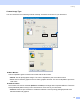
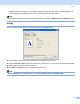
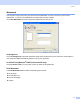
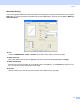
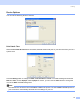
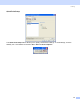
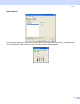
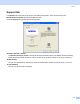
Table Of Contents
- SOFTWARE USER’S GUIDE
- Table of Contents
- Section I Windows®
- 1 Printing
- 2 Scanning
- Scanning a document using the TWAIN driver
- Scanning a document using the WIA driver (For Windows® XP only)
- Using the Scan key (For USB cable users)
- Using ScanSoft® PaperPort® 9.0SE and OmniPage® OCR
- 3 ControlCenter2
- 4 Network Scanning (For models with built-in network support)
- 5 Remote Setup (Not available for DCP models)
- 6 Brother PC-FAX Software (For MFC models only)
- PC-FAX sending
- Speed Dial setup
- Brother Address Book
- Setting up a member in the Address Book
- Setting up a group for broadcasting
- Editing member information
- Deleting a member or group
- Exporting the Address Book
- Importing to the Address Book
- Setting up a cover page
- Entering cover page information
- Sending a file as a PC-FAX using the Facsimile style user interface
- Sending a file as a PC-FAX using the Simple style user interface
- PC-FAX receiving (MFC-640CW and MFC-820CW only)
- 7 PhotoCapture Center™
- Section II Apple® Macintosh®
- 8 Printing and Faxing
- 9 Scanning
- 10 ControlCenter2
- 11 Network Scanning (For models with built-in network support)
- 12 Remote Setup & PhotoCapture Center™
- Index
- brother USA

Printing
16
• Dither: Dots are arranged in a pre-defined pattern to make halftones. Use for printing graphics that
have definite color boundaries or for printing charts such as business charts.
Note
Some halftone settings cannot be chosen with certain combinations of Media Type and Quality settings.
Scaling 1
You can change the print size of your document with the Scaling feature.
Choose Off if you want to print the document as it appears on your screen.
Choose Fit to Paper Size if your document has an unusual size, or if you only have standard size paper.
Choose Free if you want to reduce the size.
Check Mirror Printing to reverse the data from left to right.
Note
Mirror Printing is not available when you choose Transparencies as the Media Type.