
Owner manual


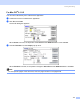


Table Of Contents
- SOFTWARE USER’S GUIDE
- Table of Contents
- Section I Windows®
- 1 Printing
- 2 Scanning
- Scanning a document using the TWAIN driver
- Scanning a document using the WIA driver (For Windows® XP only)
- Using the Scan key (For USB cable users)
- Using ScanSoft® PaperPort® 9.0SE and OmniPage® OCR
- 3 ControlCenter2
- 4 Network Scanning (For models with built-in network support)
- 5 Remote Setup (Not available for DCP models)
- 6 Brother PC-FAX Software (For MFC models only)
- PC-FAX sending
- Speed Dial setup
- Brother Address Book
- Setting up a member in the Address Book
- Setting up a group for broadcasting
- Editing member information
- Deleting a member or group
- Exporting the Address Book
- Importing to the Address Book
- Setting up a cover page
- Entering cover page information
- Sending a file as a PC-FAX using the Facsimile style user interface
- Sending a file as a PC-FAX using the Simple style user interface
- PC-FAX receiving (MFC-640CW and MFC-820CW only)
- 7 PhotoCapture Center™
- Section II Apple® Macintosh®
- 8 Printing and Faxing
- 9 Scanning
- 10 ControlCenter2
- 11 Network Scanning (For models with built-in network support)
- 12 Remote Setup & PhotoCapture Center™
- Index
- brother USA

Scanning
114
e Adjust the settings for Resolution, Color Type(Grayscale), Brightness, Contrast, and Size in the
Scanner Setup dialog box as needed.
f Click Start.
This time only the chosen area of the document appears in the application window.
g You can refine the image in your editing software.
Settings in the Scanner window 9
Resolution 9
You can change the scanning resolution from the Resolution pop-up menu. Higher resolutions take more
memory and transfer time, but produce a finer scanned image. The following table shows the resolutions you
can choose and the available colors.
Resolution Black & White/Gray (Error
Diffusion)
8bitcolor True Gray / 24 bit color
100 × 100 dpi Yes Yes Yes
150 × 150 dpi Yes Yes Yes
200 × 200 dpi Yes Yes Yes
300 × 300 dpi Yes Yes Yes
400 × 400 dpi Yes Yes Yes
600 × 600 dpi Yes Yes Yes
1200 × 1200 dpi Yes No Yes
2400 × 2400 dpi Yes No Yes
4800 × 4800 dpi Yes No Yes
9600 × 9600 dpi Yes No Yes
19200 × 19200 dpi Yes No Yes