
Owner manual



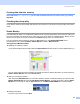


Table Of Contents
- SOFTWARE USER’S GUIDE
- Table of Contents
- Section I Windows®
- 1 Printing
- 2 Scanning
- Scanning a document using the TWAIN driver
- Scanning a document using the WIA driver (For Windows® XP only)
- Using the Scan key (For USB cable users)
- Using ScanSoft® PaperPort® 9.0SE and OmniPage® OCR
- 3 ControlCenter2
- 4 Network Scanning (For models with built-in network support)
- 5 Remote Setup (Not available for DCP models)
- 6 Brother PC-FAX Software (For MFC models only)
- PC-FAX sending
- Speed Dial setup
- Brother Address Book
- Setting up a member in the Address Book
- Setting up a group for broadcasting
- Editing member information
- Deleting a member or group
- Exporting the Address Book
- Importing to the Address Book
- Setting up a cover page
- Entering cover page information
- Sending a file as a PC-FAX using the Facsimile style user interface
- Sending a file as a PC-FAX using the Simple style user interface
- PC-FAX receiving (MFC-640CW and MFC-820CW only)
- 7 PhotoCapture Center™
- Section II Apple® Macintosh®
- 8 Printing and Faxing
- 9 Scanning
- 10 ControlCenter2
- 11 Network Scanning (For models with built-in network support)
- 12 Remote Setup & PhotoCapture Center™
- Index
- brother USA

Printing and Faxing
102
Quality 8
The quality selection allows you to choose the print resolution you want for your document. Print quality and
speed are related. The higher the quality, the longer it will take to print the document. The quality selections
that are available will vary depending on the media type you choose.
Highest
Up to 1200 × 6000 dpi. (See Resolution in Specifications of the User’s Guide.) Use for printing precise
images such as photographs. This is the highest resolution and slowest speed. When the Borderless is
chosen, this highest resolution is not available.
Photo
Up to 1200 × 2400 dpi. Use for printing photographs. Since the print data is much larger than a normal
document, the processing time, data transfer time and print time will be longer.
Fine
1200 × 1200 dpi. Better print quality than Normal mode and faster print speed than Photo.
Enhanced Normal Printing
750 × 750 dpi. Use this mode if fine horizontal bands appear on the paper. The increased resolution helps
to avoid banding. Print speed is slightly slower than in Normal mode. You can use this mode only when
you have chosen Plain Paper, Slow Drying Paper or Transparencies.
Normal
600 × 600 dpi. Good print quality with typical print speed.
Fast Normal
600 × 300 dpi. Faster print speed than Normal.
Note
• The default settings are shown in bold.
• The Highest Print Quality selection is not available if you choose borderless printing.
Media Type Color/Grayscale Print Quality Selection
Plain Paper Color/Grayscale Fast Normal, Normal, Fine
Inkjet Paper Color/Grayscale Fine, Photo
Glossy Paper Color/Grayscale Fine, Photo, Highest
Transparencies Color/Grayscale Normal, Fine
Slow Drying Paper Color/Grayscale Fast Normal, Normal, Fine