
Manual


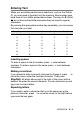
Table Of Contents
- USER’S GUIDE MFC-640CW
- Brother numbers
- Ordering accessories and supplies
- Safety precautions
- Choosing a location
- Quick Reference Guide
- How to access the complete User’s Guide
- How to access Brother Support (For Windows®)
- Table of Contents
- 1 Introduction
- 2 Getting started
- Initial Setup
- General Setup
- Setting the Mode Timer
- Setting the Paper Type
- Setting the Paper Size
- Setting the Ring Volume
- Setting the Beeper Volume
- Setting the Speaker Volume
- Setting the Handset Volume
- Choosing the Handset Volume (For Volume Amplify)
- Setting Volume Amplify
- Turning on Automatic Daylight Savings Time
- Setting the LCD Contrast
- 3 Setup Send
- 4 Setup Receive
- Basic receiving operations
- 5 Quick-Dial numbers and dialing options
- 6 Remote Fax Options (Black & White only)
- 7 Message Center
- Message Center mode
- Setting up the Message Center
- Recording Message Center Outgoing Message
- Activating Message Center mode
- Message indicator
- Playing voice messages
- Printing a fax message
- Erasing incoming messages
- Setting Maximum Time for incoming messages
- Setting Toll Saver
- ICM Recording Monitor
- Recording a conversation
- Record Fax/Tel Outgoing Announcement (F/T OGM)
- Message Center mode
- 8 Printing reports
- 9 Making copies
- 10 Walk-Up PhotoCapture Center™
- 11 Software and Network features
- 12 Important information
- 13 Troubleshooting and routine maintenance
- Appendix A
- Appendix B
- Glossary
- Specifications
- Index
- Remote Retrieval Access card
- brother US/CAN

APPENDIX B B - 12
Entering Text
When you are setting certain menu selections, such as the Station
ID, you may need to type text into the machine. Most number keys
have three or four letters printed above them. The keys for
0, # and
do not have printed letters because they are used for special
characters.
By pressing the appropriate number key repeatedly, you can access
the character you want.
Inserting spaces
To enter a space in the fax number, press once between
numbers. To enter a space in the name, press twice between
characters.
Making corrections
If you entered a letter incorrectly and want to change it, press to
move the cursor under the incorrect character. Then press
Stop/Exit. All letters above and to the right of the cursor will be
deleted. Re-enter the correct character. You can also back up and
type over incorrect letters.
Repeating letters
If you need to enter a character that is on the same key as the
previous character, press to move the cursor to the right before
you press the key again.
Press Key one time two times three times four times
2 ABC2
3 DEF3
4 GH I 4
5 JKL5
6 MNO6
7 PQRS
8 TUV8
9 WXY Z
▲
▲
▲
▲