
Manual


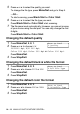

Table Of Contents
- USER’S GUIDE MFC-640CW
- Brother numbers
- Ordering accessories and supplies
- Safety precautions
- Choosing a location
- Quick Reference Guide
- How to access the complete User’s Guide
- How to access Brother Support (For Windows®)
- Table of Contents
- 1 Introduction
- 2 Getting started
- Initial Setup
- General Setup
- Setting the Mode Timer
- Setting the Paper Type
- Setting the Paper Size
- Setting the Ring Volume
- Setting the Beeper Volume
- Setting the Speaker Volume
- Setting the Handset Volume
- Choosing the Handset Volume (For Volume Amplify)
- Setting Volume Amplify
- Turning on Automatic Daylight Savings Time
- Setting the LCD Contrast
- 3 Setup Send
- 4 Setup Receive
- Basic receiving operations
- 5 Quick-Dial numbers and dialing options
- 6 Remote Fax Options (Black & White only)
- 7 Message Center
- Message Center mode
- Setting up the Message Center
- Recording Message Center Outgoing Message
- Activating Message Center mode
- Message indicator
- Playing voice messages
- Printing a fax message
- Erasing incoming messages
- Setting Maximum Time for incoming messages
- Setting Toll Saver
- ICM Recording Monitor
- Recording a conversation
- Record Fax/Tel Outgoing Announcement (F/T OGM)
- Message Center mode
- 8 Printing reports
- 9 Making copies
- 10 Walk-Up PhotoCapture Center™
- 11 Software and Network features
- 12 Important information
- 13 Troubleshooting and routine maintenance
- Appendix A
- Appendix B
- Glossary
- Specifications
- Index
- Remote Retrieval Access card
- brother US/CAN

10 - 13 WALK-UP PHOTOCAPTURE CENTER
™
5
Press ▲ or ▼ to select the quality you want.
To change the file type, press
Menu/Set and go to Step 6.
—OR—
To start scanning, press
Black Start or Color Start.
6
Press ▲ or ▼ to select the file type you want.
Press
Black Start or Color Start start scanning.
7
The file name is set automatically. However, you can set a name
of your choice using the dial pad. You can only change the first
6 digits.
Press
Black Start or Color Start.
Changing the default quality
1
Press Menu/Set, 4, 8, 1.
2
Press ▲ or ▼ to choose B/W
200X100 dpi, B/W 200 dpi,
Color 150 dpi, Color 300 dpi or Color 600 dpi.
Press
Menu/Set.
3
Press Stop/Exit.
Changing the default black & white file format
1
Press Menu/Set, 4, 8, 2.
2
Press ▲ or ▼ to choose TIFF or PDF.
Press
Menu/Set.
3
Press Stop/Exit.
Changing the default color file format
1
Press Menu/Set, 4, 8, 3.
2
Press ▲ or ▼ to choose PDF or JPEG.
Press
Menu/Set.
3
Press Stop/Exit.
Scan to Card
1.Quality
Scan to Card
2.B/W File Type
Scan to Card
3.ColorFile Type