
Instruction Manual





Installing the Driver & Software
29
Macintosh
®
Wired
Network
Macintosh
®
For Wired Network Interface Users
For Mac OS
®
X 10.2.4 or greater
Important
Make sure that you have finished the
instructions from Step 1 Setting Up the
Machine on page 4-11.
1 Unplug the machine from the AC outlet.
2 Turn on your Macintosh
®
.
3 Put the supplied CD-ROM into your CD-ROM
drive.
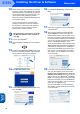
4 Double-click the Start Here OSX icon to install
the drivers and MFL-Pro Suite. If the language
screen appears, choose your language.
5 Click MFL-Pro Suite to install.
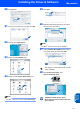
6 Choose Wired Network Connection, and
then click Next. Follow the on-screen
instructions, and restart your Macintosh
®
.
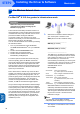
7 After the DeviceSelector window appears,
connect the network interface cable to your
Macintosh
®
and then to the machine.
The DeviceSelector window will not appear if
you have also connected a USB interface cable
to the machine before restarting your
Macintosh
®
or if you are overwriting a
previously installed version of the Brother
Software. If you encounter this problem
continue but skip steps 13 to 16. After the
software installation is completed you should
choose your Brother machine from the Model
pull-down list in the main screen of
ControlCenter2. For details, see Chapter 10 in
the Software User’s Guide on the CD-ROM.
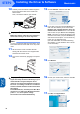
8 Open the scanner cover to its open position.
9 Connect the network cable to the LAN socket
marked with a symbol. You will find the
LAN socket above and to the left of the ink
cartridge slots, as shown below.