Quick Setup Guide MFC-640CW Before you can use the machine, you must set up the hardware and install the software. Please read this ‘Quick Setup Guide’ for the correct setup procedure and installation instructions. STEP 1 Setting Up the Machine STEP 2 Installing the Driver & Software Setup is Complete! Keep this ‘Quick Setup Guide’, the User’s Guide and the supplied CD-ROM in a convenient place for quick and easy reference at all times.
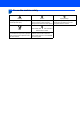
To use the machine safely Warning Warnings tell you what to do to prevent possible personal injury. Caution Improper Setup Improper Setup icons alert you to Cautions specify procedures you must devices and operations that are not follow or avoid to prevent possible damage to the machine or other objects. compatible with the machine.
Table of Contents Getting Started Carton components ...................................................................................................................................... 2 Control panel................................................................................................................................................ 3 STEP1 – Setting Up the Machine Removing the protective parts .....................................................................................................
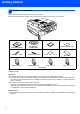
Getting Started 1 Carton components Carton components may vary from one country to another. Save all packing materials and the carton in case for any reason you must ship your machine. CD-ROMs For Windows ® Quick Setup Guide Telephone Handset Black (LC41 BK) User’s Guide For Macintosh® Telephone Line Cord Magenta (LC41M) Test Sheet (USA only) Yellow (LC41Y) Accessory Order Form Side Cover Cyan (LC41C) Ink Cartridges An interface cable is not a standard accessory.
Getting Started Control panel 1 Telephone and Message Center keys 7 Fax Resolution key 2 Ink key 8 Start keys 3 Dial Pad 9 Stop/Exit key 4 Mode keys 10 On/Off key 5 Copy Options key 11 Navigation keys 6 Menu/Set key 12 LCD (Liquid Crystal Display) For the details of the control panel, see Control panel overview in Chapter 1 of the User’s Guide. The screens for Windows® in this Quick Setup Guide are based on Windows® XP.
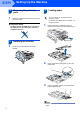
STEP1 Setting Up the Machine 1 1 1 Removing the protective parts DO NOT connect the USB cable. Connecting the USB cable is done during the software installation process. 1 Loading paper You can load up to 100 sheets of 20 lb (80 g/m2) paper. For details, see About paper in Chapter 1 of the User’s Guide. Remove the protective tape and scanner glass protection sheet. Improper Setup 2 3 1 Pull the paper tray completely out of the machine and remove the output paper tray (1).
Setting Up the Machine 4 Fan the stack of paper well to avoid paper jams and misfeeds. 4 1 5 Installing the phone line and power cord Connect the power cord. Gently put the paper into the paper tray print side down and top edge first. Check that the paper is flat in the tray and below the maximum paper mark (1). 1 2 Connect the telephone line cord. Connect one end of the telephone line cord to the jack on the machine marked LINE and the other end to a modular wall jack.
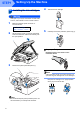
STEP1 5 Setting Up the Machine Installing the ink cartridges 4 Take out the ink cartridge. 5 Carefully remove the protective yellow cap (1). Warning If ink gets in your eyes, wash them out with water at once, and if irritation occurs consult a doctor. 1 Make sure that the power is turned on. The LCD shows: No Cartridge Open scanner cover... 2 Lift the scanner cover (1) from the right-hand side of the machine until it locks securely into the open position.
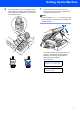
Setting Up the Machine 6 Press firmly down on the ink cartridge until the hook snaps over it, taking care to match the slot color (1) with the cartridge color (2), as shown in the diagram below. 7 Lift the scanner cover to release the lock. Gently push the scanner cover support down and close the scanner cover. Note If the LCD shows Install xxxx after you install the ink cartridges, check that the ink cartridges are installed properly.
STEP1 Setting Up the Machine Caution • DO NOT take out ink cartridges if you do not need to replace them. If you do so, it may reduce the ink quantity and the machine will not know the quantity of ink left in the cartridge. • DO NOT shake the ink cartridges. If ink stains your skin or clothing, wash with soap or detergent at once. • DO NOT repeatedly insert and remove the cartridges. If you do so, ink may seep out of the cartridge.
Setting Up the Machine 6 The LCD asks you if the print quality is OK for black and color. Press 1 (Yes) or 2 (No) on the dial pad. Black OK? 1.Yes 2.No After pressing 1 (Yes) or 2 (No) for both black and color, the LCD shows: Start Cleaning? 1.Yes 2.No 7 8 7 The machine displays the date and time, and prints it on the fax you send. 1 2 3 4 Press 1 (Yes), the machine will then start cleaning the colors. After cleaning is finished, press Color Start.
STEP1 Setting Up the Machine 8 Setting your station ID 9 You should store your name and fax number to be printed on all fax pages that you send. 1 2 3 4 Press Menu/Set. There are three possible receive modes: Fax Only, Fax/Tel and Manual. Do you want to receive a fax automatically? Press 0. Press 3. Enter your fax number (up to 20 digits) on the dial pad, and then press Menu/Set.
Setting Up the Machine 10 Setting up the Message Center You must record an outgoing message in order to use the Message Center mode. 1 Record the Message Center Outgoing Message (MSG CTR OGM). 12 Sending in the Product Registration and Test Sheet (USA only) 1 Fill out the Product Registration and Test Sheet. See Recording Message Center Outgoing Message in Chapter 7 of the User’s Guide. 2 Activate Message Center mode.
Supplied CD-ROM ‘MFL-Pro Suite’ 1 Supplied CD-ROM ‘MFL-Pro Suite’ Windows® Macintosh® Start Here OS 9.1-9.2 Install MFL-Pro Suite You can install the MFL-Pro Suite software and multifunction drivers. Install Optional Applications You can install additional MFL-Pro Suite software utilities. Documentation View the User’s Guide and other documents in PDF format (Viewer included).
STEP2 Installing the Driver & Software Follow the instructions on this page for your operating system and interface cable. For the latest drivers and documentations and to find the best solution for your problem or question, access the Brother Solutions Center directly from the driver or visit http://solutions.brother.com Windows® For USB Interface Users (For Windows® 98/98SE/Me/2000 Professional/XP).....................................................
STEP2 Installing the Driver & Software Windows® 1 Windows® USB For USB Interface Users (For Windows® 98/98SE/Me/2000 Professional/XP) Important Make sure that you have finished the instructions from Step 1 Setting Up the Machine on page 4-11. Note • Please close any applications running before installing MFL-Pro Suite. • Make sure there are no media cards put into the media drive of the machine. 1 2 3 4 Note • If this window does not appear, use Windows® Explorer to run the setup.
Installing the Driver & Software 8 The installation of PaperPort ® 9.0SE will automatically start and is followed by the installation of MFL-Pro Suite. 12 Carefully route the USB cable through the trench and out the back of the machine as shown below. When the Brother MFL-Pro Suite Software License Agreement window appears, click Yes if you agree to the Software License Agreement. Windows® USB 7 Windows® Improper Setup 9 When this screen appears, go to the next step.
STEP2 Installing the Driver & Software 15 When the on-line Registration screen is Windows® USB displayed, make your selection and follow the on-screen instructions. 16 Click Finish to restart your computer. (After restarting the computer, for Windows® 2000 Professional/XP, you must be logged on with Administrator rights.) Note After restarting the computer, the Installation Diagnostics will run automatically. If the installation is unsuccessful, the installation results window will be shown.
Installing the Driver & Software Windows® For Wired Network Interface Users (For Windows® 98/98SE/Me/2000 Professional/XP) Important 6 Turn on the machine by plugging in the power cord. Make sure that you have finished the instructions from Step 1 Setting Up the Machine on page 4-11. 3 Unplug the machine from the AC outlet. Open the scanner cover to its open position. Windows® Wired Network 1 2 Insert the network cable to the LAN socket marked with a symbol.
STEP2 9 Installing the Driver & Software The CD-ROM main menu will appear. Click Install MFL-Pro Suite. Windows® Wired Network Note • If this window does not appear, use Windows® Explorer to run the setup.exe program from the root folder of the Brother CD-ROM. • If you see the following screen, click OK to install the Windows® updates. After the updates are installed your PC may restart. Then the installation will automatically continue.
Installing the Driver & Software Windows® 17 When the Brother and ScanSoft on-line Registration screen is displayed, make your selection and follow the on-screen instructions. 18 Click Finish to restart your computer. Windows® Wired Network (For Windows® 2000 Professional/XP, you must be logged on with Administrator rights.) Note After restarting the computer, the Installation Diagnostics will run automatically. If the installation is unsuccessful, the installation results window will be shown.
STEP2 Installing the Driver & Software Windows® For Wireless Network Users (For Windows® 98/98SE/Me/2000 Professional/XP in infrastructure mode) Important Make sure that you have finished the instructions from Step 1 Setting Up the Machine on page 4-11. Windows® Wireless Network These instructions will install your Brother machine in a typical small office or home wireless network environment in infrastructure mode, using a wireless router or access point that uses DHCP to assign IP addresses.
Installing the Driver & Software 2 Windows® No Authentication with WEP Encryption: Choose Open system, press Menu/Set then use the a or b to choose WEP for the Encryption Type and press Menu/Set. Go to step 7. Turn on the machine by plugging in the power cord. Authentication with WEP Encryption: Choose Shared Key, press Menu/Set. Go to step 7.
STEP2 Installing the Driver & Software 10 Disconnect and then reconnect the power cord to turn the machine OFF and back ON. This will allow the machine to automatically acquire the correct TCP/IP address information from your access point (router) if DHCP is enabled (DHCP is normally enabled as default for most access point routers). If your access point does not have DHCP enabled you will need to manually configure the IP address, subnet mask and gateway of the machine to suit your network.
Installing the Driver & Software 17 The installation of PaperPort® 9.0SE will automatically start and is followed by the installation of MFL-Pro Suite. Windows® 21 When the Brother and ScanSoft on-line Registration screen is displayed, make your selection and follow the on-screen instructions. 18 When the Brother MFL-Pro Suite Software License Agreement window appears, click Yes if you agree to the Software License Agreement. 22 Click Finish to restart your computer.
STEP2 Installing the Driver & Software Macintosh® For USB Interface Users For Mac OS® X 10.2.4 or greater 5 Important Click MFL-Pro Suite to install. Make sure that you have finished the instructions from Step 1 Setting Up the Machine on page 4-11. Note For Mac OS® X 10.2.0 to 10.2.3 users, upgrade to Mac OS® X 10.2.4 or greater. (For the latest information for Mac OS® X, visit http://solutions.brother.
Installing the Driver & Software 8 Open the scanner cover to its open position. 9 Connect the USB cable to the USB socket Macintosh® 13 Choose USB and then click OK. marked with a symbol. You will find the USB socket above and to the left of the ink cartridge slots, as shown below. 14 Click GO, then Applications. 10 Carefully route the USB cable through the Improper Setup • DO NOT connect the machine to a USB port on a keyboard or a non-powered USB hub.
STEP2 Installing the Driver & Software 18 Choose USB. (For Mac® OS X 10.2.4 to 10.3 users) Macintosh® 21 To install Presto!®PageManager®, click the Presto! PageManager icon and follow the on-screen instructions. Note For Mac® OS X 10.4 users, go to step 19. 19 Choose MFC-XXXX (where XXXX is your model name), and then click Add. Note When Presto!®PageManager® is installed OCR capability is added to the Brother ControlCenter2.
Installing the Driver & Software Macintosh® For Mac OS® 9.1 to 9.2 Important 8 marked with a symbol. You will find the USB socket above and to the left of the ink cartridge slots, as shown below. Make sure that you have finished the instructions from Step 1 Setting Up the Machine on page 4-11. 2 3 4 Unplug the machine from the AC outletand from your computer, if you already connected an interface cable. 9 Turn on your Macintosh ®. Put the supplied CD-ROM into your CD-ROM drive.
STEP2 Installing the Driver & Software 12 From the Apple® menu, click Chooser. 13 Click the Brother Ink icon. On the right side of the Chooser, choose the machine to which you want to print. Close the Chooser. The Brother printer driver and scanner driver have been installed. Note Macintosh® USB ControlCenter2 is not supported in Mac OS® 9.x. 14 To install Presto!® PageManager®, click the Presto! PageManager icon and follow the on-screen instructions.
Installing the Driver & Software Macintosh® For Wired Network Interface Users For Mac OS® X 10.2.4 or greater Important 6 Make sure that you have finished the instructions from Step 1 Setting Up the Machine on page 4-11. Unplug the machine from the AC outlet. 7 2 3 4 5 The DeviceSelector window will not appear if you have also connected a USB interface cable to the machine before restarting your Macintosh® or if you are overwriting a previously installed version of the Brother Software.
STEP2 Installing the Driver & Software 10 Carefully route the network cable through the trench and out the back of the machine as shown below. Then, connect the cable to your network. 13 Choose Network Macintosh® and then click OK. 14 If you want to use the machine’s Scan key to Improper Setup Make sure that the cable does not restrict the cover from closing, or an error may occur. Note In case of using both USB and LAN cables, route both cables into the trench with one on top of the other.
Installing the Driver & Software 18 Double-click the Utilities folder. 19 Double-click the Printer Setup Utility icon. Macintosh® 22 Choose Brother MFC-XXXX (where XXXX is your model name), and then click Add. 23 Click Printer Setup Utility, then Quit Printer Setup Utility. Note For Mac ® OS X 10.2.x users, open Print Center icon. 20 Click Add. The MFL-Pro Suite, Printer Driver, Scanner Driver and ControlCenter2 have been installed.
STEP2 Installing the Driver & Software Macintosh® For Mac OS® 9.1 to 9.2 Important 8 marked with a symbol. You will find the LAN socket above and to the left of the ink cartridge slots, as shown below. Make sure that you have finished the instructions from Step 1 Setting Up the Machine on page 4-11. 1 2 3 4 Connect the network cable to the LAN socket Unplug the machine from the AC outlet. 9 Turn on your Macintosh ®. Put the supplied CD-ROM into your CD-ROM drive.
Installing the Driver & Software 11 Turn on the machine by plugging in the power cord. Macintosh® The MFL-Pro Suite, Printer Driver and Scanner Driver have been installed. Note ControlCenter2 is not supported in Mac OS® 9.x. 14 To install Presto!®PageManager®, click the Presto! PageManager icon and follow the on-screen instructions.
STEP2 Installing the Driver & Software Macintosh® For Wireless Network Users For Mac OS® X 10.2.4 or greater in infrastructure mode Important Make sure that you have finished the instructions from Step 1 Setting Up the Machine on page 4-11. These instructions will install your Brother machine in a typical small office or home wireless network environment in infrastructure mode, using a wireless router or access point that uses DHCP to assign IP addresses.
Installing the Driver & Software 2 Macintosh® No Authentication with WEP Encryption: Choose Open system, press Menu/Set then use the a or b to choose WEP for the Encryption Type and press Menu/Set. Go to step 7. Turn on the machine by plugging in the power cord. Authentication with WEP Encryption: Choose Shared Key, press Menu/Set. Go to step 7.
STEP2 Installing the Driver & Software 10 Disconnect and then reconnect the power cord to turn the machine OFF and back ON. This will allow the machine to automatically acquire the correct TCP/IP address information from your access point (router) if DHCP is enabled (DHCP is normally enabled as default for most access point routers). If your access point does not have DHCP enabled you will need to manually configure the IP address, subnet mask and gateway of the machine to suit your network.
Installing the Driver & Software 20 Click Browse. 21 Choose your model name, and then click OK. 22 Click Go, then Applications. Macintosh® 25 Click Add. 26 Make the selection shown below. (For Mac® OS X 10.2.4 to 10.3 users) Note For Mac® OS X 10.4 users, go to step 27. 27 Choose Brother MFC-XXXX (where XXXX is your model name), and then click Add. 23 Double-click the Utilities folder. See Chapter 6 of the Network User’s Guide on the CD-ROM.
STEP2 Installing the Driver & Software For more information about connecting the machine to a Macintosh® network, see Chapter 6 of the Network User’s Guide on the CD-ROM. 29 To install Presto!®PageManager®, click the Presto!PageManager icon and follow the on-screen instructions. Note When Presto!®PageManager®is installed OCR capability is added to the Brother ControlCenter2. You can also easily scan, share, and organize photos and documents using Presto!®PageManager®.
For Network Users This section explains how you can configure network settings using the BRAdmin Professional Utility or how to set the machine’s network settings to wireless LAN or wired LAN. 1 Installing the BRAdmin Professional configuration utility The BRAdmin Professional utility for Windows® is designed to manage your Brother network connected devices such as network-ready Multifunction devices and/or network-ready printers in a Local Area Network (LAN) environment.
For Network Users How to set the machine’s network settings to wireless LAN or wired LAN To connect your Brother machine to a wireless or wired network you must configure the machine from the machine’s control panel for the network type you are using. For wireless LAN On your machine, press Menu/Set, 5, 6 then press a or b to choose WLAN, and then press Menu/Set. Press 1 1.Yes to reboot the machine. The wired network interface will become inactive with this setting.
Consumables 1 Replacement consumables When the time comes to replace ink cartridges, an error message will be indicated on the LCD. For more information about the ink cartridges for your machine, visit http://solutions.brother.com or contact your local Brother re-seller.
Trademarks The Brother logo is a registered trademark of Brother Industries, Ltd. Brother is a registered trademark of Brother Industries, Ltd. Multi-Function Link is a registered trademark of Brother International Corporation. Windows and Microsoft are registered trademarks of Microsoft in the U.S. and other countries. Macintosh and True Type are registered trademarks of Apple Computer, Inc. PaperPort and OmniPage OCR are registered trademarks of ScanSoft, Inc.
USA/CAN