
User`s guide



Configuring your machine for a wireless network
3 - 7
3
10
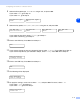
Select the Authentication method using ▲ or ▼, and press OK.
If you select Open System, go to Step 11.
If you select Shared Key, go to Step 12.
If you select WPA-PSK, go to Step 13.
11
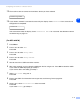
Select the Encryption type, None or WEP using ▲ or ▼, and press OK.
If you select None, go to Step 17.
If you select WEP, go to Step 12.
12
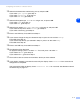
Select the key option; KEY1, KEY2, KEY3, KEY4 using ▲ or ▼, and press OK.
If you select the key which shows **********, go to Step 14.
If you select a blank key, go to Step 15.
13
Enter a new WPA key. Press OK. Go to Step 17.
14
If you want to change the key you selected in Step 12, press ▲ or ▼ to select Change.
Press OK. Go to Step 15.
If you want to keep the key you selected in Step 12, press
▲ or ▼ to select Keep.
Press OK. Go to Step 16.
15
Enter a new WEP key. Press OK. Go to Step 17.
16
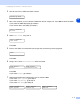
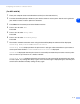
The following will be displayed.
To apply the settings, press 1 to select Yes. To cancel, press 2 to select No.
If you select 1 for Yes, go to Step 18.
If you select 2 for No, go back to Step 5.
17
The machine starts to connect to the wireless device you have selected.
18
If you wireless network is connected successfully, the display shows Connected for 2 seconds and
configuration is completed.
If the connection failed, the display shows Connection Error for 2 seconds. See Wireless network
troubleshooting on page 7-8.