
User`s guide

Wireless installation for Windows
®
8 - 33
8
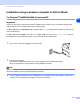
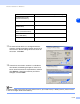
If you are using a wired computer, choose This PC
uses a network cable to connect to the wireless
network., and you must configure the wireless
settings from the control panel. Click Next and follow
the on-screen instructions to complete the setup.
See Using the Setup Wizard from the control panel
LAN menu for a wireless network on page 3-3. When
finished, go to the driver installation in step 19.
10
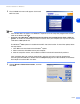
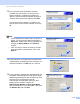
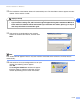
Read the Important Notice.
For MFC-640CW: Press Menu/Set, 5, 6 on the
control panel, and then press
▲ or ▼ to choose WLAN.
Press Menu/Set. If Reboot OK? is displayed, press
1.Yes. The wired network interface will become
inactive with this setting. The machine will restart
automatically. After it restarts, check the box on the
screen and click Next.
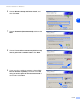
For MFC-820CW: Press Menu on the control panel.
Press
▲ or ▼ for LAN and press OK. Press ▲ or ▼ for
Network I/F and press OK. Press ▲ or ▼ for WLAN
and press OK. If Reboot OK? is displayed, press 1 for Yes. The wired network interface will become
inactive with this setting. The machine will restart automatically. After it restarts, check the box on the
screen and click Next.
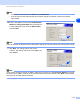
If Accepted is displayed, press Stop/Exit. Check the box and click Next.
Note
It will take approximately one minute for the LAN menu on the LCD to become available after the machine
restarts or is turned on.
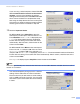
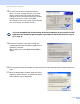
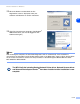
You need to temporarily change your PC’s wireless
settings. Please follow the on-screen instructions.
Please make sure you take notes on all the settings
such as SSID or channel of your PC. You may need
them when if you want to restore the current settings
in future.