
User Manual



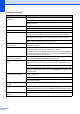

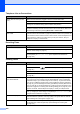
Table Of Contents
- USER’S GUIDE MFC-5890CN MFC-6490CW
- Approval Information and Compilation and Publication Notice
- Table of Contents
- Section I: General
- 1 General Information
- 2 Loading paper and documents
- 3 General setup
- 4 Security features
- Section II: Fax
- 5 Sending a Fax
- Entering Fax mode
- Broadcasting (Monochrome only)
- Additional sending operations
- Sending faxes using multiple settings
- Contrast
- Changing fax resolution
- Dual access (Monochrome only)
- Real time transmission
- Overseas Mode
- Delayed Faxing (Monochrome only)
- Delayed Batch Transmission (Monochrome only)
- Checking and cancelling waiting jobs
- Setting your changes as a new default
- Restoring all settings to the factory settings
- Sending a fax manually
- Out of Memory message
- 6 Receiving a Fax
- 7 Telephone and External devices
- Voice operations
- Telephone Service for Australia
- Telephone Service for New Zealand
- Telephone Service for Some Countries
- Connecting an external TAD (telephone answering device)
- External and extension telephones
- 8 Dialling and storing numbers
- 9 Printing Reports
- 10 Polling
- 5 Sending a Fax
- Section III: Copy
- 11 Making copies
- How to copy
- Copy settings
- Changing copy speed and quality
- Enlarging or reducing the image copied
- Making N in 1 copies or a poster (Page Layout)
- Sorting copies using the ADF
- Adjusting Brightness and Contrast
- Paper Options
- Skew Adjustment (MFC-6490CW only)
- Book Copy
- Watermark Copy
- Setting your changes as a new default
- Restoring all settings to the factory settings
- ‘Out of Memory’ message
- 11 Making copies
- Section IV: Direct Photo Printing
- Section V: Software
- Section VI: Appendixes
- A Safety and Legal
- B Troubleshooting and Routine Maintenance
- C Menu and Features
- D Specifications
- E Glossary
- Index
- brother ARL/ASA/NZ

Troubleshooting and Routine Maintenance
147
B
Print speed is too slow. Try changing the printer driver setting. The highest resolution needs longer data
processing, sending and printing time. Try the other quality settings in the printer
driver Advanced tab. Also, click Colour Settings, and make sure you uncheck
Colour Enhancement.
Turn the borderless feature off. Borderless printing is slower than normal printing.
(See Printing for Windows
®
or Printing and Faxing for Macintosh
®
in the Software
User’s Guide on the CD-ROM.)
Colour Enhancement is not
working correctly.
If the image data is not full colour in your application (such as 256 colour), Colour
Enhancement will not work. Use at least 24 bit colour data with the Colour
Enhancement feature.
Photo paper does not feed
properly.
When you print on Brother Photo paper, load one extra sheet of the same photo
paper in the paper tray. An extra sheet has been included in the paper package
for this purpose.
Clean the paper pick
-up roller. (See Cleaning the paper pick-up roller
on page 171.)
Machine feeds multiple pages. Make sure the paper is loaded correctly in the paper tray. (See Loading paper and
other print media on page 9.)
Check that more than two types of paper are not loaded in the paper tray at any
one time.
Printed pages are not stacked
neatly.
Make sure you are using the paper support flap. (See Loading paper and other
print media on page 9.)
Machine does not print from Adobe
Illustrator.
Try to reduce the print resolution. (See Printing for Windows
®
or Printing and
Faxing for Macintosh
®
in the Software User’s Guide on the CD-ROM.)
Printing Received Faxes
Difficulty Suggestions
Condensed print and white streaks
across the page or the top and
bottom of sentences are cut off.
You probably had a bad connection, with static or interference on the telephone
line. Ask the other party to send the fax again.
Vertical black lines when receiving. The sender's scanner may be dirty. Ask the sender to make a copy to see if the
problem is with the sending machine. Try receiving from another fax machine.
Received colour fax prints only in
black and white.
Replace the colour ink cartridges that are empty or nearly empty, and then ask the
other person to send the colour fax again. (See Replacing the ink cartridges
on page 166.)
Check that Setup Receive is set to Colour(Max.A4). (See Setting Receiving
Priority on page 53.)
Left and Right margins are cut off or
a single page is printed on two
pages.
Turn on Auto Reduction. (See Printing a reduced incoming fax on page 52.)
Printing (continued)
Difficulty Suggestions