
User Manual
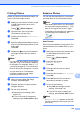

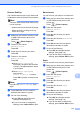

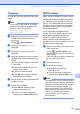
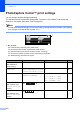


Table Of Contents
- USER’S GUIDE MFC-5890CN MFC-6490CW
- Approval Information and Compilation and Publication Notice
- Table of Contents
- Section I: General
- 1 General Information
- 2 Loading paper and documents
- 3 General setup
- 4 Security features
- Section II: Fax
- 5 Sending a Fax
- Entering Fax mode
- Broadcasting (Monochrome only)
- Additional sending operations
- Sending faxes using multiple settings
- Contrast
- Changing fax resolution
- Dual access (Monochrome only)
- Real time transmission
- Overseas Mode
- Delayed Faxing (Monochrome only)
- Delayed Batch Transmission (Monochrome only)
- Checking and cancelling waiting jobs
- Setting your changes as a new default
- Restoring all settings to the factory settings
- Sending a fax manually
- Out of Memory message
- 6 Receiving a Fax
- 7 Telephone and External devices
- Voice operations
- Telephone Service for Australia
- Telephone Service for New Zealand
- Telephone Service for Some Countries
- Connecting an external TAD (telephone answering device)
- External and extension telephones
- 8 Dialling and storing numbers
- 9 Printing Reports
- 10 Polling
- 5 Sending a Fax
- Section III: Copy
- 11 Making copies
- How to copy
- Copy settings
- Changing copy speed and quality
- Enlarging or reducing the image copied
- Making N in 1 copies or a poster (Page Layout)
- Sorting copies using the ADF
- Adjusting Brightness and Contrast
- Paper Options
- Skew Adjustment (MFC-6490CW only)
- Book Copy
- Watermark Copy
- Setting your changes as a new default
- Restoring all settings to the factory settings
- ‘Out of Memory’ message
- 11 Making copies
- Section IV: Direct Photo Printing
- Section V: Software
- Section VI: Appendixes
- A Safety and Legal
- B Troubleshooting and Routine Maintenance
- C Menu and Features
- D Specifications
- E Glossary
- Index
- brother ARL/ASA/NZ

Printing photos from a memory card or USB Flash memory drive
115
12
Print Speed and Quality 12
a Press a or b to choose
Print Quality.
b Press d or c to choose Normal or
Photo.
Press OK.
c If you do not want to change additional
settings, press Colour Start to print.
Paper options 12
Paper Type 12
a Press a or b to choose Paper Type.
b Press d or c to choose the paper type
you are using, Plain Paper,
Inkjet Paper, Brother BP71 or
Other Glossy.
Press OK.
c If you do not want to change additional
settings, press Colour Start to print.
Paper and print size 12
a Press a or b to choose Paper Size.
b Press d or c to choose the paper size
you are using, 10x15cm, 13x18cm, A4,
A3, Letter or Ledger.
Press OK.
c If you chose A4 or Letter, press d or c to
choose the Print Size.
Press OK.
d If you do not want to change additional
settings, press Colour Start to print.
Color Enhance
(Not available when
Enhance Photos is
chosen)
On/Off
White Balance
Sharpness
Color Density
Exit
— 116
Cropping On/Off — 117
Borderless On/Off — 117
Date Print
(Not available for
DPOF printing)
On/Off — 117
Set New Default Yes/No — 118
Factory Reset Yes/No — 118
Menu Selections Options 1 Options 2 Page
Example: Printed Position for A4 paper
1
8 x 10cm
2
9 x 13cm
3
10 x 15cm
4
13 x 18cm
5
15 x 20cm
6
Max. Size