
User Manual


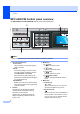
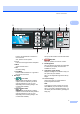


Table Of Contents
- USER’S GUIDEMFC-5890CN MFC-6490CW
- Approval Information and Compilation and Publication Notice
- Table of Contents
- Section I General
- 1 General Information
- 2 Loading paper and documents
- 3 General setup
- 4 Security features
- Section II Fax
- 5 Sending a Fax
- Entering Fax mode
- Broadcasting (Monochrome only)
- Additional sending operations
- Sending faxes using multiple settings
- Contrast
- Changing fax resolution
- Dual access (Monochrome only)
- Real time transmission
- Overseas Mode
- Delayed Faxing (Monochrome only)
- Delayed Batch Transmission (Monochrome only)
- Checking and cancelling waiting jobs
- Setting your changes as a new default
- Restoring all settings to the factory settings
- Sending a fax manually
- Out of Memory message
- 6 Receiving a Fax
- 7 Telephone and External devices
- 8 Dialling and storing numbers
- 9 Printing Reports
- 10 Polling
- 5 Sending a Fax
- Section III Copy
- 11 Making copies
- How to copy
- Copy settings
- Changing copy speed and quality
- Enlarging or reducing the image copied
- Making N in 1 copies or a poster (Page Layout)
- Sorting copies using the ADF
- Adjusting Brightness and Contrast
- Paper Options
- Skew Adjustment (MFC-6490CW only)
- Book Copy
- Watermark Copy
- Setting your changes as a new default
- Restoring all settings to the factory settings
- ‘Out of Memory’ message
- 11 Making copies
- Section IV Direct Photo Printing
- Section V Software
- Section VI Appendixes
- A Safety and Legal
- B Troubleshooting and Routine Maintenance
- C Menu and Features
- D Specifications
- E Glossary
- Index
- brother CHN-ENG

General Information
7
1
d or c
Press to scroll backward or forward to a
menu selection.
Also, press to choose options.
a or b
Press to scroll through the menus and options.
Menu
Access the main menu.
OK
Choose a setting.
Clear/Back
Press to delete characters or to go back to
the previous menu level.
5Start keys:
Color Start
Lets you start sending faxes or making
copies in full color. Also lets you start a
scanning operation (in color or mono,
depending on the scanning setting in the
ControlCenter software).
Mono Start
Lets you start sending faxes or making
copies in monochrome. Also lets you start a
scanning operation (in color or mono
depending on the scanning setting in the
ControlCenter software).
6 Power Save
Lets you put the machine into Power Save mode.
7 Stop/Exit
Stops an operation or exits from a menu.
8 Ink Management
Lets you clean the print head, print a test page
to check the print quality, and check the
available ink volume.
9 LCD (liquid crystal display)
Displays messages on the screen to help you
set up and use your machine.
Also, you can adjust the angle of the LCD by
lifting it.
10 One Touch keys
These 3 keys give you instant access to
6 previously stored numbers.
Shift
To access One Touch numbers 4 to 6, hold
down Shift as you press the One Touch key.
Also, if no number is assigned to the key, you
can directly store the number by pressing the
empty key.
34 5
9
76
8
21.12.2009
21.12.2009
21.12.2009
Fax
Fax
Fax
12:45
12:45
12:45
Mem.
Mem.
Mem.