
User Manual
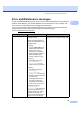


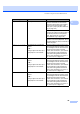

Table Of Contents
- USER’S GUIDEMFC-5890CN MFC-6490CW
- Approval Information and Compilation and Publication Notice
- Table of Contents
- Section I General
- 1 General Information
- 2 Loading paper and documents
- 3 General setup
- 4 Security features
- Section II Fax
- 5 Sending a Fax
- Entering Fax mode
- Broadcasting (Monochrome only)
- Additional sending operations
- Sending faxes using multiple settings
- Contrast
- Changing fax resolution
- Dual access (Monochrome only)
- Real time transmission
- Overseas Mode
- Delayed Faxing (Monochrome only)
- Delayed Batch Transmission (Monochrome only)
- Checking and cancelling waiting jobs
- Setting your changes as a new default
- Restoring all settings to the factory settings
- Sending a fax manually
- Out of Memory message
- 6 Receiving a Fax
- 7 Telephone and External devices
- 8 Dialling and storing numbers
- 9 Printing Reports
- 10 Polling
- 5 Sending a Fax
- Section III Copy
- 11 Making copies
- How to copy
- Copy settings
- Changing copy speed and quality
- Enlarging or reducing the image copied
- Making N in 1 copies or a poster (Page Layout)
- Sorting copies using the ADF
- Adjusting Brightness and Contrast
- Paper Options
- Skew Adjustment (MFC-6490CW only)
- Book Copy
- Watermark Copy
- Setting your changes as a new default
- Restoring all settings to the factory settings
- ‘Out of Memory’ message
- 11 Making copies
- Section IV Direct Photo Printing
- Section V Software
- Section VI Appendixes
- A Safety and Legal
- B Troubleshooting and Routine Maintenance
- C Menu and Features
- D Specifications
- E Glossary
- Index
- brother CHN-ENG

146
Cannot Detect You installed a new ink cartridge
too quickly and the machine did
not detect it.
Take out the new ink cartridge and
re-install it slowly until it clicks.
If you are using non Brother
Original ink the machine may not
detect the ink cartridge.
Replace the cartridge with a Brother
Original ink cartridge. If the error message
remains, contact your Brother dealer.
An ink cartridge is not installed
correctly.
Take out the new ink cartridge and
re
-install it slowly until it clicks. (See
Replacing the ink cartridges on page 158.)
Cannot Print One or more of the ink cartridges
are empty. The machine will stop
all print operations. While memory
is available, black and white faxes
will be stored in the memory. If a
sending machine has a color fax,
the machine's
‘handshake’ will
ask that the fax be sent as
monochrome.
Replace the empty ink cartridges. (See
Replacing the ink cartridges on page 158.)
Comm.Error Poor telephone line quality
caused a communication error.
If the problem continues, call the
telephone company and ask them to check
your telephone line.
Connection Fail You tried to poll a fax machine
that is not in Polled Waiting mode.
Check the other fax machine's polling
setup.
Cover is Open The scanner cover is not closed
completely.
Lift the scanner cover and then close it
again.
The ink cartridge cover is not
completely closed.
Firmly close the ink cartridge cover until it
clicks.
Data Remaining Print data is left in the machine's
memory.
Press Stop/Exit. The machine will cancel
the job and clear it from the memory. Try to
print again.
Disconnected The other person or other
person's fax machine stopped the
call.
Try to send or receive again.
Document Jam The document was not inserted or
fed correctly, or the document
scanned from the ADF was too
long.
See Using the ADF on page 23.
See Document jam on page 152.
High Temperature The print head is too warm. Allow the machine to cool down.
Hub is Unusable. A Hub or USB Flash memory
drive with Hub has been
connected to the USB direct
interface.
A Hub or USB Flash memory drive with
Hub are not supported. Unplug the device
from the USB direct interface.
Image Too Long. The proportions of your photo are
irregular so effects could not be
added.
Choose a regularly proportioned image.
Image Too Small. The size of your photo is too small
to trim.
Choose a larger image.
Error Message Cause Action