
User Manual
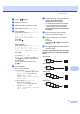

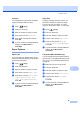
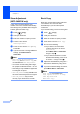
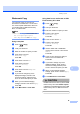


Table Of Contents
- USER’S GUIDEMFC-5890CN MFC-6490CW
- Approval Information and Compilation and Publication Notice
- Table of Contents
- Section I General
- 1 General Information
- 2 Loading paper and documents
- 3 General setup
- 4 Security features
- Section II Fax
- 5 Sending a Fax
- Entering Fax mode
- Broadcasting (Monochrome only)
- Additional sending operations
- Sending faxes using multiple settings
- Contrast
- Changing fax resolution
- Dual access (Monochrome only)
- Real time transmission
- Overseas Mode
- Delayed Faxing (Monochrome only)
- Delayed Batch Transmission (Monochrome only)
- Checking and cancelling waiting jobs
- Setting your changes as a new default
- Restoring all settings to the factory settings
- Sending a fax manually
- Out of Memory message
- 6 Receiving a Fax
- 7 Telephone and External devices
- 8 Dialling and storing numbers
- 9 Printing Reports
- 10 Polling
- 5 Sending a Fax
- Section III Copy
- 11 Making copies
- How to copy
- Copy settings
- Changing copy speed and quality
- Enlarging or reducing the image copied
- Making N in 1 copies or a poster (Page Layout)
- Sorting copies using the ADF
- Adjusting Brightness and Contrast
- Paper Options
- Skew Adjustment (MFC-6490CW only)
- Book Copy
- Watermark Copy
- Setting your changes as a new default
- Restoring all settings to the factory settings
- ‘Out of Memory’ message
- 11 Making copies
- Section IV Direct Photo Printing
- Section V Software
- Section VI Appendixes
- A Safety and Legal
- B Troubleshooting and Routine Maintenance
- C Menu and Features
- D Specifications
- E Glossary
- Index
- brother CHN-ENG

Making copies
95
11
Watermark Copy 11
You can place a logo or text into your
document as a Watermark. You can select
one of the template watermarks, data from
your media cards or USB Flash memory
drive, or scanned data.
Note
Watermark Copy is not available with
Fit to Page, Page Layout,
Skew Adjustment and Book Copy.
Using a template 11
a Press (Copy).
b Load your document.
c Enter the number of copies you want.
d Press a or b to choose
Watermark Copy.
Press OK.
e Press d or c to choose On.
f Press a or b to choose
Current Setting.
Press OK.
g Press a or b to choose Template.
Press OK.
h If you want to change any of the
displayed settings, press a or b to
choose the setting, and then press
d or c to choose the option you want.
i When you are finished changing
settings, press a or b to choose Apply.
Press OK.
j Press Mono Start or Color Start.
Using data from a media card or USB
Flash memory drive data
11
a Press (Copy).
b Load your document.
c Enter the number of copies you want.
d Press a or b to choose
Watermark Copy.
Press OK.
e Press d or c to choose On.
f Press a or b to choose
Current Setting.
Press OK.
g Insert a media card or USB Flash
memory drive. Press a or b to choose
Media.
Press OK.
h Press d or c to choose the data you
want to use for the watermark.
Press OK.
i If you want to change any of the
displayed settings, press a or b to
choose the setting, and then press
d or c to choose the option you want.
j When you are finished changing
settings, press a or b to choose Apply.
Press OK.
k Press Mono Start or Color Start.
CAUTION
DO NOT take out the memory card or USB
Flash memory drive while Photo Capture
is blinking to avoid damaging the card, USB
Flash memory drive or data stored on the
card.