
Network User's Guide for Internet Fax

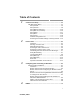




Table Of Contents
- Internet FAX User’s Guide
- Table of Contents
- 1 Control Panel Setup
- 2 Internet FAX
- 3 Configuring Internet Printing for Windows®
- Internet Printing Installation
- Overview
- Brother Internet Print General Information
- Brother Internet Print Configuring the Brother Print/Fax Server
- Brother Internet Print Using BRAdmin Professional utility to Configure the Print Server
- Brother Internet Print Installing the BIP software on Windows® 98/Me/2000/XP
- Adding a Second Brother Internet Port
- Other Sources of Information
- Internet Printing Installation
- INDEX

CONTROL PANEL SETUP 1 - 2
NC9100h_FM6.0
Setup TCP/IP
This menu has nine sections: Boot Method, IP Address, Subnet
Mask, Gateway, Host Name, WINS Config, WINS Server, DNS
Server and APIPA.
BOOT Method
1
Press Menu/Set, 5, 1, 1 for MFC-3340CN/MFC-5840CN. (4,
1, 1 for FAX-1940CN/MFC-5440CN)
2
Press ▲ or ▼ to select Auto, Static, RARP, BOOTP or DHCP.
3
Press Menu/Set.
4
Press Stop/Exit.
Static mode
In this mode the machine's IP address must be manually assigned.
Once entered the IP address is locked to the assigned address.
Auto mode
In this mode, the machine will scan the network for a DHCP server,
if it can find one, and if the DHCP server is configured to allocate an
IP address to the machine, then the IP address supplied by the
DHCP server will used. If no DHCP server is available, then the
machine will scan for a BOOTP server. If a BOOTP server is
available, and it is configured correctly, the machine will take its IP
address from the BOOTP server. After it is initially powered ON, it
may take a few minutes for the machine to scan the network for a
server.