
Network User's Guide for Internet Fax
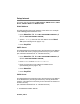
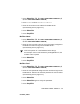
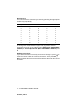
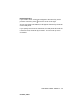
Table Of Contents
- Internet FAX User’s Guide
- Table of Contents
- 1 Control Panel Setup
- 2 Internet FAX
- 3 Configuring Internet Printing for Windows®
- Internet Printing Installation
- Overview
- Brother Internet Print General Information
- Brother Internet Print Configuring the Brother Print/Fax Server
- Brother Internet Print Using BRAdmin Professional utility to Configure the Print Server
- Brother Internet Print Installing the BIP software on Windows® 98/Me/2000/XP
- Adding a Second Brother Internet Port
- Other Sources of Information
- Internet Printing Installation
- INDEX
CONTROL PANEL SETUP 1 - 18
NC9100h_FM6.0
Relay Domain
You can register the Domain Names (Max.5) that are allowed to
request a Relay Broadcast.
1
Press Menu/Set, 5, 5, 2 for MFC-3340CN/MFC-5840CN. (4,
5, 2 for FAX-1940CN/MFC-5440CN)
2
Press ▲ or ▼ to select the Relay Domain (01 - 05).
3
Press Menu/Set.
4
Enter the Relay Domain name for the Domain that is being
allowed to request a Relay Broadcast (up to 30 characters).
5
Press Menu/Set.
6
Press Stop/Exit.
Relay Report
A Relay Broadcast Report can be printed by the machine used as the
Relay Station for all Relay Broadcasts. Also, when the machine is
used with the Brother Internet Fax Printing Software (BFP), the
machine is acting as a Relay Station for fax transmissions from the
network so a Relay Report can also be printed for confirmation of
sent network faxes. (For US / Canada only)
Its primary function is to print reports of Relay Broadcasts from
external sources through the machine. Please note that Relay
Broadcast is not possible without the Relaying Station providing
permission in the form of a Relay Domain.
1
Press Menu/Set, 5, 5, 3 for MFC-3340CN/MFC-5840CN. (4,
5, 3 for FAX-1940CN/MFC-5440CN)
2
Press ▲ or ▼ to select On or Off.
3
Press Menu/Set.
4
Press Stop/Exit.