
Network User's Guide for Internet Fax
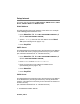
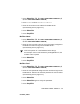
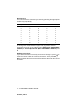
Table Of Contents
- Internet FAX User’s Guide
- Table of Contents
- 1 Control Panel Setup
- 2 Internet FAX
- 3 Configuring Internet Printing for Windows®
- Internet Printing Installation
- Overview
- Brother Internet Print General Information
- Brother Internet Print Configuring the Brother Print/Fax Server
- Brother Internet Print Using BRAdmin Professional utility to Configure the Print Server
- Brother Internet Print Installing the BIP software on Windows® 98/Me/2000/XP
- Adding a Second Brother Internet Port
- Other Sources of Information
- Internet Printing Installation
- INDEX

CONTROL PANEL SETUP 1 - 10
NC9100h_FM6.0
1
Press Menu/Set, 5, 2, 3 for MFC-3340CN/MFC-5840CN. (4,
2, 3 for FAX-1940CN/MFC-5440CN)
2
Press ▲ or ▼ to select Name or IP Address.
3
Enter the host name or IP address for POP3 Server.
(See Entering text on page 1-11.)
4
Press Menu/Set.
5
Press Stop/Exit.
Mailbox Name
1
Press Menu/Set, 5, 2, 4 for MFC-3340CN/MFC-5840CN. (4,
2, 4 for FAX-1940CN/MFC-5440CN)
2
Enter the user account name (up to 20 characters) assigned to
the Brother machine to login to the POP3 Server.
(See Entering text on page 1-11.)
3
Press Menu/Set.
4
Press Stop/Exit.
Mailbox Pwd
1
Press Menu/Set, 5, 2, 5 for MFC-3340CN/MFC-5840CN. (4,
2, 5 for FAX-1940CN/MFC-5440CN)
2
Enter the user password assigned to the machine to login to the
POP3 Server. Please note that this password is case sensitive.
(See Entering text on page 1-11.)
3
Press Menu/Set.
4
Press Menu/Set again to verify the password.
5
Press Stop/Exit.
This is the portion of e-mail address before the @.
For example: If the e-mail address is jsmith@brother.uk, the
mailbox name is jsmith.