
User Manual


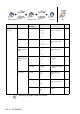
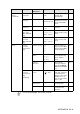
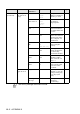
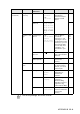
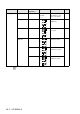

Table Of Contents
- USER’S GUIDE MFC-5440CN/MFC-5840CN
- Brother numbers
- Ordering accessories and supplies
- Safety precautions
- Choosing a location
- Quick Reference Guide
- Table of Contents
- 1 Introduction
- 2 Getting started
- Initial Setup
- General Setup
- Setting the Mode Timer
- Setting the Paper Type
- Setting the Paper Size
- Setting the Ring Volume
- Setting the Beeper Volume
- Setting the Speaker Volume
- Turning on Automatic Daylight Savings Time
- Setting the LCD Contrast
- Setting the Tray Use for Copy mode (MFC-5840CN only)
- Setting the Tray Use for Fax mode (MFC-5840CN only)
- 3 Setup Send
- 4 Setup Receive
- 5 Quick-Dial numbers and dialing options
- 6 Remote Fax Options (Not available for color faxes)
- 7 Printing reports
- 8 Making copies
- 9 Walk-Up PhotoCapture Center™ (MFC-5840CN only)
- 10 Important information
- 11 Troubleshooting and routine maintenance
- Appendix A
- Appendix B
- Glossary
- Specifications
- Index
- Remote Retrieval Access card
- brother USA/CAN

B - 5 APPENDIX B
2.Fax
(Continued)
2.Setup Send
(In Fax mode
only)
1.Contrast Auto
Light
Dark
Changes the
lightness or darkness
of faxes you send.
3-7
2.Fax
Resolution
Standard
Fine
S.Fine
Photo
Sets the default
resolution for
outgoing faxes.
3-8
3.Delayed
Fax
— Set the time of day in
24 hour format that
the delayed faxes will
be sent.
3-14
4.Batch TX On
Off
Combines delayed
faxes to the same fax
number at the same
time of day into one
transmission.
3-15
5.Real Time
TX
Off
On
Next Fax Only
You can send a fax
without using the
memory.
3-10
6.Polled TX On
Off
Sets up your MFC
with an document to
be retrieved by
another fax machine.
3-14
7.Overseas
Mode
On
Off
If you are having
difficulty sending
faxes overseas, set
this to On.
3-13
0.Glass Fax
Size
Letter
A4
Adjust the scan area
of the scanner glass
to the size of the
document.
3-15
3.Set
Quick-Dial
1.Speed-Dial — Stores Speed-Dial
numbers, so you can
dial by pressing only
a few keys (and
Start).
5-1
2.Setup
Groups
— Sets up a Group
number for
Broadcasting.
5-3
Main Menu Submenu Menu
Selections
Options Descriptions Page
The factory settings are shown in Bold.