
User Manual

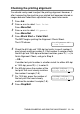
Table Of Contents
- USER’S GUIDE MFC-5440CN/MFC-5840CN
- Brother numbers
- Ordering accessories and supplies
- Safety precautions
- Choosing a location
- Quick Reference Guide
- Table of Contents
- 1 Introduction
- 2 Getting started
- Initial Setup
- General Setup
- Setting the Mode Timer
- Setting the Paper Type
- Setting the Paper Size
- Setting the Ring Volume
- Setting the Beeper Volume
- Setting the Speaker Volume
- Turning on Automatic Daylight Savings Time
- Setting the LCD Contrast
- Setting the Tray Use for Copy mode (MFC-5840CN only)
- Setting the Tray Use for Fax mode (MFC-5840CN only)
- 3 Setup Send
- 4 Setup Receive
- 5 Quick-Dial numbers and dialing options
- 6 Remote Fax Options (Not available for color faxes)
- 7 Printing reports
- 8 Making copies
- 9 Walk-Up PhotoCapture Center™ (MFC-5840CN only)
- 10 Important information
- 11 Troubleshooting and routine maintenance
- Appendix A
- Appendix B
- Glossary
- Specifications
- Index
- Remote Retrieval Access card
- brother USA/CAN

TROUBLESHOOTING AND ROUTINE MAINTENANCE 11 - 16
Checking the print quality
If faded or streaked colors and text appear on your output, some of
the nozzles may be clogged. You can check this by printing the Print
Quality Check Sheet and looking at the nozzle check pattern.
1
Press
Ink
.
2
Press
▲
or
▼
to select
Test Print
.
Press
Menu/Set
.
3
Press
▲
or
▼
to select
Print Quality
.
Press
Menu/Set
.
4
Press
Color Start
.
The MFC begins printing the Print Quality Check Sheet.
5
Check the sheet to see if the quality is OK by following these
steps:
Color block quality check
The LCD shows:
6
Check the quality of the four color blocks on the sheet.
7
If all lines are clear and visible, press
1
(
Yes
), and go to step 10.
—OR—
If you can see missing short lines as shown below, press
2
(
No
).
The LCD will ask you if the print
quality is OK for black and three
colors.
OK Poor
Is Quality OK?
1.Yes 2.No
Black OK?
1.Yes 2.No