
User Manual

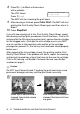
Table Of Contents
- USER’S GUIDE MFC-5440CN/MFC-5840CN
- Brother numbers
- Ordering accessories and supplies
- Safety precautions
- Choosing a location
- Quick Reference Guide
- Table of Contents
- 1 Introduction
- 2 Getting started
- Initial Setup
- General Setup
- Setting the Mode Timer
- Setting the Paper Type
- Setting the Paper Size
- Setting the Ring Volume
- Setting the Beeper Volume
- Setting the Speaker Volume
- Turning on Automatic Daylight Savings Time
- Setting the LCD Contrast
- Setting the Tray Use for Copy mode (MFC-5840CN only)
- Setting the Tray Use for Fax mode (MFC-5840CN only)
- 3 Setup Send
- 4 Setup Receive
- 5 Quick-Dial numbers and dialing options
- 6 Remote Fax Options (Not available for color faxes)
- 7 Printing reports
- 8 Making copies
- 9 Walk-Up PhotoCapture Center™ (MFC-5840CN only)
- 10 Important information
- 11 Troubleshooting and routine maintenance
- Appendix A
- Appendix B
- Glossary
- Specifications
- Index
- Remote Retrieval Access card
- brother USA/CAN

11 - 15 TROUBLESHOOTING AND ROUTINE MAINTENANCE
How to improve print quality
Cleaning the print head
To ensure good print quality, the MFC will regularly clean the print
head. You can start the cleaning process manually if needed.
Clean the print head and ink cartridges if you get a horizontal line in
the text or graphics on your printed pages. You can clean Black only
or three colors at a time (Cyan/Yellow/Magenta), or all four colors at
once.
Cleaning the print head consumes ink. Cleaning too often uses ink
unnecessarily.
Caution
Do NOT touch the print head. Touching the print head may cause
permanent damage and may void the print head’s warranty.
1
Press
Ink
.
2
Press
▲
or
▼
to select
Cleaning
.
Press
Menu/Set
.
3
Press
▲
or
▼
to select
Black
,
Color
or
All
.
Press
Menu/Set
.
The MFC will clean the print head. When cleaning is finished,
the MFC will go back to standby mode automatically.
If you clean the print head at least five times and the print has
not improved, call Brother Customer Service (see
Brother
numbers
on page i).