
User Manual

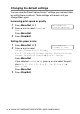



Table Of Contents
- USER’S GUIDE MFC-5440CN/MFC-5840CN
- Brother numbers
- Ordering accessories and supplies
- Safety precautions
- Choosing a location
- Quick Reference Guide
- Table of Contents
- 1 Introduction
- 2 Getting started
- Initial Setup
- General Setup
- Setting the Mode Timer
- Setting the Paper Type
- Setting the Paper Size
- Setting the Ring Volume
- Setting the Beeper Volume
- Setting the Speaker Volume
- Turning on Automatic Daylight Savings Time
- Setting the LCD Contrast
- Setting the Tray Use for Copy mode (MFC-5840CN only)
- Setting the Tray Use for Fax mode (MFC-5840CN only)
- 3 Setup Send
- 4 Setup Receive
- 5 Quick-Dial numbers and dialing options
- 6 Remote Fax Options (Not available for color faxes)
- 7 Printing reports
- 8 Making copies
- 9 Walk-Up PhotoCapture Center™ (MFC-5840CN only)
- 10 Important information
- 11 Troubleshooting and routine maintenance
- Appendix A
- Appendix B
- Glossary
- Specifications
- Index
- Remote Retrieval Access card
- brother USA/CAN

9 - 9 WALK-UP PHOTOCAPTURE CENTER
™
(MFC-5840CN ONLY)
Changing the default settings
You can save the PhotoCapture Center
™
settings you use most often
by setting them as default. These settings will remain until you
change them again.
Increasing print speed or quality
1
Press
Menu/Set
,
4
,
1
.
2
Press
▲
or
▼
to select
Normal
or
Photo
.
Press
Menu/Set
.
3
Press
Stop/Exit
.
Setting the paper & size
1
Press
Menu/Set
,
4
,
2
.
2
Press
▲
or
▼
to select
Letter Glossy
,
4"x 6" Glossy
,
5"x 7" Glossy
,
A4 Glossy
,
Letter Plain
,
A4 Plain
,
Letter Inkjet
,
A4 Inkjet
or
4"x 6" Inkjet
.
Press
Menu/Set
.
If you selected
Letter
or
A4
, press
▲
or
▼
to select the print
size (
4"x 3"
,
5"x 3.5"
,
6"x 4"
,
7"x 5"
,
8"x 6"
or
Max. Size
).
Press
Menu/Set
.
3
Press
Stop/Exit
.
PhotoCapture
1.Print Quality
PhotoCapture
2.Paper & Size