
User Manual


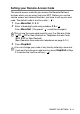

Table Of Contents
- USER’S GUIDE MFC-5440C/MFC-5840CN
- APPROVAL INFORMATION
- Compilation and Publication Notice
- Safety precautions
- Choosing a location
- Quick Reference Guide
- Table of Contents
- 1 Introduction
- 2 Getting started
- 3 Setup Send
- How to enter Fax mode
- How to dial
- How to Fax (B&W and Colour)
- Basic sending operations
- Advanced sending operations
- Broadcasting (Not available for colour faxes)
- Overseas Mode
- Delayed Fax (Not available for colour faxes)
- Delayed Batch Transmission (Not available for colour faxes)
- Setup for Polled Transmit (Standard) (Not available for colour faxes)
- Setup for Polled Transmit with Secure Code (Not available for colour faxes)
- TX Lock (Key Lock for some countries)
- Faxing letter size documents from the scanner glass
- 4 Setup Receive
- 5 Quick-Dial numbers and dialling options
- 6 Remote Fax Options (Not available for colour faxes)
- 7 Printing reports
- 8 Making copies
- 9 Walk-Up PhotoCapture Center™ (MFC-5840CN only)
- 10 Important information
- 11 Troubleshooting and routine maintenance
- Appendix A
- Telephone Service for Australia
- Telephone Service for New Zealand
- Telephone Service for Some Countries
- Advanced receiving operations
- Connecting an external device to your MFC
- Appendix B
- Glossary
- Specifications
- Index
- Remote Retrieval Access card
- brother ARL/ASA/NZ

REMOTE FAX OPTIONS 6 - 4
Setting your Remote Access Code
The remote access code lets you access the Remote Retrieval
features when you are away from your MFC. Before you use the
remote access and retrieval features, you have to set up your own
code. The default code is inactive code (--- ).
1
Press
Menu/Set
,
2
,
5
,
2
.
2
Enter a three-digit code using numbers
0
-
9
or .
Press
Menu/Set
. (The preset ‘ ’ cannot be changed.)
3
Press
Stop/Exit
.
Do not use the same code used for your Fax Receive Code
(
51
,
91
for New Zealand) or Telephone Answer Code
(
#51
,
#91
for New Zealand).
(See Operation from extension telephones on page A-14.)
You can change your code at any time by entering a new one.
If you want to make your code inactive, press
Stop/Exit
in Step
2 to restore the inactive setting (--- ).