
User Manual


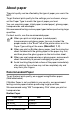


Table Of Contents
- USER’S GUIDE MFC-5440C/MFC-5840CN
- APPROVAL INFORMATION
- Compilation and Publication Notice
- Safety precautions
- Choosing a location
- Quick Reference Guide
- Table of Contents
- 1 Introduction
- 2 Getting started
- 3 Setup Send
- How to enter Fax mode
- How to dial
- How to Fax (B&W and Colour)
- Basic sending operations
- Advanced sending operations
- Broadcasting (Not available for colour faxes)
- Overseas Mode
- Delayed Fax (Not available for colour faxes)
- Delayed Batch Transmission (Not available for colour faxes)
- Setup for Polled Transmit (Standard) (Not available for colour faxes)
- Setup for Polled Transmit with Secure Code (Not available for colour faxes)
- TX Lock (Key Lock for some countries)
- Faxing letter size documents from the scanner glass
- 4 Setup Receive
- 5 Quick-Dial numbers and dialling options
- 6 Remote Fax Options (Not available for colour faxes)
- 7 Printing reports
- 8 Making copies
- 9 Walk-Up PhotoCapture Center™ (MFC-5840CN only)
- 10 Important information
- 11 Troubleshooting and routine maintenance
- Appendix A
- Telephone Service for Australia
- Telephone Service for New Zealand
- Telephone Service for Some Countries
- Advanced receiving operations
- Connecting an external device to your MFC
- Appendix B
- Glossary
- Specifications
- Index
- Remote Retrieval Access card
- brother ARL/ASA/NZ

1 - 10 INTRODUCTION
About paper
The print quality can be affected by the type of paper you use in the
MFC.
To get the best print quality for the settings you’ve chosen, always
set the Paper Type to match the type of paper you load.
You can use plain paper, inkjet paper (coated paper), glossy paper,
transparencies and envelopes.
We recommend testing various paper types before purchasing large
quantities.
For best results, use the recommended paper.
Recommended Paper
To get the best print quality, we suggest using Brother paper.
(See table below.)
If Brother Paper is not available in your country, we recommend
testing various papers before purchasing large quantities.
We recommend using “3M Transparency Film” when you print on
transparencies.
Brother Paper
■
When you print on inkjet paper (coated paper),
transparencies and glossy paper, be sure to select the
proper media in the “Basic” tab of the printer driver or in the
Paper Type setting of the menu (
Menu/Set
,
1
,
2
).
■
When you print on Brother glossy paper, load the instruction
sheet included with the glossy paper in the paper tray first,
and then place the glossy paper on the instruction sheet.
■
When you use transparencies or glossy paper, remove each
sheet immediately to prevent smudging or paper jams.
■
Avoid touching the printed surface of the paper immediately
after printing; the surface may not be completely dry and
may stain your fingers.
Paper Type Item
A4 Plain BP60PA
A4 Glossy BP60GLA
A4 Inkjet (Photo Matte) BP60MA