
User Manual
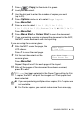
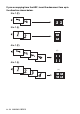
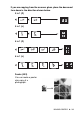


Table Of Contents
- USER’S GUIDE MFC-5440C/MFC-5840CN
- APPROVAL INFORMATION
- Compilation and Publication Notice
- Safety precautions
- Choosing a location
- Quick Reference Guide
- Table of Contents
- 1 Introduction
- 2 Getting started
- 3 Setup Send
- How to enter Fax mode
- How to dial
- How to Fax (B&W and Colour)
- Basic sending operations
- Advanced sending operations
- Broadcasting (Not available for colour faxes)
- Overseas Mode
- Delayed Fax (Not available for colour faxes)
- Delayed Batch Transmission (Not available for colour faxes)
- Setup for Polled Transmit (Standard) (Not available for colour faxes)
- Setup for Polled Transmit with Secure Code (Not available for colour faxes)
- TX Lock (Key Lock for some countries)
- Faxing letter size documents from the scanner glass
- 4 Setup Receive
- 5 Quick-Dial numbers and dialling options
- 6 Remote Fax Options (Not available for colour faxes)
- 7 Printing reports
- 8 Making copies
- 9 Walk-Up PhotoCapture Center™ (MFC-5840CN only)
- 10 Important information
- 11 Troubleshooting and routine maintenance
- Appendix A
- Telephone Service for Australia
- Telephone Service for New Zealand
- Telephone Service for Some Countries
- Advanced receiving operations
- Connecting an external device to your MFC
- Appendix B
- Glossary
- Specifications
- Index
- Remote Retrieval Access card
- brother ARL/ASA/NZ

MAKING COPIES 8 - 12
1
Press (
Copy
) to illuminate it in green.
2
Load your document.
3
Use the dial pad to enter the number of copies you want
(up to 99).
4
Press
Options
and
▲
or
▼
to select
Page Layout
.
Press
Menu/Set
.
5
Press
▲
or
▼
to select
2 in 1 (P)
,
2 in 1 (L)
,
4 in 1 (P)
,
4 in 1 (L)
,
Poster(3 x 3)
or
Off(1 in 1)
.
Press
Menu/Set
.
6
Press
Mono Start
or
Colour Start
to scan the document.
7
If you are making a poster or placed the document in the ADF,
the MFC scans document and starts printing.
If you are using the scanner glass:
8
After the MFC scans the page, the
LCD shows:
Press
1
to scan the next page.
9
Put the next document on the
scanner glass.
Press
Menu/Set
.
Repeat Steps 8 and 9 for each page of the layout.
10
After all the pages of the document have been scanned,
press
2
to end.
If
Glossy
has been selected in the Paper Type setting for N in
1 copies, the MFC will print the images as if Plain paper had
been selected.
■
If you are producing multiple colour copies, N in 1 copies are
not available.
■
For Poster copies, you cannot make more than one copy.
Next Page?
1.Yes 2.No
Set Next Page
Then Press Set