
Printer/Fax/Scanner/Copier USER'S GUIDE MFC-5460CN, MFC-5860CN

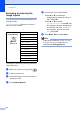
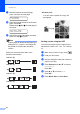
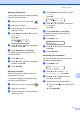

Table Of Contents
- USER’S GUIDE MFC-5460CN MFC-5860CN
- Brother numbers
- Ordering accessories and supplies
- Compilation and Publication Notice
- Table of Contents
- General
- 1 General Information
- 2 Loading documents and paper
- 3 General setup
- 4 Security features
- Fax
- 5 Sending a fax
- Entering Fax mode
- Broadcasting (Black & White only)
- Additional sending operations
- Sending faxes using multiple settings
- Contrast
- Changing Resolution
- Dual access (Black & White only)
- Real time transmission
- Overseas Mode
- Delayed Faxing (Black & White only)
- Delayed Batch Transmission (Black & White only)
- Checking and canceling waiting jobs
- Sending a fax manually
- Sending a fax at the end of a conversation
- Out of Memory message
- 6 Receiving a Fax
- 7 Telephone Services and External devices
- 8 Dialing and storing numbers
- 9 Remote fax options
- 10 Printing Reports
- 11 Polling
- 5 Sending a fax
- Copy
- Walk-up Photo Printing
- Software
- Appendixes
- A Safety and Legal
- Choosing a location
- To use the machine safely
- Important safety instructions
- Standard telephone and FCC Notices (These notices are in effect on models sold and used in the United States only.)
- Federal Communications Commission (FCC) Declaration of Conformity (USA only)
- Industry Canada Compliance Statement (Canada only)
- LAN connection
- Legal limitations for copying
- Trademarks
- B Troubleshooting and Routine Maintenance
- C Menu and Features
- D Specifications
- E Glossary
- F Index
- A Safety and Legal
- brother USA/CAN
Chapter 12
68
Enlarging or reducing the
image copied 12
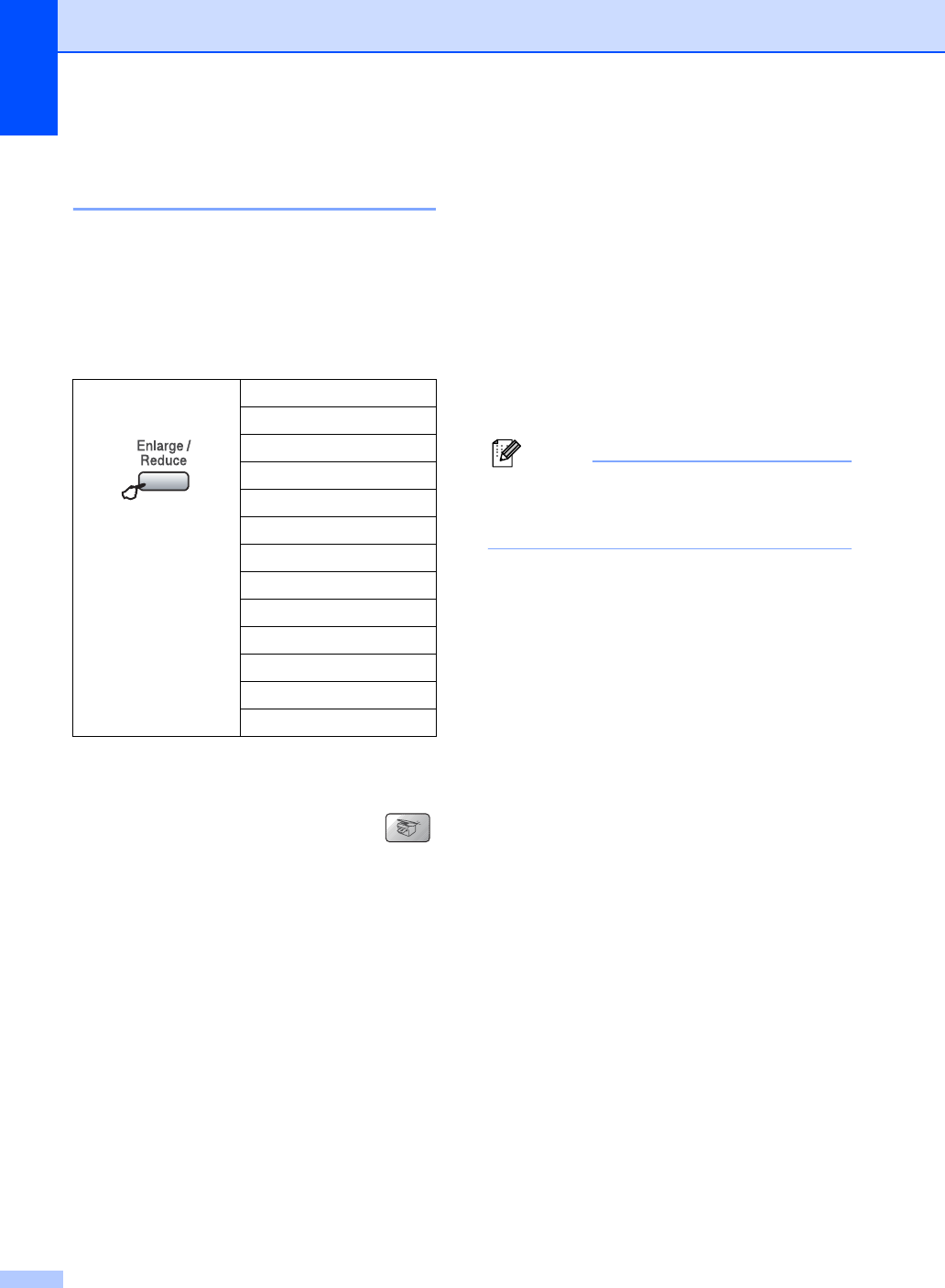
You can choose the following enlargement or
reduction ratios:
Custom(25-400%) allows you to enter a
ratio from 25% to 400%.
To enlarge or reduce the next copy follow the
instruction below:
a Make sure you are in Copy mode .
b Load your document.
c Use the dial pad to enter the number of
copies (up to 99).
d Press Enlarge/Reduce.
e Choose one of the options below:
Use a or b to choose the
enlargement or reduction ratio you
want. Press OK.
Use a or b to choose
Custom(25-400%). Press OK. Use
the dial pad to enter an enlargement
or reduction ratio from 25% to 400%.
(For example, press 5, 3 to enter
53%.) Press OK.
f Press Black Start or Color Start.
Note
Page Layout Options 2 in 1(P), 2 in 1(L),
4 in 1(P), 4 in 1(L) or Poster are not
available with Enlarge/Reduce.
Press
Enlarge/Reduce
and a or b
Custom(25-400%)
200%
198% 4"x6"iA4
186% 4"x6"iLTR
142% A5iA4
104% EXEiLTR
100%
97% LTRiA4
93% A4iLTR
83% LGLiA4
78% LGLiLTR
69% A4iA5
50%