
Printer/Fax/Scanner/Copier USER'S GUIDE MFC-5460CN, MFC-5860CN
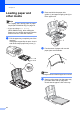

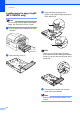



Table Of Contents
- USER’S GUIDE MFC-5460CN MFC-5860CN
- Brother numbers
- Ordering accessories and supplies
- Compilation and Publication Notice
- Table of Contents
- General
- 1 General Information
- 2 Loading documents and paper
- 3 General setup
- 4 Security features
- Fax
- 5 Sending a fax
- Entering Fax mode
- Broadcasting (Black & White only)
- Additional sending operations
- Sending faxes using multiple settings
- Contrast
- Changing Resolution
- Dual access (Black & White only)
- Real time transmission
- Overseas Mode
- Delayed Faxing (Black & White only)
- Delayed Batch Transmission (Black & White only)
- Checking and canceling waiting jobs
- Sending a fax manually
- Sending a fax at the end of a conversation
- Out of Memory message
- 6 Receiving a Fax
- 7 Telephone Services and External devices
- 8 Dialing and storing numbers
- 9 Remote fax options
- 10 Printing Reports
- 11 Polling
- 5 Sending a fax
- Copy
- Walk-up Photo Printing
- Software
- Appendixes
- A Safety and Legal
- Choosing a location
- To use the machine safely
- Important safety instructions
- Standard telephone and FCC Notices (These notices are in effect on models sold and used in the United States only.)
- Federal Communications Commission (FCC) Declaration of Conformity (USA only)
- Industry Canada Compliance Statement (Canada only)
- LAN connection
- Legal limitations for copying
- Trademarks
- B Troubleshooting and Routine Maintenance
- C Menu and Features
- D Specifications
- E Glossary
- F Index
- A Safety and Legal
- brother USA/CAN
Chapter 2
16
Loading paper and
other media
2
Note
• For Tray#2, see Loading paper in paper
tray#2 (MFC-5860CN only) on page 18.
• If you are using Auto Select
(MFC-5860CN only), after refilling the
paper tray you should open and close the
scanner cover to reset the machine.
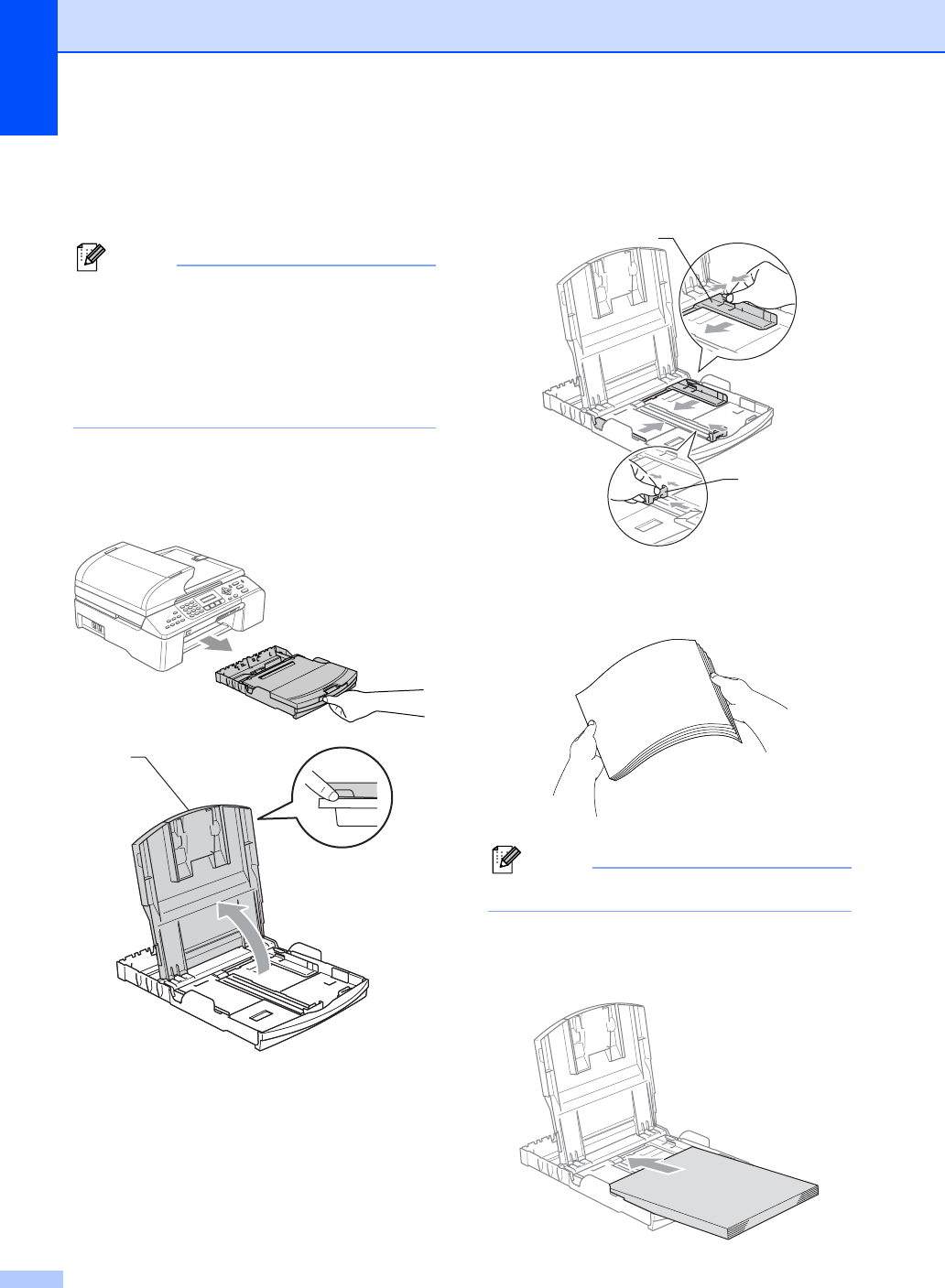
a Pull the paper tray completely out of the
machine.
If the paper support flap is open, close it
and lift the output paper tray cover (1).
b Press and slide the paper side
guides (1) and paper length guide (2) to
fit the paper size.
c Fan the stack of paper well to avoid
paper jams and misfeeds.
Note
Always make sure that the paper is not curled.
d Gently put the paper into the paper tray
print side down and top edge first.
Check that the paper is flat in the tray.
1
1
2