
Printer/Fax/Scanner/Copier USER'S GUIDE MFC-5460CN, MFC-5860CN
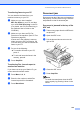

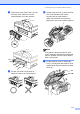
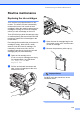
Table Of Contents
- USER’S GUIDE MFC-5460CN MFC-5860CN
- Brother numbers
- Ordering accessories and supplies
- Compilation and Publication Notice
- Table of Contents
- General
- 1 General Information
- 2 Loading documents and paper
- 3 General setup
- 4 Security features
- Fax
- 5 Sending a fax
- Entering Fax mode
- Broadcasting (Black & White only)
- Additional sending operations
- Sending faxes using multiple settings
- Contrast
- Changing Resolution
- Dual access (Black & White only)
- Real time transmission
- Overseas Mode
- Delayed Faxing (Black & White only)
- Delayed Batch Transmission (Black & White only)
- Checking and canceling waiting jobs
- Sending a fax manually
- Sending a fax at the end of a conversation
- Out of Memory message
- 6 Receiving a Fax
- 7 Telephone Services and External devices
- 8 Dialing and storing numbers
- 9 Remote fax options
- 10 Printing Reports
- 11 Polling
- 5 Sending a fax
- Copy
- Walk-up Photo Printing
- Software
- Appendixes
- A Safety and Legal
- Choosing a location
- To use the machine safely
- Important safety instructions
- Standard telephone and FCC Notices (These notices are in effect on models sold and used in the United States only.)
- Federal Communications Commission (FCC) Declaration of Conformity (USA only)
- Industry Canada Compliance Statement (Canada only)
- LAN connection
- Legal limitations for copying
- Trademarks
- B Troubleshooting and Routine Maintenance
- C Menu and Features
- D Specifications
- E Glossary
- F Index
- A Safety and Legal
- brother USA/CAN
114
Note
If the protective yellow caps come off
when you open the bag, the cartridge will
not be damaged.
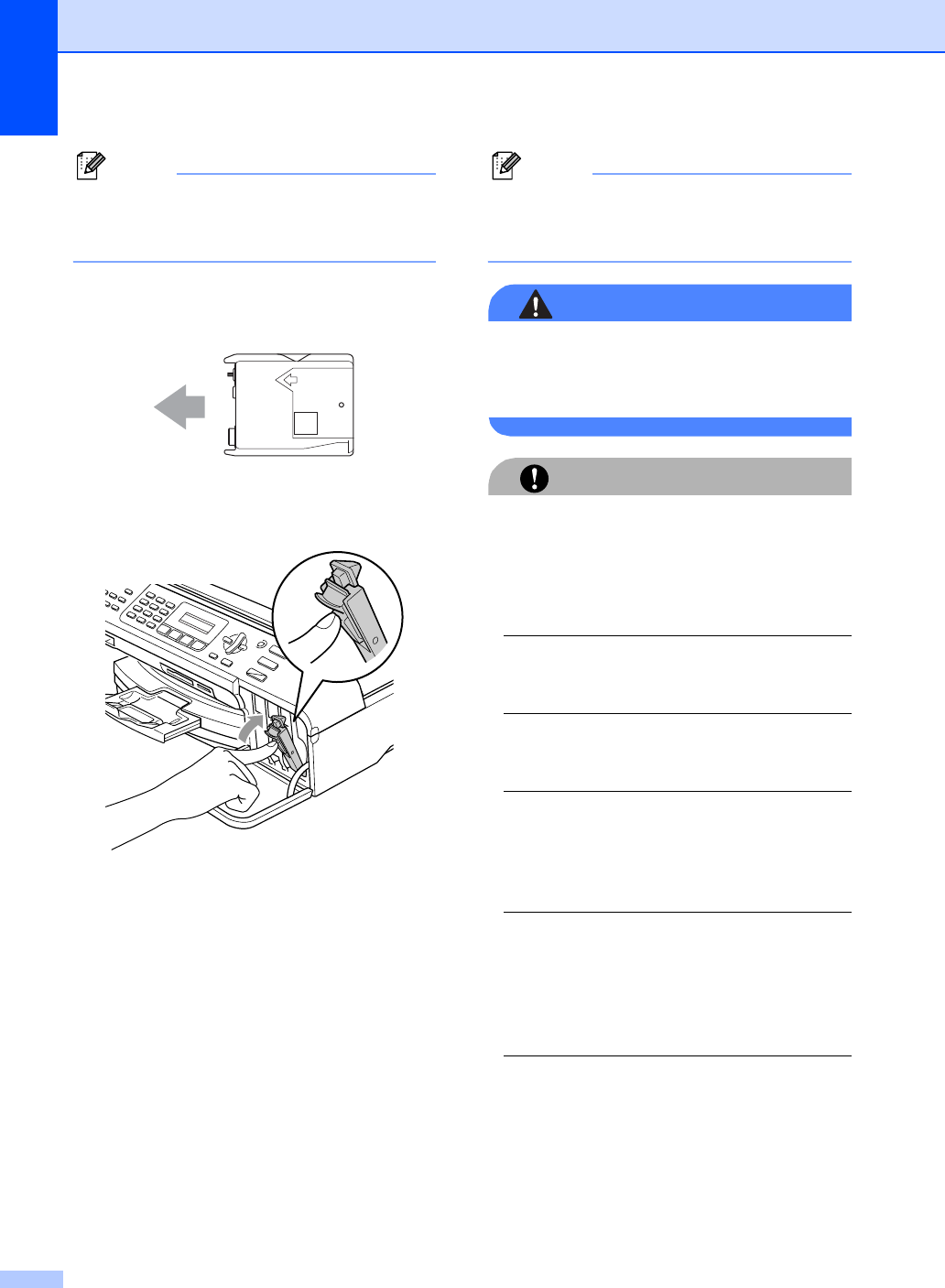
e Each color has its own correct position.
Insert the ink cartridge in the direction of
the arrow on the label.
f Lift each lock release lever and push it
until it clicks, and then close the ink
cartridge cover.
g If you replaced an ink cartridge, the LCD
may ask you to verify that it was a brand
new one. (For example,
Did You Change Blck?) For each
new cartridge you installed, press 1
(Yes) to automatically reset the ink dot
counter for that color. If the ink cartridge
you installed is not a brand new one, be
sure to press 2 (No).
If you wait until the LCD shows
Near Empty and Ink Empty, the
machine will automatically reset the ink
dot counter.
Note
If the LCD shows No Cartridge after
you install the ink cartridges, check that
the ink cartridges are installed properly.
WARNING
If ink gets in your eyes, wash them out with
water at once and call a doctor if you are
concerned.
CAUTION
DO NOT take out ink cartridges if you do
not need to replace them. If you do so, it
may reduce the ink quantity and the
machine will not know the quantity of ink left
in the cartridge.
DO NOT touch the cartridge insertion slots.
If you do so, the ink may stain your skin.
If ink stains your skin or clothing, wash with
soap or detergent at once.
If you mix the colors by installing an ink
cartridge in the wrong position, clean the
print head several times after correcting the
cartridge installation.
Once you open an ink cartridge, install it in
the machine and use it up within six months
of installation. Use unopened ink cartridges
by the expiration date written on the
cartridge package.
DO NOT dismantle or tamper with the ink
cartridge, this can cause the ink to leak out
of the cartridge.
M
brother
XXXX