
Printer/Fax/Scanner/Copier USER'S GUIDE MFC-5460CN, MFC-5860CN
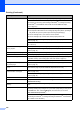
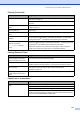
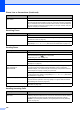
Table Of Contents
- USER’S GUIDE MFC-5460CN MFC-5860CN
- Brother numbers
- Ordering accessories and supplies
- Compilation and Publication Notice
- Table of Contents
- General
- 1 General Information
- 2 Loading documents and paper
- 3 General setup
- 4 Security features
- Fax
- 5 Sending a fax
- Entering Fax mode
- Broadcasting (Black & White only)
- Additional sending operations
- Sending faxes using multiple settings
- Contrast
- Changing Resolution
- Dual access (Black & White only)
- Real time transmission
- Overseas Mode
- Delayed Faxing (Black & White only)
- Delayed Batch Transmission (Black & White only)
- Checking and canceling waiting jobs
- Sending a fax manually
- Sending a fax at the end of a conversation
- Out of Memory message
- 6 Receiving a Fax
- 7 Telephone Services and External devices
- 8 Dialing and storing numbers
- 9 Remote fax options
- 10 Printing Reports
- 11 Polling
- 5 Sending a fax
- Copy
- Walk-up Photo Printing
- Software
- Appendixes
- A Safety and Legal
- Choosing a location
- To use the machine safely
- Important safety instructions
- Standard telephone and FCC Notices (These notices are in effect on models sold and used in the United States only.)
- Federal Communications Commission (FCC) Declaration of Conformity (USA only)
- Industry Canada Compliance Statement (Canada only)
- LAN connection
- Legal limitations for copying
- Trademarks
- B Troubleshooting and Routine Maintenance
- C Menu and Features
- D Specifications
- E Glossary
- F Index
- A Safety and Legal
- brother USA/CAN
104
PhotoCapture Center
®
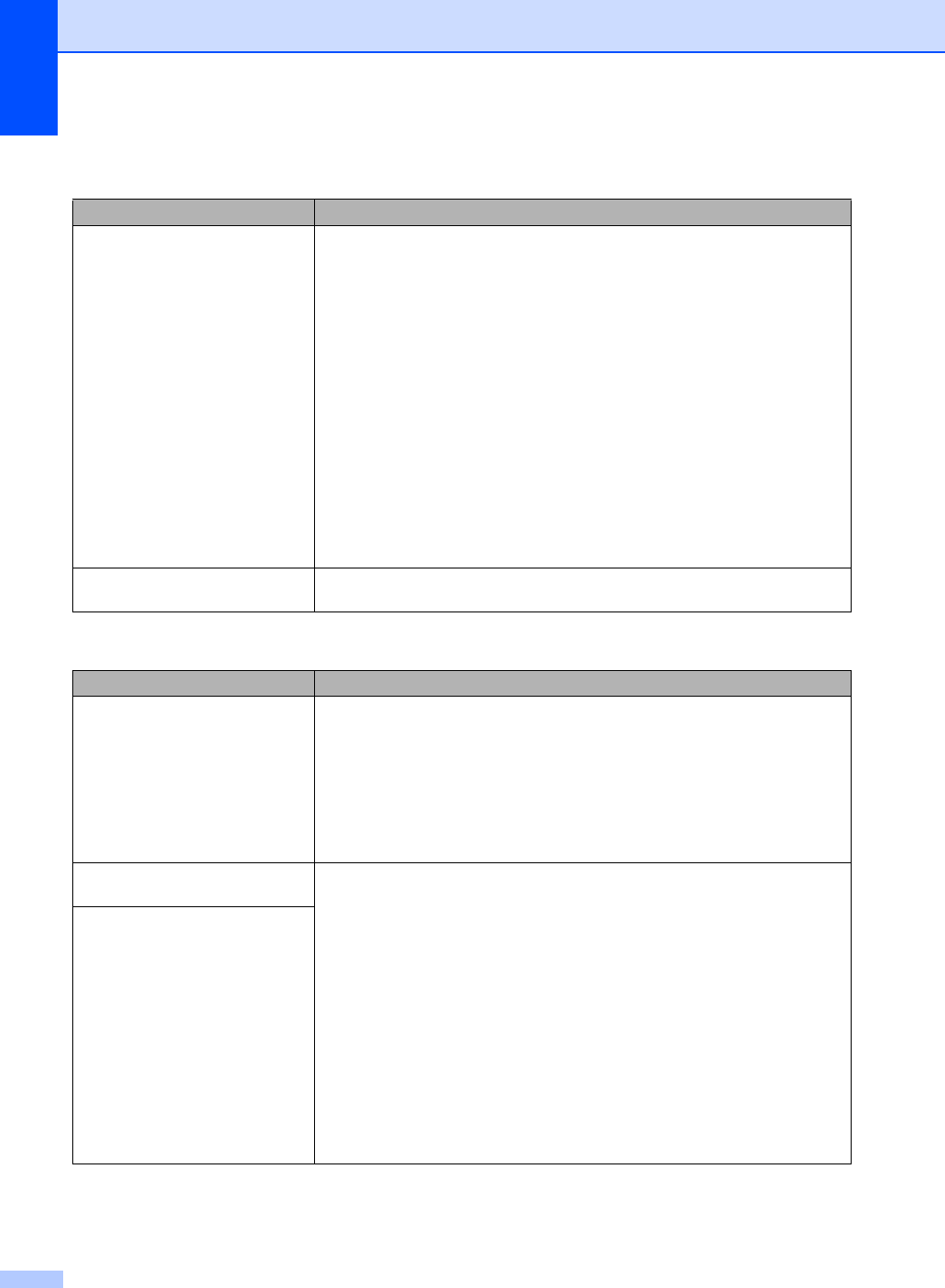
Difficulties
Difficulty Suggestions
Removable Disk does not work
properly.
1 Have you installed the Windows
®
2000 update? If not, do the following:
1) Unplug the USB cable.
2) Install the Windows
®
2000 update, and see the Quick Setup Guide. After
the installation the PC will be automatically restarted.
3) Wait about 1 minute after you restart the PC, and then connect the USB
cable.
2 Take out the media card and put it back in again.
3 If you have tried ‘Eject’ from within Windows
®
, take out the media card before
you continue.
4 If an error message appears when you try to eject the media card, it means
the card is being accessed. Wait a while and then try again.
5 If all of the above do not work, turn off your PC and machine, and then turn
them on again. (You will have to unplug the power cord of the machine to turn
it off.)
Cannot access Removable Disk
from Desktop icon.
Make sure you have put the media card into the media slot.
Network Difficulties
Difficulty Suggestions
Cannot print over the Network. Make sure that your machine is powered on and is online and in Ready mode.
Print a Network Configuration list (see Reports on page 62.) and check the current
Network settings printed in this list. Reconnect the LAN cable to the hub to verify
that the cabling and network connections are good. If possible, try connecting the
machine to a different port on your hub using a different cable. If the connections
are good, the machine shows LAN Active for 2 seconds.
(If you are having Network problems, see the Network User’s Guide on the
CD
-ROM for more information.)
The network scanning feature does
not work.
(For Windows
®
users only) Firewall setting on your PC may be rejecting the
necessary network connection. Follow the instructions below to configure the
Firewall. If you are using a personal Firewall software, see the User’s Guide for
your software or contact the software manufacturer.
<Windows
®
XP SP2 users>
1Click the Start button, Settings, Control Panel and then Windows Firewall.
Make sure that Windows Firewall on the Basic tab is set to On.
2Click the Exceptions tab and Add port button.
3 Enter any name, port number (54295 for network scanning and 54926 for
Network PC
-Fax receiving), choose UDP and click OK.
4 Make sure if the new setting is added and is checked, and then click OK.
For Windows
®
XP SP1 user’s, please visit the Brother Solutions Center.
The network PC-Fax Receive
feature does not work.