
User Manual


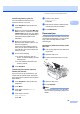


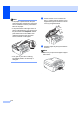
Table Of Contents
- USER’S GUIDE MFC-490CW
- Approval Information and Compilation and Publication Notice
- Table of Contents
- Section I General
- 1 General Information
- 2 Loading paper and documents
- 3 General setup
- 4 Security features
- Section II Fax
- 5 Sending a Fax
- Entering Fax mode
- Broadcasting (Monochrome only)
- Additional sending operations
- Sending faxes using multiple settings
- Contrast
- Changing fax resolution
- Dual access (Monochrome only)
- Real time transmission
- Overseas Mode
- Delayed Faxing (Monochrome only)
- Delayed Batch Transmission (Monochrome only)
- Checking and cancelling waiting jobs
- Setting your changes as a new default
- Restoring all settings to the factory settings
- Sending a fax manually
- Out of Memory message
- 6 Receiving a Fax
- 7 Telephone and External devices
- 8 Dialling and storing numbers
- 9 Printing Reports
- 10 Polling
- 5 Sending a Fax
- Section III Copy
- 11 Making copies
- How to copy
- Copy settings
- ‘Out of Memory’ message
- 11 Making copies
- Section IV Direct Photo Printing
- Section V Software
- Section VI Appendixes
- A Safety and Legal
- B Troubleshooting and Routine Maintenance
- C Menu and Features
- D Specifications
- E Glossary
- Index
- brother CHN-ENG

124
No Paper Fed The machine is out of paper,
paper is not correctly loaded in the
paper tray, or the Jam Clear
Cover is not closed correctly.
Do one of the following:
Refill the paper in the paper tray, and
then press Mono Start or Color Start.
Remove the paper and load it again
and then press Mono Start or
Color Start.
The paper is jammed in the
machine.
Remove the jammed paper by following
the steps in Printer jam or paper jam
on page 128.
No Response/Busy The number you dialled does not
answer or is busy.
Verify the number and try again.
Not Registered You tried to access a Speed Dial
number that is not programmed.
Set up the Speed Dial number. (See
Storing Speed Dial numbers on page 56.)
Out of Memory The machine's memory is full. Fax sending or copy operation in
progress
Do one of the following:
Press Stop/Exit and wait until the other
operations in progress finish and then
try again.
Clear the data in the memory. To gain
extra memory, you can turn off Memory
Receive. (See Turning off Memory
Receive Operations on page 42.)
Print the faxes that are in the memory.
(See Printing a fax from the memory
on page 44.)
The memory card or USB flash
memory drive you are using does
not have enough free space to
scan the documents.
Delete unused files from your memory card
or USB Flash memory drive to make some
free space and then try again.
Paper Jam Paper is jammed in the machine. Open the Jam Clear Cover (at the back of
the machine) and remove the jammed
paper. (See Printer jam or paper jam
on page 128.)
Make sure the paper length guide is
adjusted to the correct paper size. Do not
extend the paper tray when you load A5 or
smaller size paper.
Error Message Cause Action