
User's Guide
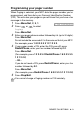
Table Of Contents
- USER'S GUIDE MFC-3420C/MFC-3820CN
- Brother numbers
- Ordering accessories and supplies
- Safety precautions
- Choosing a location
- Quick Reference Guide
- Table of Contents
- 1 Introduction
- 2 Loading originals and paper
- 3 On-screen programming
- 4 Getting started
- 5 Setup Receive
- 6 Setup Send
- 7 Quick-Dial numbers and dialing options
- 8 Remote Fax Options
- 9 Printing reports
- 10 Making copies
- 11 Walk-Up PhotoCapture Center™ (MFC-3820CN only)
- 12 Important information
- Standard telephone and FCC Notices These notices are in effect on models sold and used in the Uni...
- ˘˘Federal Communications Commission (FCC) Declaration of Conformity (USA only)
- Industry Canada Compliance Statement (Canada only)
- LAN connection
- International ENERGY STAR® Compliance Statement
- ˘Important safety instructions
- Trademarks
- 13 Troubleshooting and routine maintenance
- Glossary
- Specifications
- Index
- Remote Retrieval Access card
- brother

REMOTE FAX OPTIONS 8 - 2
Programming your pager number
When Paging is selected, your MFC dials the pager number you’ve
programmed, and then dials your Personal Identification Number
(PIN). This activates your pager so you will know that you have a fax
message in the memory.
1
Press
Menu/Set
,
2
,
5
,
1
.
2
Press or to select
Paging
.
Press
Menu/Set
.
3
Enter your pager phone number followed by # # (up to 20 digits).
Press
Menu/Set
.
Do not include the area code if it is the same as that of your MFC.
For example, press
1
8
0
0
5
5
5
1
2
1
2
#
#
.
4
If your pager needs a PIN, enter the PIN, press
#
, press
Redial/Pause
, enter your fax number followed by
##
.
Press
Menu/Set
.
(For example, press
1
2
3
4
5
#
Redial/Pause
1
8
0
0
5
5
5
1
2
1
2
#
#
)
—
OR
—
If you do not need a PIN, press
Redial/Pause
, enter your fax
number followed by
##
.
Press
Menu/Set
.
(For example, press
Redial/Pause
1
8
0
0
5
5
5
1
2
1
2
#
#
)
5
Press
Stop/Exit
.
You cannot change a Paging number or PIN remotely.
1.Fax Fwd/Paging