
User Manual
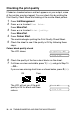
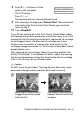

Table Of Contents
- USER’S GUIDE FAX-1840C/MFC-3240C
- APPROVAL INFORMATION
- Compilation and Publication Notice
- Safety precautions
- Choosing a location
- Quick Reference Guide
- Table of Contents
- 1 Introduction
- 2 Getting started
- 3 Setup Send
- How to enter Fax mode
- How to dial
- How to Fax (B&W and Colour)
- Basic sending operations
- Advanced sending operations
- Broadcasting (Not available for colour faxes)
- Overseas Mode
- Delayed Fax (Not available for colour faxes)
- Delayed Batch Transmission (Not available for colour faxes)
- Setup for Polled Transmit (Standard) (Not available for colour faxes)
- Setup for Polled Transmit with Secure Code (Not available for colour faxes)
- TX Lock (Key Lock for some countries)
- 4 Setup Receive
- Basic receiving operations
- Choosing the Receive Mode
- Setting the Ring Delay
- Setting the F/T Ring Time (Fax/Tel mode only)
- Fax Detect (MFC-3240C only)
- Fax Detect (FAX-1840C only)
- Printing a reduced incoming fax (Auto Reduction)
- Receiving a fax at the end of a conversation
- Printing a fax from the memory
- Reception into memory (Not available for colour fax reception)
- Polling
- Basic receiving operations
- 5 Quick-Dial numbers and dialling options
- 6 Remote Fax Options (Not available for colour faxes)
- 7 Printing reports
- 8 Making copies
- 9 Important information
- 10 Troubleshooting and routine maintenance
- Appendix A
- Telephone Service for Australia
- Telephone Service for New Zealand
- Telephone Service for Some Countries
- Advanced receiving operations
- Connecting an external device to your machine
- Appendix B
- Glossary
- Specifications
- Index
- Remote Retrieval Access card
- brother ARL/ASA/NZ

10 - 16 TROUBLESHOOTING AND ROUTINE MAINTENANCE
Checking the printing alignment
You should rarely need to adjust the printing alignment however, if
after transporting the machine your printed text becomes blurred or
images become faded then adjustment may need to be made.
1
Press
Ink Management
.
2
Press
▲
or
▼
to select
Test Print
.
Press
Menu/Set
.
3
Press
▲
or
▼
to select
Alignment
.
Press
Menu/Set
.
4
Press
Mono Start
or
Colour Start
.
The machine begins printing the Alignment Check Sheet.
The LCD shows:
5
Check the 600 dpi and 1200 dpi test prints to see if number 5
most closely matches number 0. If the number 5 sample of both
the 600 dpi and 1200 dpi are the best matches, press
1
(
Yes
) to
finish Alignment Check, and go to Step 8.
—OR—
If another test print number is a better match for either 600 dpi
or 1200 dpi, press
2
(
No
) to select it.
6
For 600 dpi, press the number of the
test print that most closely matches
the number 0 sample (1-8).
7
For 1200 dpi, press the number of
the test print that most closely
matches the number 0 sample
(1-8).
8
Press
Stop/Exit
.
Is Alignment OK?
1.Yes 2.No
600dpi Adjust
Select Best # 5
1200dpi Adjust
Select Best # 5