
User Manual
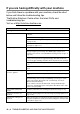
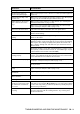
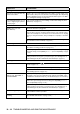
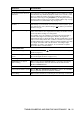

Table Of Contents
- USER’S GUIDE FAX-1840C/MFC-3240C
- APPROVAL INFORMATION
- Compilation and Publication Notice
- Safety precautions
- Choosing a location
- Quick Reference Guide
- Table of Contents
- 1 Introduction
- 2 Getting started
- 3 Setup Send
- How to enter Fax mode
- How to dial
- How to Fax (B&W and Colour)
- Basic sending operations
- Advanced sending operations
- Broadcasting (Not available for colour faxes)
- Overseas Mode
- Delayed Fax (Not available for colour faxes)
- Delayed Batch Transmission (Not available for colour faxes)
- Setup for Polled Transmit (Standard) (Not available for colour faxes)
- Setup for Polled Transmit with Secure Code (Not available for colour faxes)
- TX Lock (Key Lock for some countries)
- 4 Setup Receive
- Basic receiving operations
- Choosing the Receive Mode
- Setting the Ring Delay
- Setting the F/T Ring Time (Fax/Tel mode only)
- Fax Detect (MFC-3240C only)
- Fax Detect (FAX-1840C only)
- Printing a reduced incoming fax (Auto Reduction)
- Receiving a fax at the end of a conversation
- Printing a fax from the memory
- Reception into memory (Not available for colour fax reception)
- Polling
- Basic receiving operations
- 5 Quick-Dial numbers and dialling options
- 6 Remote Fax Options (Not available for colour faxes)
- 7 Printing reports
- 8 Making copies
- 9 Important information
- 10 Troubleshooting and routine maintenance
- Appendix A
- Telephone Service for Australia
- Telephone Service for New Zealand
- Telephone Service for Some Countries
- Advanced receiving operations
- Connecting an external device to your machine
- Appendix B
- Glossary
- Specifications
- Index
- Remote Retrieval Access card
- brother ARL/ASA/NZ

TROUBLESHOOTING AND ROUTINE MAINTENANCE 10 - 11
Handling Incoming Calls
The machine ‘Hears’ Voice as
CNG Tone.
If your machine is set to Fax Detect ON, it is more sensitive to sounds.
Your machine may mistakenly interpret certain voices or music on the
line as a calling fax machine and respond with fax receiving tones.
Deactivate the fax by pressing Stop/Exit. Try avoiding this problem by
turning Fax Detect to Off. (See Fax Detect (MFC-3240C only) on page
4-4 and Fax Detect (FAX-1840C only) on page 4-5.)
Transferring a Fax Call to the
machine.
If you answered at the machine, press Mono Start and hang up
immediately. If you answered on an external or extension phone, press
your Fax Receive Code (default setting is ( 51). When your machine
answers, hang up.
Custom features on a single
line.
If you have Call Waiting, Call Waiting/Caller ID, an alarm system or any
other custom feature on a single phone line with your machine, it may
create a problem sending or receiving faxes.
For example: If you are sending or receiving a fax message while a
custom feature signal comes through on the line, the signal can
temporarily interrupt or disrupt the faxes. Brother’s ECM feature should
help overcome this problem. This condition is related to the telephone
system industry and is common to all devices that send and receive data
on a single, shared line with custom features. If avoiding a slight
interruption is crucial to your business, we recommend a separate
phone line with no custom features.
Copying Difficulties
Cannot make a copy Make sure that the Copy key is illuminated. (See
Enter Copy
mode
on page 8-1.)
Vertical streaks appear in
copies
Sometimes you may see vertical streaks on copies. Clean the scanner.
(See Cleaning the Scanner on page 10-21.)
Scanning Difficulties (MFC-3240C only)
TWAIN/WIA errors appear
while scanning.
Make sure the Brother TWAIN/WIA driver is selected as the primary
source. In PaperPort
®
, click Scan in the File menu and select the
Brother TWAIN/WIA driver.
Software Difficulties (MFC-3240C only)
Cannot install software or print Run the MFL-Pro Suite Repair and Install program on the CD-ROM.
This program will repair and reinstall the software.
‘Device Busy’ Make sure the machine is not showing an error message on the LCD.
DIFFICULTY SUGGESTIONS