
User Manual
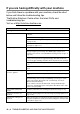
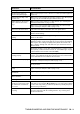
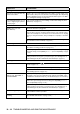
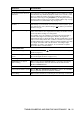

Table Of Contents
- USER’S GUIDE FAX-1840C/MFC-3240C
- APPROVAL INFORMATION
- Compilation and Publication Notice
- Safety precautions
- Choosing a location
- Quick Reference Guide
- Table of Contents
- 1 Introduction
- 2 Getting started
- 3 Setup Send
- How to enter Fax mode
- How to dial
- How to Fax (B&W and Colour)
- Basic sending operations
- Advanced sending operations
- Broadcasting (Not available for colour faxes)
- Overseas Mode
- Delayed Fax (Not available for colour faxes)
- Delayed Batch Transmission (Not available for colour faxes)
- Setup for Polled Transmit (Standard) (Not available for colour faxes)
- Setup for Polled Transmit with Secure Code (Not available for colour faxes)
- TX Lock (Key Lock for some countries)
- 4 Setup Receive
- Basic receiving operations
- Choosing the Receive Mode
- Setting the Ring Delay
- Setting the F/T Ring Time (Fax/Tel mode only)
- Fax Detect (MFC-3240C only)
- Fax Detect (FAX-1840C only)
- Printing a reduced incoming fax (Auto Reduction)
- Receiving a fax at the end of a conversation
- Printing a fax from the memory
- Reception into memory (Not available for colour fax reception)
- Polling
- Basic receiving operations
- 5 Quick-Dial numbers and dialling options
- 6 Remote Fax Options (Not available for colour faxes)
- 7 Printing reports
- 8 Making copies
- 9 Important information
- 10 Troubleshooting and routine maintenance
- Appendix A
- Telephone Service for Australia
- Telephone Service for New Zealand
- Telephone Service for Some Countries
- Advanced receiving operations
- Connecting an external device to your machine
- Appendix B
- Glossary
- Specifications
- Index
- Remote Retrieval Access card
- brother ARL/ASA/NZ

10 - 10 TROUBLESHOOTING AND ROUTINE MAINTENANCE
Printing Received Faxes (Continued)
Received colour fax prints only
in black and white.
Replace the colour ink cartridges that are empty or nearly empty, and
then ask the other person to send the colour fax again. (See Replacing
the ink cartridges on page 10-23.) Check that Fax Storage is set to OFF.
(See
Setting Fax Storage
on page 6-2.)
Left and Right margins are cut
off or a single page is printed
on two pages.
Turn on Auto Reduction. (See
Printing a reduced incoming fax (Auto
Reduction) on page 4-6.)
Phone Line or Connections
Dialling does not work.
(No dial tone)
Check the machine is plugged in.
Check for a dial tone. If possible, call your machine to hear it answer. If
there is still no answer, check the telephone line cord connection and
make sure all telephone connections are secured. If there is no ringing
when you call your machine, ask your telephone company to check the
line.
Change Tone/Pulse setting. (See Setting Tone or Pulse dialling mode
(Not available in New Zealand)
on page 2-1.)
Receiving Faxes
Cannot receive a fax Make sure the machine is in the correct receiving mode for your setup.
(See Basic receiving operations on page 4-1.)
If you frequently encounter interference on the phone line, try changing
the menu setting of Compatibility to Basic. (See Compatibility on page
10-12.)
If you connect your machine to PBX, PABX or ADSL, set the menu
setting of Phone Line Type to your phone type. (See
Setting Tone or
Pulse dialling mode (Not available in New Zealand) on page 2-1.)
Sending Faxes
Cannot send a fax Make sure that the Fax key is illuminated. (See
How to enter Fax
mode on page 3-1.)
Ask the other party to check that receiving machine has paper.
Print the Transmission Verification Report and check for an error.
(See
Printing reports
on page 7-3.)
Transmission Verification
Report says ‘Result:NG’ or
‘Result:ERROR’.
There is probably temporary noise or static on the line. Try sending the
fax again. If you send a PC FAX message and get ‘Result:NG’ on the
Transmission Verification Report, your machine may be out of memory.
If you frequently get transmission error with possible interference on the
phone line, try to change the menu setting of Compatibility to Basic.
(See Compatibility on page 10-12.)
If you connect your machine to PBX, PABX or ADSL, set the menu
setting of Phone Line Type to your phone type. (See Setting Tone or
Pulse dialling mode (Not available in New Zealand) on page 2-1.)
Poor sending quality. Try changing your resolution to Fine or S.Fine. Make a copy to check
your machine’s scanner operation.
Vertical black lines when
sending.
If the copy you made shows the same problem, your scanner is dirty.
(See Routine maintenance on page 10-21.)
DIFFICULTY SUGGESTIONS