
Multi-Function Printer User's Guide


19
3
3
Power Save mode 3
To maintain print quality, prolong print head
life, and provide the best ink cartridge
economy, you should keep your machine
connected to the power at all times.
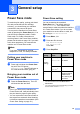
You can put the machine into Power Save
mode by pressing the Power Save key. You
can still receive telephone calls in Power
Save mode. For further information on
receiving faxes in the Power Save condition,
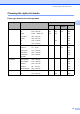
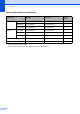
please see the table on page 19. If you want
to do other operations, you must take the
machine out of Power Save mode.
Note
If you have connected an external
telephone or TAD, it is always available.
Putting your machine in
Power Save mode 3
a Press and hold down the Power Save
key until The LCD shows
Shutting Down. The LCD will stay on
for a few seconds before going off.
Bringing your machine out of
Power Save mode 3
a Press the Power Save key. The LCD
will show the date and time.
Note
• Even if you have put the machine into
Power Save mode, it will periodically clean
the print head to preserve print quality.
• You can customize Power Save mode so
that, apart from automatic head cleaning,
no machine operations are available. (See
Power Save setting on page 19.)
Power Save setting 3
You can customize the machine's
Power Save key. The default setting is
Fax Receive:On. Your machine can
receive faxes or calls even when the machine
is in Power Save mode. If you do not want
your machine to receive faxes or calls, turn
this setting to Fax Receive:Off.
a Press Menu, 1, 6.
b Press a or b to choose
Fax Receive:On, or
Fax Receive:Off.
Press OK.
c Press Stop/Exit.
1
You cannot receive a fax with Mono Start or
Colour Start.
2
You cannot receive a fax automatically if you have
set the receive mode to Fax/Tel.
General setup 3
On/Off
setting
Receive
mode
Available
operations
Fax Receive:
On
1
(factory
setting)
Fax Only
External TAD
Fax Receive
Fax Detect
Manual
Fax/Tel
2
Fax Detect
Fax Receive:
Off
— No machine
operations will be
available other
than cleaning the
print head.