
Software User's Guide
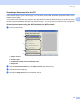
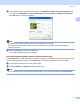
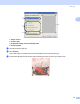
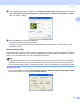
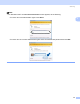
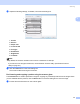
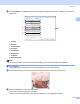
Table Of Contents
- SOFTWARE USER’S GUIDE
- Table of Contents
- Windows®
- 1 Printing
- Using the Brother printer driver
- Features
- Choosing the right type of paper
- Simultaneous printing, scanning and faxing
- Clearing data from the memory
- Status Monitor
- Printer driver settings
- Accessing the printer driver settings
- Basic tab
- Advanced tab
- Support tab
- Using FaceFilter Studio for photo printing by REALLUSION
- 2 Scanning
- Scanning a document using the TWAIN driver
- Scanning a document using the WIA driver (For Windows® XP/Windows Vista™)
- Scanning a document using the WIA driver (For Windows Vista™ Photo Gallery and Windows Fax and Scan users)
- Using the Scan key (For USB cable users)
- Using ScanSoft™ PaperPort™ 11SE with OCR by NUANCE™
- 3 ControlCenter3
- 4 Network Scanning (For models with built-in network support)
- 5 Remote Setup (Not available for DCP models and MFC-230C)
- 6 Brother PC-FAX Software (MFC models only)
- 7 PhotoCapture Center®
- 8 Firewall settings (For Network users)
- 1 Printing
- Apple® Macintosh®
- 9 Printing and Faxing
- 10 Scanning
- 11 ControlCenter2
- 12 Network Scanning (For models with built-in network support)
- 13 Remote Setup & PhotoCapture Center®
- Index
- brother USA

Scanning
42
2
b Adjust the following settings, if needed, in the Scanner dialog box.
1 Profile
2 Source
3 Paper size
4 Color format
5Filetype
6 Resolution
7 Brightness
8 Contrast
Note
By default, the scanner resolution can be set to a maximum of 1200 dpi.
If you want to scan at higher resolutions, use the Brother Scanner Utility. (See Brother Scanner
Utility on page 39.)
c Click the Scan button in the Scan dialog box.
The machine starts scanning the document.
Pre-Scanning and cropping a portion using the scanner glass 2
The Preview button is used to preview an image for cropping any unwanted portions from the image. When
you are satisfied with the preview, click the Scan button in the Scan dialog box to scan the image.
a Put the document face down on the scanner glass.
1
2
3
4
5
6
7
8