
Software User's Guide
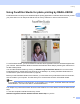
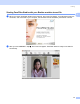
Table Of Contents
- SOFTWARE USER’S GUIDE
- Table of Contents
- Windows®
- 1 Printing
- Using the Brother printer driver
- Features
- Choosing the right type of paper
- Simultaneous printing, scanning and faxing
- Clearing data from the memory
- Status Monitor
- Printer driver settings
- Accessing the printer driver settings
- Basic tab
- Advanced tab
- Support tab
- Using FaceFilter Studio for photo printing by REALLUSION
- 2 Scanning
- Scanning a document using the TWAIN driver
- Scanning a document using the WIA driver (For Windows® XP/Windows Vista™)
- Scanning a document using the WIA driver (For Windows Vista™ Photo Gallery and Windows Fax and Scan users)
- Using the Scan key (For USB cable users)
- Using ScanSoft™ PaperPort™ 11SE with OCR by NUANCE™
- 3 ControlCenter3
- 4 Network Scanning (For models with built-in network support)
- 5 Remote Setup (Not available for DCP models and MFC-230C)
- 6 Brother PC-FAX Software (MFC models only)
- 7 PhotoCapture Center®
- 8 Firewall settings (For Network users)
- 1 Printing
- Apple® Macintosh®
- 9 Printing and Faxing
- 10 Scanning
- 11 ControlCenter2
- 12 Network Scanning (For models with built-in network support)
- 13 Remote Setup & PhotoCapture Center®
- Index
- brother USA

Printing
21
1
Using FaceFilter Studio for photo printing by REALLUSION 1
FaceFilter Studio is an easy-to-use borderless photo printing application. FaceFilter Studio also lets you edit
your photo data. You can add photo effects such as red eye reduction or skin tone enhancement.
To use FaceFilter Studio, you must install the FaceFilter Studio application from the CD-ROM supplied with
your machine. Install FaceFilter Studio and download FaceFilter Studio Help by following the instructions in
the Quick Setup Guide.
You can start FaceFilter Studio by clicking on Start/All Program/FaceFilter Studio.You can also access
FaceFilter Studio by double-clicking the shortcut on the desktop or by clicking FaceFilter Studio button in
ControlCenter3. (See PHOTOCAPTURE on page 68).
Before you start FaceFilter Studio for the first time, you must make sure your Brother machine is turned On,
and connected to your computer. This will allow you to access all the functions of FaceFilter Studio.
Note
If your Brother machine is not turned On, or connected to your computer, FaceFilter Studio will start with
limited features. You will not be able to use the Print function.
This chapter only introduces the basic functions of the software. For more details, see the FaceFilter Studio
Help.
To view the complete FaceFilter Studio Help, choose
Start/All Programs/FaceFilter Studio/FaceFilter Studio Help on your PC.