
Software User's Guide
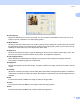
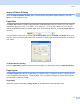
Table Of Contents
- SOFTWARE USER’S GUIDE
- Table of Contents
- Windows®
- 1 Printing
- Using the Brother printer driver
- Features
- Choosing the right type of paper
- Simultaneous printing, scanning and faxing
- Clearing data from the memory
- Status Monitor
- Printer driver settings
- Accessing the printer driver settings
- Basic tab
- Advanced tab
- Support tab
- Using FaceFilter Studio for photo printing by REALLUSION
- 2 Scanning
- Scanning a document using the TWAIN driver
- Scanning a document using the WIA driver (For Windows® XP/Windows Vista™)
- Scanning a document using the WIA driver (For Windows Vista™ Photo Gallery and Windows Fax and Scan users)
- Using the Scan key (For USB cable users)
- Using ScanSoft™ PaperPort™ 11SE with OCR by NUANCE™
- 3 ControlCenter3
- 4 Network Scanning (For models with built-in network support)
- 5 Remote Setup (Not available for DCP models and MFC-230C)
- 6 Brother PC-FAX Software (MFC models only)
- 7 PhotoCapture Center®
- 8 Firewall settings (For Network users)
- 1 Printing
- Apple® Macintosh®
- 9 Printing and Faxing
- 10 Scanning
- 11 ControlCenter2
- 12 Network Scanning (For models with built-in network support)
- 13 Remote Setup & PhotoCapture Center®
- Index
- brother USA

Printing
9
1
Color Density
Adjusts the total amount of color in the image. You can increase or decrease the amount of color in an
image to improve a washed out or weak looking picture.
White Balance
Adjusts the hue of the white areas of an image. Lighting, camera settings and other influences will effect
the appearance of white. The white areas of a picture may be slightly pink, yellow or some other color. By
adjusting the white balance you can adjust those white areas.
Sharpness
Enhances the detail of an image, similar to adjusting the fine focus on a camera. If the image is not in true
focus and you cannot see the fine details of the picture, then adjust the sharpness.
Auto Image Enhance
Allows alteration of individual picture settings to improve the printed image and analyzes data from
surrounding or neighboring pixels in the document.
Brightness
Adjusts the brightness of the whole image. To lighten or darken the image, move the scroll bar to the left
or right.
Contrast
Adjusts the contrast of an image. This will make darker areas darker and lighter areas lighter. Increase the
contrast when you want an image to be clearer. Decrease the contrast when you want an image to be more
subdued.
Red
Increases the intensity of Red in the image to make the image redder.
Green
Increases the intensity of Green in the image to make the image greener.
Blue
Increases the intensity of Blue in the image to make the image bluer.