
Software User's Guide
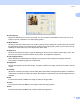
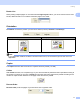
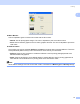
Table Of Contents
- SOFTWARE USER’S GUIDE
- Table of Contents
- Windows®
- 1 Printing
- Using the Brother printer driver
- Features
- Choosing the right type of paper
- Simultaneous printing, scanning and faxing
- Clearing data from the memory
- Status Monitor
- Printer driver settings
- Accessing the printer driver settings
- Basic tab
- Advanced tab
- Support tab
- Using FaceFilter Studio for photo printing by REALLUSION
- 2 Scanning
- Scanning a document using the TWAIN driver
- Scanning a document using the WIA driver (For Windows® XP/Windows Vista™)
- Scanning a document using the WIA driver (For Windows Vista™ Photo Gallery and Windows Fax and Scan users)
- Using the Scan key (For USB cable users)
- Using ScanSoft™ PaperPort™ 11SE with OCR by NUANCE™
- 3 ControlCenter3
- 4 Network Scanning (For models with built-in network support)
- 5 Remote Setup (Not available for DCP models and MFC-230C)
- 6 Brother PC-FAX Software (MFC models only)
- 7 PhotoCapture Center®
- 8 Firewall settings (For Network users)
- 1 Printing
- Apple® Macintosh®
- 9 Printing and Faxing
- 10 Scanning
- 11 ControlCenter2
- 12 Network Scanning (For models with built-in network support)
- 13 Remote Setup & PhotoCapture Center®
- Index
- brother USA

Printing
6
1
Basic tab 1
a Choose your setting for Slow Drying Paper, Media Type and Quality (1).
Note
Check Slow Drying Paper when printing with plain paper on which ink dries slowly. This setting may
cause some slight blurring of text.
b Choose Paper Size, Page Layout, Page Order, Borderless, Border Line (if any), Orientation,
number of Copies and the page order (2).
c Click OK (3) to apply your chosen settings.
To return to the default settings, click Default (4), then OK (3).
Note
This area (5) shows the current settings of Quality, Paper Size, Page Layout, Page Order, Orientation,
Collate/Reverse Order and Color/Grayscale.
Media Type 1
To achieve the best print results, the media being printed on should be selected in the driver. The machine
changes the way it prints depending on the selected media type.
Plain Paper
Inkjet Paper
Brother Premium Glossy Photo Paper
Other Photo Paper
Transparencies
1
5
2
4
3