
User Manual


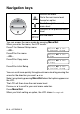
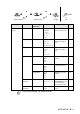
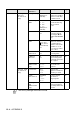

Table Of Contents
- USER’S GUIDE MFC-210C/MFC-410CN
- APPROVAL INFORMATION
- Compilation and Publication Notice
- Safety precautions
- Choosing a location
- Quick Reference Guide
- Table of Contents
- 1 Introduction
- 2 Getting started
- 3 Setup Send
- How to enter Fax mode
- How to dial
- How to Fax (B&W and Colour)
- Basic sending operations
- Advanced sending operations
- Broadcasting (Not available for colour faxes)
- Overseas Mode
- Delayed Fax (Not available for colour faxes) (MFC-410CN only)
- Delayed Batch Transmission (Not available for colour faxes) (MFC-410CN only)
- Setup for Polled Transmit (Standard) (Not available for colour faxes) (MFC-410CN only)
- Setup for Polled Transmit with Secure Code (Not available for colour faxes) (MFC-410CN only)
- TX Lock (Key Lock for some countries)
- Faxing letter size documents from the scanner glass
- 4 Setup Receive
- Basic receiving operations
- 5 Quick-Dial numbers and dialling options
- 6 Remote Fax Options (MFC-410CN only) (Not available for colour faxes)
- 7 Printing reports
- 8 Making copies
- 9 Walk-Up PhotoCapture Center™
- 10 Important information
- 11 Troubleshooting and routine maintenance
- Appendix A
- Telephone Service for Australia
- Telephone Service for New Zealand
- Telephone Service for Some Countries
- Advanced receiving operations
- Connecting an external device to your MFC
- Appendix B
- Glossary
- Specifications
- Index
- Remote Retrieval Access card (MFC-410CN only)
- brother ARL/ASA/NZ

B - 2 APPENDIX B
Navigation keys
You can access the menu mode by pressing
Menu/Set
.
When you enter the menu, the LCD scrolls.
Press
1
for General Setup menu
—OR—
Press
2
for Fax menu
—OR—
Press
3
for Copy menu
Press
0
for Initial Setup
You can scroll more quickly through each menu level by pressing the
arrow for the direction you want:
▲
or
▼
.
Select an option by pressing
Menu/Set
when that option appears on
the LCD.
The LCD will then show the next menu level.
Press
▲
or
▼
to scroll to your next menu selection.
Press
Menu/Set
.
When you finish setting an option, the LCD shows
Accepted
.
Access the menu
Go to the next menu level
Accept an option
Scroll through the current
menu level
Go back to the previous menu
level
Exit the menu
Select
▲▼
& Set
1.General Setup
Select
▲▼
& Set
2.Fax
Select
▲▼
& Set
3.Copy
....
Select
▲▼
& Set
0.Initial Setup