
User Manual
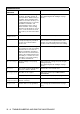
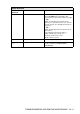
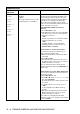
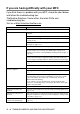
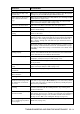


Table Of Contents
- USER’S GUIDE MFC-210C/MFC-410CN
- APPROVAL INFORMATION
- Compilation and Publication Notice
- Safety precautions
- Choosing a location
- Quick Reference Guide
- Table of Contents
- 1 Introduction
- 2 Getting started
- 3 Setup Send
- How to enter Fax mode
- How to dial
- How to Fax (B&W and Colour)
- Basic sending operations
- Advanced sending operations
- Broadcasting (Not available for colour faxes)
- Overseas Mode
- Delayed Fax (Not available for colour faxes) (MFC-410CN only)
- Delayed Batch Transmission (Not available for colour faxes) (MFC-410CN only)
- Setup for Polled Transmit (Standard) (Not available for colour faxes) (MFC-410CN only)
- Setup for Polled Transmit with Secure Code (Not available for colour faxes) (MFC-410CN only)
- TX Lock (Key Lock for some countries)
- Faxing letter size documents from the scanner glass
- 4 Setup Receive
- Basic receiving operations
- 5 Quick-Dial numbers and dialling options
- 6 Remote Fax Options (MFC-410CN only) (Not available for colour faxes)
- 7 Printing reports
- 8 Making copies
- 9 Walk-Up PhotoCapture Center™
- 10 Important information
- 11 Troubleshooting and routine maintenance
- Appendix A
- Telephone Service for Australia
- Telephone Service for New Zealand
- Telephone Service for Some Countries
- Advanced receiving operations
- Connecting an external device to your MFC
- Appendix B
- Glossary
- Specifications
- Index
- Remote Retrieval Access card (MFC-410CN only)
- brother ARL/ASA/NZ

11 - 8 TROUBLESHOOTING AND ROUTINE MAINTENANCE
If you are having difficulty with your MFC
If you think there is a problem with your MFC, check the chart below
and follow the troubleshooting tips.
The Brother Solutions Center offers the latest FAQs and
troubleshooting tips.
Visit us at http://solutions.brother.com
.
DIFFICULTY SUGGESTIONS
Printing
No printout Check the interface cable connection on both the MFC and your
computer.
Check the MFC is plugged in and not in the Power Save condition.
One or more ink cartridges are empty. (See Replacing the ink cartridges
on page 11-24.)
Check to see if the LCD is showing an error message. (See
Error
messages on page 11-1.)
Poor quality print. Check the print quality. (See
Checking the print quality
on page 11-15.)
Make sure the Printer Driver or Paper Type setting in the menu matches
the type of paper you are using. (See Media Type on page 1-8 in
Software User’s Guide on the CD-ROM and Setting the Paper Type on
page 2-4.)
Make sure your ink cartridges are fresh. Cartridges remain fresh for up
to two years if kept in their original packaging, after that the ink may
become clogged. Cartridge expiration dates are printed on the package.
Try using the recommended types of paper. (See
About paper
on page
1-7.)
The recommended environment for your MFC is between 20°C to 33°C.
White horizontal lines appear
in text or graphics.
Clean the print head. (See Cleaning the print head on page 11-14.)
Try using the recommended types of paper. (See
About paper
on page
1-7.)
If horizontal bands appear when using plain paper, use the 'Enhanced
Normal Printing' mode to help avoid banding on some types of plain
paper. In the printer driver 'Basic' tab, click 'Settings', and check
'Enhanced Normal Printing'.
If you continue to have horizontal bands, change the Media Type
selection to 'Slow Drying Paper' in the printer driver 'Basic' tab to help
enhance the print quality.
The MFC prints blank pages. Clean the print heads. (See Cleaning the print head on page 11-14.)
Characters and lines are
stacked.
Check the printing alignment. (See Checking the printing alignment on
page 11-17.)
Printed text or images are
skewed.
Make sure the paper is loaded properly in the paper tray and the paper
side guide is adjusted correctly. (See How to load paper, envelopes and
post cards on page 1-12.)
Smudged stain at the top
center of the printed page.
Make sure the paper is not too thick or not curled. (See About paper on
page 1-7.)