
User Manual
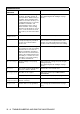
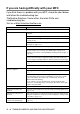
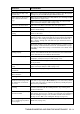


Table Of Contents
- USER’S GUIDE MFC-210C/MFC-410CN
- APPROVAL INFORMATION
- Compilation and Publication Notice
- Safety precautions
- Choosing a location
- Quick Reference Guide
- Table of Contents
- 1 Introduction
- 2 Getting started
- 3 Setup Send
- How to enter Fax mode
- How to dial
- How to Fax (B&W and Colour)
- Basic sending operations
- Advanced sending operations
- Broadcasting (Not available for colour faxes)
- Overseas Mode
- Delayed Fax (Not available for colour faxes) (MFC-410CN only)
- Delayed Batch Transmission (Not available for colour faxes) (MFC-410CN only)
- Setup for Polled Transmit (Standard) (Not available for colour faxes) (MFC-410CN only)
- Setup for Polled Transmit with Secure Code (Not available for colour faxes) (MFC-410CN only)
- TX Lock (Key Lock for some countries)
- Faxing letter size documents from the scanner glass
- 4 Setup Receive
- Basic receiving operations
- 5 Quick-Dial numbers and dialling options
- 6 Remote Fax Options (MFC-410CN only) (Not available for colour faxes)
- 7 Printing reports
- 8 Making copies
- 9 Walk-Up PhotoCapture Center™
- 10 Important information
- 11 Troubleshooting and routine maintenance
- Appendix A
- Telephone Service for Australia
- Telephone Service for New Zealand
- Telephone Service for Some Countries
- Advanced receiving operations
- Connecting an external device to your MFC
- Appendix B
- Glossary
- Specifications
- Index
- Remote Retrieval Access card (MFC-410CN only)
- brother ARL/ASA/NZ

11 - 2 TROUBLESHOOTING AND ROUTINE MAINTENANCE
Ink Empty One or more of the ink cartridges
is empty. The MFC will stop all
print operations. While memory is
available, black and white faxes
will be received into memory. If a
sending machine has a colour fax,
the MFC’s ‘handshake’ will
request that the fax be sent as
black and white. If the sending
machine has the ability to convert
it, the colour fax will be received
into memory as a black and white
fax.
Replace the ink cartridges.
(See Replacing the ink cartridges on page
11-24.)
Low
Temperature
The print head is too cold. Allow the MFC to warm up.
Media Error The media card is either
corrupted, Improperly formatted,
or there is a problem with the
media card.
Re-insert the card firmly into the slot to make
sure it is in the correct position. If the error
remains, check the media drive by inserting
another media card that you know is working.
Near Empty One or more of the ink cartridges
are running out of ink. If a sending
machine has a colour fax, the
MFC’s ‘handshake’ will request
that the fax be sent as black and
white. If the sending machine has
the ability to convert it, the colour
fax will be received into memory
as a black and white fax.
Order a new ink cartridge.
No Cartridge An ink cartridge is not properly
installed.
Take out the ink cartridge and put it in again
seating it properly.
(See Replacing the ink cartridges on page
11-24.)
No File The media card in the media drive
does not contain a .JPG file.
Reinsert the correct media card.
No Paper Fed The MFC is out of paper. Add paper, and then press Mono Start or
Colour Start.
The paper is jammed in the MFC. See
Printer jam or paper jam
on page 11-5.
No
Response/Busy
The number you dialled does not
answer or is busy.
Verify the number and try again.
Not
Registered
You tried to access a Speed Dial
number that is not programmed.
Set up the Speed Dial number.
(See Storing Speed-Dial numbers on page
5-1.)
ERROR MESSAGES
ERROR
MESSAGE
CAUSE ACTION