
User Manual

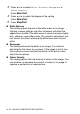


Table Of Contents
- USER’S GUIDE MFC-210C/MFC-410CN
- APPROVAL INFORMATION
- Compilation and Publication Notice
- Safety precautions
- Choosing a location
- Quick Reference Guide
- Table of Contents
- 1 Introduction
- 2 Getting started
- 3 Setup Send
- How to enter Fax mode
- How to dial
- How to Fax (B&W and Colour)
- Basic sending operations
- Advanced sending operations
- Broadcasting (Not available for colour faxes)
- Overseas Mode
- Delayed Fax (Not available for colour faxes) (MFC-410CN only)
- Delayed Batch Transmission (Not available for colour faxes) (MFC-410CN only)
- Setup for Polled Transmit (Standard) (Not available for colour faxes) (MFC-410CN only)
- Setup for Polled Transmit with Secure Code (Not available for colour faxes) (MFC-410CN only)
- TX Lock (Key Lock for some countries)
- Faxing letter size documents from the scanner glass
- 4 Setup Receive
- Basic receiving operations
- 5 Quick-Dial numbers and dialling options
- 6 Remote Fax Options (MFC-410CN only) (Not available for colour faxes)
- 7 Printing reports
- 8 Making copies
- 9 Walk-Up PhotoCapture Center™
- 10 Important information
- 11 Troubleshooting and routine maintenance
- Appendix A
- Telephone Service for Australia
- Telephone Service for New Zealand
- Telephone Service for Some Countries
- Advanced receiving operations
- Connecting an external device to your MFC
- Appendix B
- Glossary
- Specifications
- Index
- Remote Retrieval Access card (MFC-410CN only)
- brother ARL/ASA/NZ
9 - 11 WALK-UP PHOTOCAPTURE CENTER
™
3
Press
▲
or
▼
to select
White Balance
,
Sharpness
or
Color Density
.
Press
Menu/Set
.
4
Press
▲
or
▼
to adjust the degree of the setting.
Press
Menu/Set
.
5
Press
Stop/Exit
.
■
White Balance
This setting adjusts the hue of the white areas of an image.
Lighting, camera settings and other influences will effect the
appearance of white. The white areas of a picture may be slightly
pink, yellow or some other colour. By using this adjustment you
can correct this effect and bring the white areas back to pure
white.
■
Sharpness
This setting enhances the detail of an image. It is similar to
adjusting the fine focus on a camera. If the image is not in true
focus and you cannot see the fine details of the picture, then
adjust the sharpness.
■
Colour Density
This setting adjusts the total amount of colour in the image. You
can increase or decrease the amount of colour in an image to
improve a washed out or weak picture.