
Quick Start Manual


Table Of Contents
- YL4MFC_US.PDF
- Front Cover
- Inside Front Cover
- Brother Numbers
- Ordering Accessories and Supplies
- Quick Reference Guide
- How to Access the Complete Owner's Manual (For MFC-4800 Only)
- How to Access Brother Support (For MFC-4800 Only) (For Windows® Only)
- Download the Printer Driver from the Brother Web Site (For FAX-2900 and FAX-3800 Only)
- Table of Contents
- 1.Introduction
- 2.Assembly and Connections
- Packing List
- Choosing a Location
- Assembly
- Installing the Drum Unit Assembly (with Toner Cartridge)
- Setting Up the FAX/MFC
- Loading Paper
- Acceptable Paper
- Paper Capacity of Multi-purpose Sheet Feeder
- Connecting an External Telephone
- Connecting an External Telephone Answering Device (TAD)
- Special Line Considerations
- Multi-Line Connections (PBX)
- Custom Features on Your Phone Line
- 3.On-Screen Programming
- 4.Initial Setup
- Getting Started
- Setting the Paper Size
- Setting the Date and Time
- Setting the Station ID
- Setting the Ring Volume
- Setting the Beeper Volume
- Setting the Speaker Volume
- Setting the Handset Volume
- Choosing the Handset Volume (For Volume Amplify)
- Setting Volume Amplify
- Memory Storage
- Turning On Automatic Daylight Savings Time
- Toner Save
- Sleep Mode
- Setting Tone/Pulse Dialing Mode (For Canada Only)
- Getting Started
- 5.Setup Receive
- 6.Setup Send
- 7.Auto Dial Numbers and Dialing Options
- 8.Telephone Services
- 9.Remote Fax Options
- 10.Printing Reports
- 11.Making Copies
- 12.Important Information
- 13.Troubleshooting and Routine Maintenance
- Glossary
- Specifications
- Index
- Remote Retrieval Access Card
- Rear Cover
1 - 5
INTRODUCTION
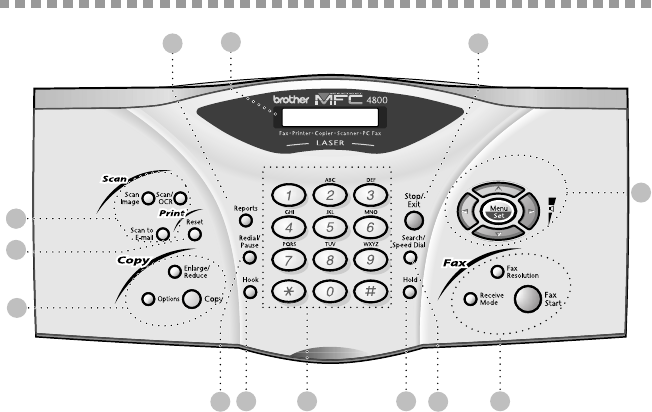
MFC-4800 Control Panel Overview
1Liquid Crystal Display (LCD)
The LCD displays messages to help you
set up and operate your MFC.
2Reports
Accesses the Reports menu so you can
select a report to print: Help List, Auto
Dial, Fax Activity, Transmission
Verification and User Settings.
3Scan Keys:
Scan Image
Press this key to scan a picture or image
into your graphics application for
viewing and editing.
Scan/OCR
Press this key to start scanning a text
document. ScanSoft™ TextBridge
®
will convert it to editable text and
display it in your word processor
application for further editing.
Scan to E-mail
Press this key to start scanning an
original into your E-mail application,
setting it up automatically as an
attachment.
4Print Key:
Reset
Clears data from the printer memory.
5Copy Keys:
Enlarge/Reduce
Lets you reduce or enlarge copies
depending upon the ratio you select.
Options
You can quickly and easily select
temporary settings (for the next copy
only).
Copy
Makes a copy.
6Redial/Pause
Redials the last number called. Also
inserts a pause in auto dial numbers.
7Hook
Lets you dial telephone and fax numbers
without lifting the handset.
33
4
5
1
2 13
6 10
7 9 118
12