
Quick Start Manual


Table Of Contents
- YL4MFC_US.PDF
- Front Cover
- Inside Front Cover
- Brother Numbers
- Ordering Accessories and Supplies
- Quick Reference Guide
- How to Access the Complete Owner's Manual (For MFC-4800 Only)
- How to Access Brother Support (For MFC-4800 Only) (For Windows® Only)
- Download the Printer Driver from the Brother Web Site (For FAX-2900 and FAX-3800 Only)
- Table of Contents
- 1.Introduction
- 2.Assembly and Connections
- Packing List
- Choosing a Location
- Assembly
- Installing the Drum Unit Assembly (with Toner Cartridge)
- Setting Up the FAX/MFC
- Loading Paper
- Acceptable Paper
- Paper Capacity of Multi-purpose Sheet Feeder
- Connecting an External Telephone
- Connecting an External Telephone Answering Device (TAD)
- Special Line Considerations
- Multi-Line Connections (PBX)
- Custom Features on Your Phone Line
- 3.On-Screen Programming
- 4.Initial Setup
- Getting Started
- Setting the Paper Size
- Setting the Date and Time
- Setting the Station ID
- Setting the Ring Volume
- Setting the Beeper Volume
- Setting the Speaker Volume
- Setting the Handset Volume
- Choosing the Handset Volume (For Volume Amplify)
- Setting Volume Amplify
- Memory Storage
- Turning On Automatic Daylight Savings Time
- Toner Save
- Sleep Mode
- Setting Tone/Pulse Dialing Mode (For Canada Only)
- Getting Started
- 5.Setup Receive
- 6.Setup Send
- 7.Auto Dial Numbers and Dialing Options
- 8.Telephone Services
- 9.Remote Fax Options
- 10.Printing Reports
- 11.Making Copies
- 12.Important Information
- 13.Troubleshooting and Routine Maintenance
- Glossary
- Specifications
- Index
- Remote Retrieval Access Card
- Rear Cover
13 - 16
TROUBLESHOOTING AND ROUTINE MAINTENANCE
Routine Maintenance
You can keep your FAX/MFC in optimum condition by cleaning it on a regular
basis. It is a good idea to clean the drum unit during this routine. Avoid using
thinners or other organic solvents to clean the FAX/MFC and do not use water.
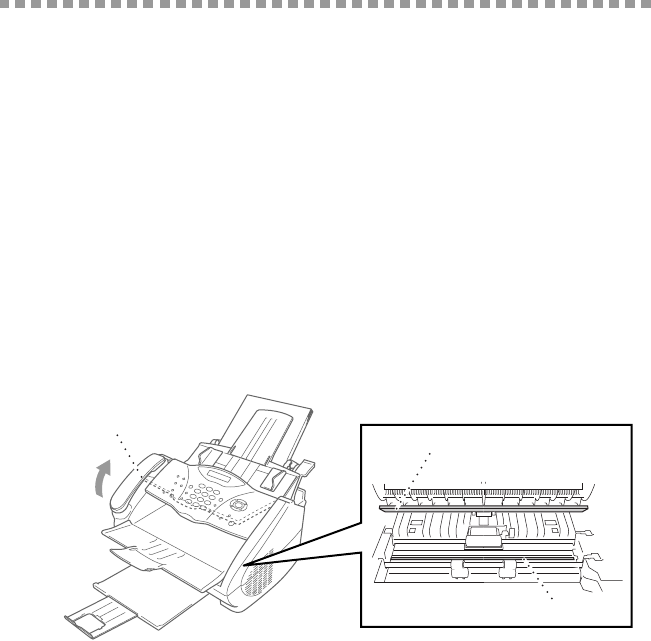
Cleaning the Document Scanner
1
Unplug the telephone line, and then unplug the power cord.
When you reconnect these lines later, connect the power cord before you
connect the telephone line.
2
Open the document tray, and then the Control Panel.
3
Wipe dirt off the FAX/MFC using a slightly damp clean cloth.
4
Clean the white bar and the glass cover.
Moisten a small piece of clean soft, lint-free cloth with isopropyl alcohol and
carefully remove dirt from the glass cover and the white bar of the scanner.
Control Panel
Left the Control
Panel Cover
White Bar
Glass Cover