
Network Card User's Manual
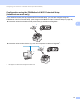


Table Of Contents
- NETWORK USER’S GUIDE MFC-9125CN MFC-9325CW
- Table of Contents
- 1 Introduction
- 2 Configuring your machine for a network
- Overview
- IP addresses, subnet masks and gateways
- Step by step chart
- Setting the IP address and subnet mask
- Changing the print server settings
- Using the BRAdmin Light utility to change the print server settings
- Using the BRAdmin Professional 3 utility to change print server settings (Windows®)
- Using the control panel to change the print server settings
- Using Web Based Management (web browser) to change the print/scan server settings
- Using Remote Setup to change the print server settings (Not available for Windows Server® 2003/2008)
- Using other methods to change print server settings
- 3 Configuring your machine for a wireless network (For MFC-9325CW)
- Overview
- Wireless network terms and concepts
- Step by step chart for wireless network configuration
- Confirm your network environment
- Confirm your wireless network setup method
- Configuration using the Brother installer application on the CD-ROM to configure your wireless network machine (Recommended)
- Configuration using the WPS or AOSS control panel menu (Automatic Wireless mode) (Infrastructure mode only)
- Configuration using the machine’s control panel Setup Wizard to configure your machine for a wireless network
- Configuration using the PIN Method of Wi-Fi Protected Setup (Infrastructure mode only)
- Configure your machine for a wireless network
- Using the Brother installer application on the CD-ROM to configure your machine for a wireless network
- Using the WPS or AOSS control panel menu to configure your machine for a wireless network (Automatic Wireless mode)
- Using the Setup Wizard from the control panel
- Using the PIN Method of Wi-Fi Protected Setup
- 4 Wireless configuration for Windows® using the Brother installer application (For MFC-9325CW)
- 5 Wireless configuration for Macintosh using the Brother installer application (MFC-9325CW only)
- 6 Control panel setup
- Network menu
- TCP/IP
- Ethernet (wired network only)
- Setup Wizard (MFC-9325CW wireless network only)
- WPS/AOSS (MFC-9325CW wireless network only)
- WPS w/PIN Code (MFC-9325CW wireless network only)
- WLAN Status (MFC-9325CW wireless network only)
- Set to Default (MFC-9325CW only)
- Wired Enable (MFC-9325CW wired network only)
- WLAN Enable (MFC-9325CW wireless network only)
- E-mail / IFAX (available as a download)
- How to set a new default for Scan to E-mail (E-mail server) (available as a download)
- How to set a new default for Scan to FTP
- How to set a new default for Scan to Network
- Fax to Server (available as a download)
- Time Zone
- Restoring the network settings to factory default
- Printing the Network Configuration List
- Network menu
- 7 Driver Deployment Wizard (Windows® only)
- 8 Network printing from Windows®: basic TCP/IP Peer-to-Peer printing
- 9 Internet printing for Windows®
- 10 Network printing from Macintosh using the BR-Script 3 driver
- 11 Web Based Management
- 12 Internet fax and Scan to E-mail (E-mail server)
- Internet fax overview
- Getting connected
- Control panel key functions
- Sending an Internet fax
- Manually entering text
- Receiving E-mail or Internet fax
- Receiving an Internet fax to your computer
- Forwarding received E-mail and fax messages
- Relay broadcasting
- TX Verification Mail
- Setup Mail TX
- Setup Mail RX
- Error mail
- Important information on Internet fax
- Scan to E-mail (E-mail server) overview
- Internet fax overview
- 13 Security features
- Overview
- Configuring the protocol settings
- Managing your network printer securely
- Printing documents securely using IPPS
- Using E-mail notification with user authentication
- Creating and installing a certificate
- 14 Troubleshooting
- Appendix A
- Using services
- Other ways to set the IP address (for advanced users and administrators)
- Using DHCP to configure the IP address
- Using BOOTP to configure the IP address
- Using RARP to configure the IP address
- Using APIPA to configure the IP address
- Using ARP to configure the IP address
- Using the TELNET console to configure the IP address
- Using the Brother Web BRAdmin server software for IIS to configure the IP address
- Installation when using web services (For Windows Vista® and Windows® 7 users)
- Installation when using a Network Print Queue or Share (printer driver only)
- Appendix B
- Index

Configuring your machine for a wireless network (For MFC-9325CW)
38
3
Using the PIN Method of Wi-Fi Protected Setup 3
If your wireless access point/router supports Wi-Fi Protected Setup (PIN Method), you can configure the
machine easily. The PIN (Personal Identification Number) Method is one of the connection methods
developed by the Wi-Fi Alliance. By inputting a PIN which is created by an Enrollee (your machine) to the
Registrar (a device that manages the wireless LAN), you can setup the wireless network and security
settings. See the user’s guide for your wireless access point/router for instructions on how to access the
Wi-Fi Protected Setup mode.
Note
Routers or access points that support Wi-Fi Protected Setup have a symbol as shown below.
a Plug the machine’s power cord into the AC power outlet. Turn on the machine’s power switch.
b Press Menu, 7, 2, 7. Using a or b, choose On and press OK.
Press Stop/Exit.
WLAN Enable
On
c Press Menu, 7, 2, 4 for WPS w/PIN Code.
d The LCD will show an 8 digit PIN and the machine starts searching for an access point for 5 minutes.
Connecting WPS
PIN:XXXXXXXX
e Using a computer that is on the network, type “http://access point’s IP address/” into your
browser. (Where “access point’s IP address” is the IP address of the device that is used as the
Registrar
1
.) Go to the WPS (Wi-Fi Protected Setup) setting page and input the PIN which the LCD
shows in d to the Registrar and follow the on-screen instructions.
1
The Registrar is normally the access point/router.
Note
The setting page is different, depending on the brand of access point/router. See the instruction manual
that came with your access point/router.