
Network Card User's Manual
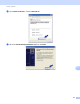
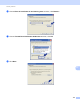

Table Of Contents
- NETWORK USER’S GUIDE MFC-9125CN MFC-9325CW
- Table of Contents
- 1 Introduction
- 2 Configuring your machine for a network
- Overview
- IP addresses, subnet masks and gateways
- Step by step chart
- Setting the IP address and subnet mask
- Changing the print server settings
- Using the BRAdmin Light utility to change the print server settings
- Using the BRAdmin Professional 3 utility to change print server settings (Windows®)
- Using the control panel to change the print server settings
- Using Web Based Management (web browser) to change the print/scan server settings
- Using Remote Setup to change the print server settings (Not available for Windows Server® 2003/2008)
- Using other methods to change print server settings
- 3 Configuring your machine for a wireless network (For MFC-9325CW)
- Overview
- Wireless network terms and concepts
- Step by step chart for wireless network configuration
- Confirm your network environment
- Confirm your wireless network setup method
- Configuration using the Brother installer application on the CD-ROM to configure your wireless network machine (Recommended)
- Configuration using the WPS or AOSS control panel menu (Automatic Wireless mode) (Infrastructure mode only)
- Configuration using the machine’s control panel Setup Wizard to configure your machine for a wireless network
- Configuration using the PIN Method of Wi-Fi Protected Setup (Infrastructure mode only)
- Configure your machine for a wireless network
- Using the Brother installer application on the CD-ROM to configure your machine for a wireless network
- Using the WPS or AOSS control panel menu to configure your machine for a wireless network (Automatic Wireless mode)
- Using the Setup Wizard from the control panel
- Using the PIN Method of Wi-Fi Protected Setup
- 4 Wireless configuration for Windows® using the Brother installer application (For MFC-9325CW)
- 5 Wireless configuration for Macintosh using the Brother installer application (MFC-9325CW only)
- 6 Control panel setup
- Network menu
- TCP/IP
- Ethernet (wired network only)
- Setup Wizard (MFC-9325CW wireless network only)
- WPS/AOSS (MFC-9325CW wireless network only)
- WPS w/PIN Code (MFC-9325CW wireless network only)
- WLAN Status (MFC-9325CW wireless network only)
- Set to Default (MFC-9325CW only)
- Wired Enable (MFC-9325CW wired network only)
- WLAN Enable (MFC-9325CW wireless network only)
- E-mail / IFAX (available as a download)
- How to set a new default for Scan to E-mail (E-mail server) (available as a download)
- How to set a new default for Scan to FTP
- How to set a new default for Scan to Network
- Fax to Server (available as a download)
- Time Zone
- Restoring the network settings to factory default
- Printing the Network Configuration List
- Network menu
- 7 Driver Deployment Wizard (Windows® only)
- 8 Network printing from Windows®: basic TCP/IP Peer-to-Peer printing
- 9 Internet printing for Windows®
- 10 Network printing from Macintosh using the BR-Script 3 driver
- 11 Web Based Management
- 12 Internet fax and Scan to E-mail (E-mail server)
- Internet fax overview
- Getting connected
- Control panel key functions
- Sending an Internet fax
- Manually entering text
- Receiving E-mail or Internet fax
- Receiving an Internet fax to your computer
- Forwarding received E-mail and fax messages
- Relay broadcasting
- TX Verification Mail
- Setup Mail TX
- Setup Mail RX
- Error mail
- Important information on Internet fax
- Scan to E-mail (E-mail server) overview
- Internet fax overview
- 13 Security features
- Overview
- Configuring the protocol settings
- Managing your network printer securely
- Printing documents securely using IPPS
- Using E-mail notification with user authentication
- Creating and installing a certificate
- 14 Troubleshooting
- Appendix A
- Using services
- Other ways to set the IP address (for advanced users and administrators)
- Using DHCP to configure the IP address
- Using BOOTP to configure the IP address
- Using RARP to configure the IP address
- Using APIPA to configure the IP address
- Using ARP to configure the IP address
- Using the TELNET console to configure the IP address
- Using the Brother Web BRAdmin server software for IIS to configure the IP address
- Installation when using web services (For Windows Vista® and Windows® 7 users)
- Installation when using a Network Print Queue or Share (printer driver only)
- Appendix B
- Index

Troubleshooting
137
14
General problems 14
CD-ROM is inserted, but does not start automatically 14
If your computer does not support Autorun, the menu will not start automatically after inserting the CD-ROM.
In this case, execute Start.exe in the root directory of the CD-ROM.
How to reset the Brother print server back to the factory default
14
You can reset the print server back to its factory default settings (resetting all information such as the
password and IP address information). (See Restoring the network settings to factory default on page 71.)
My computer cannot find the machine/print server.
I cannot make a necessary connection to the machine/print server.
My machine/print server does not appear in the window of Remote Setup, BRAdmin Light or
BRAdmin Professional.
14
For Windows
®
The Firewall setting on your computer may be rejecting the necessary network connection to the machine.
In this case, you will need to disable the Firewall on your computer and install the drivers again.
Windows
®
XP SP2 or greater users: 14
a Click the Start button, Control Panel, Network and Internet Connections.
b Click Windows Firewall.
c Click the General tab. Make sure that Off (not recommended) is selected.
d Click OK.
Note
After the Brother software package is installed, enable your Firewall again.